

'%3e%3c/path%3e%3cpath%20d='M18.588%2010.164a23.188%2023.188%200%2001-1.999%204.455c-3.17%205.492-7.795%208.758-10.33%207.294%205.703%203.293%2013.143%201.082%2016.619-4.938a13.392%2013.392%200%20001.037-2.255c.259-.738-.092-1.534-.77-1.925l-4.557-2.63z'%20fill='url(%23lobe-icons-kling-1-_R_0_)'%3e%3c/path%3e%3cpath%20d='M16.59%2014.62c3.17-5.492%203.686-11.13%201.15-12.594C15.207.563%2010.582%203.83%207.41%209.32c2.074-3.59%205.809-5.315%208.344-3.852%202.534%201.464%202.908%205.56.835%209.151z'%20fill='url(%23lobe-icons-kling-2-_R_0_)'%3e%3c/path%3e%3cpath%20d='M7.41%209.32c-3.17%205.492-3.686%2011.13-1.15%2012.593%202.534%201.464%207.159-1.802%2010.33-7.294-2.074%203.591-5.809%205.316-8.344%203.852-2.534-1.463-2.908-5.56-.835-9.15z'%20fill='url(%23lobe-icons-kling-3-_R_0_)'%3e%3c/path%3e%3cdefs%3e%3cradialGradient%20cx='0'%20cy='0'%20gradientTransform='matrix(7.47772%20-12.51022%2017.14368%2010.24728%205.173%2013.637)'%20gradientUnits='userSpaceOnUse'%20id='lobe-icons-kling-0-_R_0_'%20r='1'%3e%3cstop%20offset='.095'%20stop-color='%23FFF959'%3e%3c/stop%3e%3cstop%20offset='.326'%20stop-color='%230DF35E'%3e%3c/stop%3e%3cstop%20offset='.64'%20stop-color='%230BF2F9'%3e%3c/stop%3e%3cstop%20offset='1'%20stop-color='%2304A6F0'%3e%3c/stop%3e%3c/radialGradient%3e%3cradialGradient%20cx='0'%20cy='0'%20gradientTransform='rotate(120.868%206.491%2010.491)%20scale(14.5747%2019.9728)'%20gradientUnits='userSpaceOnUse'%20id='lobe-icons-kling-1-_R_0_'%20r='1'%3e%3cstop%20offset='.095'%20stop-color='%23FFF959'%3e%3c/stop%3e%3cstop%20offset='.326'%20stop-color='%230DF35E'%3e%3c/stop%3e%3cstop%20offset='.64'%20stop-color='%230BF2F9'%3e%3c/stop%3e%3cstop%20offset='1'%20stop-color='%2304A6F0'%3e%3c/stop%3e%3c/radialGradient%3e%3clinearGradient%20gradientUnits='userSpaceOnUse'%20id='lobe-icons-kling-2-_R_0_'%20x1='15.578'%20x2='18.062'%20y1='1.798'%20y2='9.861'%3e%3cstop%20stop-color='%23003EFF'%3e%3c/stop%3e%3cstop%20offset='1'%20stop-color='%230BFFE7'%3e%3c/stop%3e%3c/linearGradient%3e%3clinearGradient%20gradientUnits='userSpaceOnUse'%20id='lobe-icons-kling-3-_R_0_'%20x1='8.422'%20x2='5.938'%20y1='22.142'%20y2='14.079'%3e%3cstop%20stop-color='%23003EFF'%3e%3c/stop%3e%3cstop%20offset='1'%20stop-color='%230BFFE7'%3e%3c/stop%3e%3c/linearGradient%3e%3c/defs%3e%3c/svg%3e) Kling 4.0
Kling 4.0What you will make
A Kling 4.0 clip built from your own stills, clips or frames, at the length you chose.
You need
- 1.An idea for the shot in a sentence or two
- 2.Stills or clips of what has to stay the same, or a few frames made as one set
- 3.Credits for a short test and the final take
1. Pick the tab that fits the job
Kling 4.0 has three tabs over the upload card, and each one steers the take a different way. With nothing attached, it works from the prompt alone.
- 1In the Media Studio, open the Model card, Video tab, and pick Kling 4.0.
- 2Choose References, Frames or Edit video over the upload card.
- 3Follow the step below for the tab you picked.
Up to 10 stills and 5 clips the take should use: a face, a product, a set, a camera move. You call each one in the prompt.
Tip: Frames cannot be mixed with references, elements or voices. If you need both, use References and describe the beats in the prompt.
2. References: attach in the order you will name them
The studio names what you attach by upload order. The first still is @image1, the second @image2, and clips are counted on their own as @video1, @video2.
- 1Attach your stills: up to 10, at least 300 px on each side, no wider than 5:2 or taller than 2:5.
- 2Attach any clips: up to 5, MP4 or MOV, 3 to 30 seconds each and 30 seconds in total.
- 3Give each still one job: one subject, sharp and evenly lit.
Tip: Upload in the order you want to name them. Upload the bicycle first and the bicycle becomes @image1.
3. Write the prompt with @ names
Type @ in the prompt and pick a file from the list. Say who does what with which file, then where, the camera, the look and the sound. This is the prompt behind the clip in the figure.
- 1Use the @ name every time you mean that file, not "the man" halfway through.
- 2Describe the sound too. Kling 4.0 makes it with every take.
- 3Mention only what you attached. A name that matches nothing stops the run before any credits are taken.
PromptThe courier from @image1 rides the bicycle from @image2 down a cobbled old town street in late afternoon sun. Tracking shot from the side, then the camera swings in front as he rings the bell, grins and waves at a cafe table. Warm light, passing shop windows, natural motion blur. Sound of tyres on cobbles, a bright bell ring, distant city chatter.
Tip: A reference clip can lend its movement. Write something like: follow the camera move of @video1.
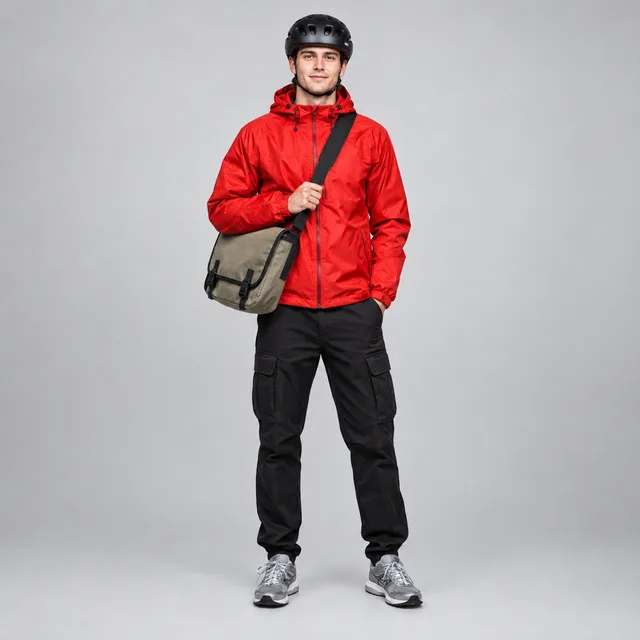 @image1 · courier
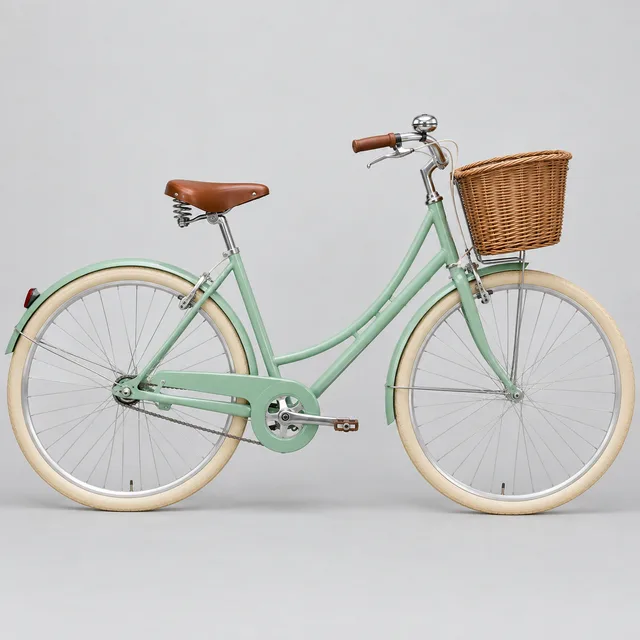 @image2 · bicycleKling 4.08 seconds · 720p
4. Frames: pin the start, the keyframes and the end
Switch to Frames. Add a Start Frame and an End Frame, then put the stills in between on the Keyframes card. The take passes through them in that order, and the shape of the video follows the start frame.
- 1Add the Start Frame and the End Frame first. Keyframes open once there is an end frame.
- 2Add keyframes on the Keyframes card in the order they happen.
- 3In the prompt, say what happens between them and point at frames with @image1, @image2 and so on.
PromptOne continuous shot from a fixed camera. @image1 a red tram waits at an empty stop at dawn. The doors fold open and a woman in a yellow raincoat steps down onto the wet cobbles, as in @image2. The tram pulls away into the fog behind her while she walks toward the camera, ending on @image3. Soft blue morning light. Sound: a tram bell, hissing doors, footsteps on wet stone.
Tip: Short takes hold fewer frames: 4 at 3 seconds, one more for each extra second, 10 from 9 seconds up. The Keyframes card shows how many fit.
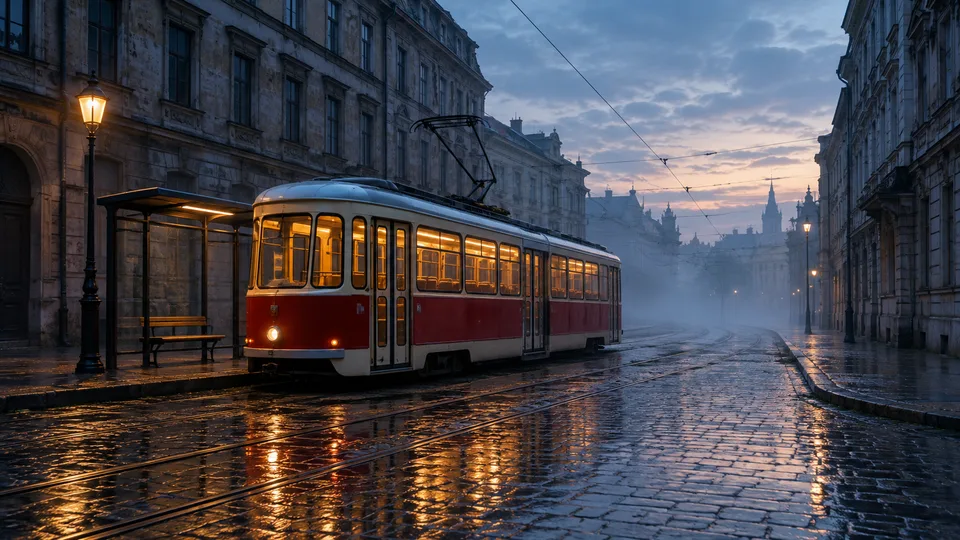 Start Frame · @image1
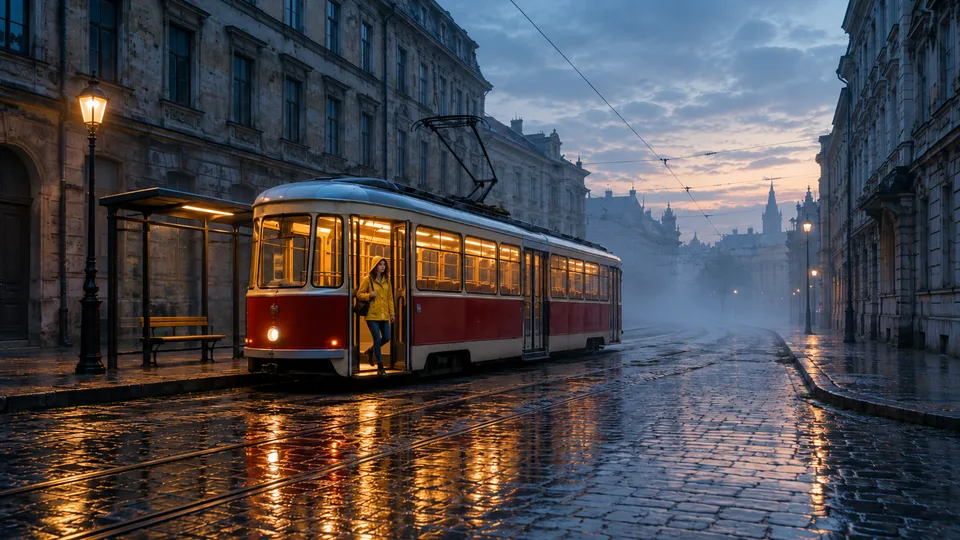 Keyframe · @image2
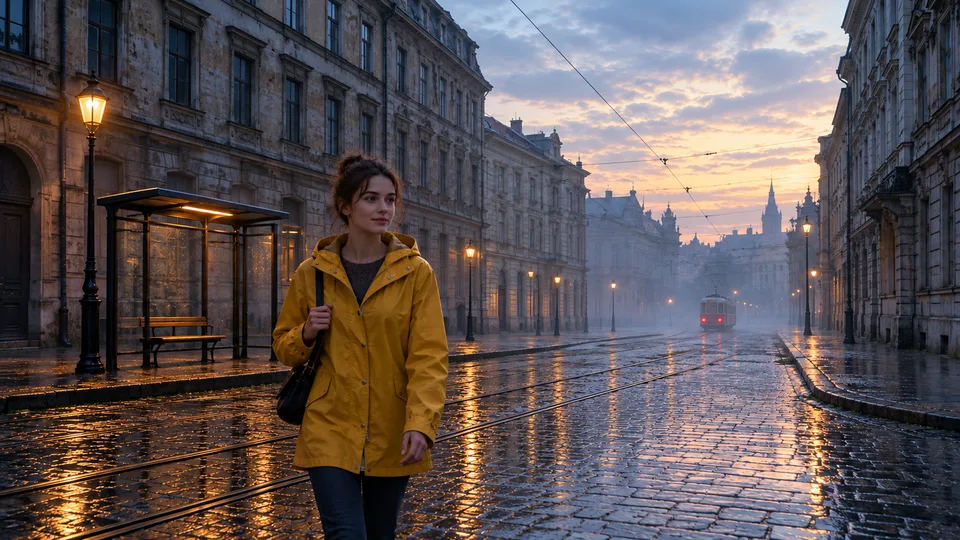 End Frame · @image3
Kling 4.0fills in the motion between them
5. Keep a subject the same with elements and voices
An element is a saved person, product or place. A voice is a saved recording a character can speak with. Save them once and call them by name in any later run in References.
- 1Open Elements and voices next to the other Kling 4.0 settings and press Add element.
- 2Name it and add 2 to 4 images, the first one the main view, or one 3 to 8 second video of one person. For a voice, press Add voice and add a clear 5 to 30 second recording.
- 3Type @ and the name in the prompt. Only what you mention is sent.
Tip: A video element counts as a clip and adds billed seconds the same way. Image elements and voices add nothing to the bill.
6. Set the length, resolution and shape
Pick any whole length from 3 to 30 seconds, 720p or 1080p, and Auto, 16:9, 9:16, 1:1 or 21:9. Auto follows your references.
- 1Test the idea at 720p and a short length first.
- 2With a clip attached, choose New sound or Keep clip sound.
- 3Check the price on the Generate button before you press it.
Tip: A reference clip adds billed seconds: you pay for the output length plus the longer of the output or the clips' total. A 10 second take with a 5 second clip bills 20 seconds.
7. Watch the whole take, then render the keeper
Long takes can drift: a detail nobody asked for, a hand that changes, a sign that warps. Check the full clip with the sound on before you post it.
- 1Watch it all the way through, then once more for faces and hands.
- 2If one subject drifts, give it a cleaner reference or name it again in the action.
- 3Render the take you like at 1080p or at its full length.
Tip: A busy scene with several people is easier in two shorter takes that share the same references, joined in an editor.
Avoid these
- Uploading in a different order than you name, so @image1 is not the still you meant.
- Mentioning a file you did not attach. The run stops before it starts.
- Expecting Frames to take references, elements or voices too. Pick one tab.
- Making frames that do not match, so the motion between them has to jump.
- Attaching a long reference clip to a short take and paying for the clip's seconds.
- Testing every idea at 1080p and 30 seconds.
- Posting a 30 second take without watching all of it.
Kling 4.0 questions
Open the Media Studio, pick Kling 4.0 and choose a tab: References for stills and clips you name in the prompt, Frames for a start frame, keyframes and an end frame, or Edit video to change a clip. Then set the length, resolution and shape and press Generate.
Attach them and call them in the prompt by name: the first still is @image1, the second @image2, and clips are @video1, @video2. Type @ to pick from the list.
Up to 10 frames in all: a start frame, up to 8 keyframes and an end frame. Shorter takes hold fewer, 4 at 3 seconds and 10 from 9 seconds up.
Any whole length from 3 to 30 seconds, in one continuous take.
No. Frames cannot be mixed with reference stills, clips, elements or voices in one run. Pick the tab that fits the shot.
Save it as an element in Elements and voices, from 2 to 4 images or one short video, and call it by name in every prompt. Add a saved voice to keep how it sounds too.
Yes, it adds billed seconds. You pay for the output length plus the longer of the output or the clips' total. Reference images, image elements and voices add nothing.
Yes, with every take. With a reference clip attached you can choose New sound or keep the clip's own sound.
No. Kling 4.0 renders at 720p or 1080p.
Models used
Open a guide to see what each model is best at.
Compare it
How these models stack up against the ones you might pick instead.
 Seedance 2.5
 Veo 3.1
Your turn
Everything in this lesson is one click away. Open the tool and make your first version now.