Tutorials
Make a Photo Talk or Sing With OmniHuman 2.0
Make a photo talk or sing on Kubeez: voice a line with text to speech, pick a portrait that syncs well and turn both into a lip-synced OmniHuman 2.0 video.
· Dex
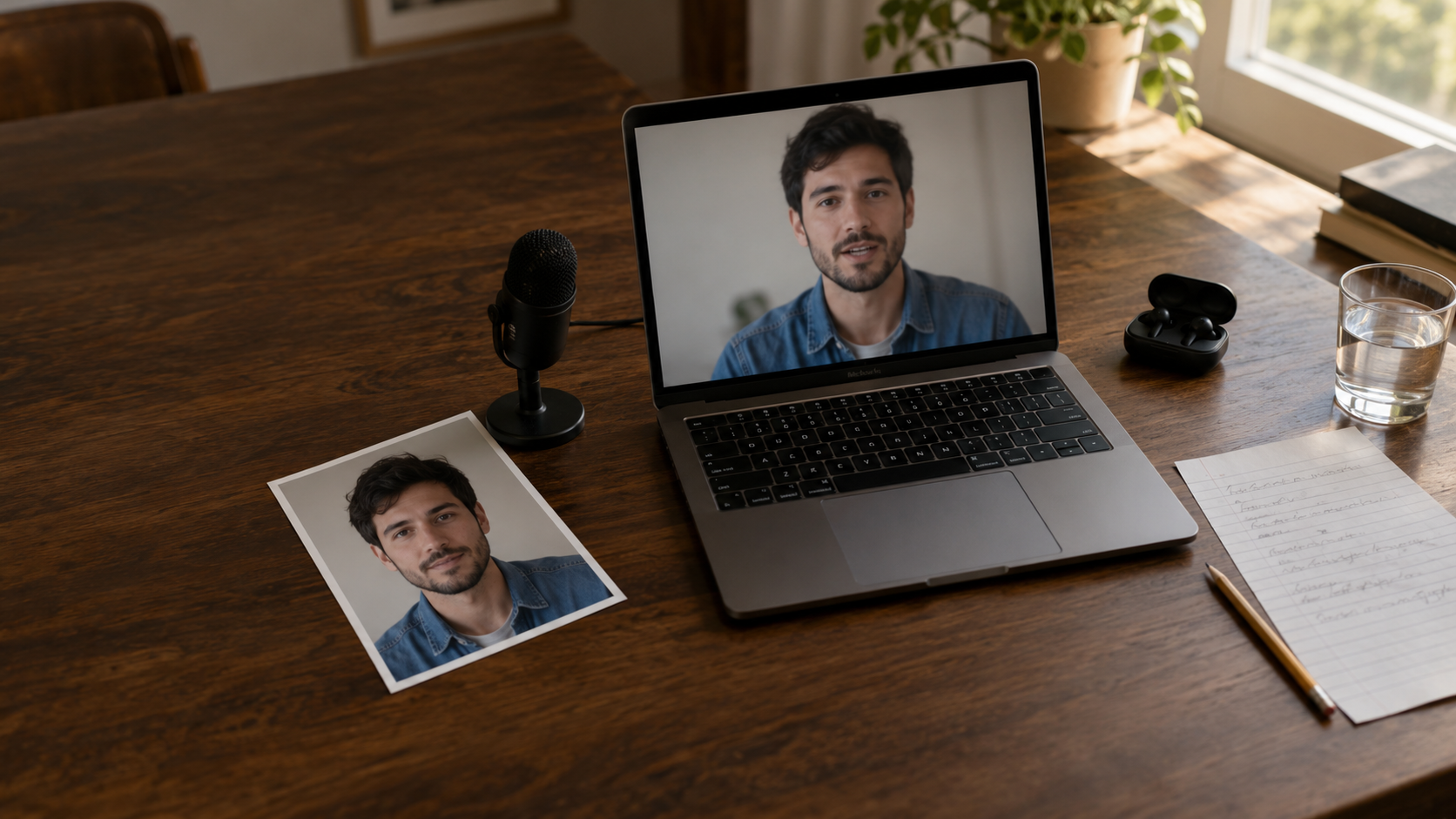
Want to make a photo talk, or make a picture sing? On Kubeez you can do it with OmniHuman 2.0: one portrait plus one audio file becomes a lip-synced video of that person saying your words or singing your track. This guide walks through the whole thing on a real example, from writing the voice line to picking a photo that syncs well.
What you need to make a talking photo with AI
- One portrait. A photo of a person: JPEG, PNG, WebP, BMP, TIFF, GIF, HEIC or HEIF, under 30 MB, 300 to 6000 px per side, with an aspect ratio between 0.4 and 2.5.
- One audio file. Speech, a voiceover or a song, as MP3 or WAV, under 15 MB and 4 to 300 seconds long.
- An optional prompt. Up to 300 characters about mood, movement and camera.
The result is a 720p video, exactly as long as your audio, shaped like your portrait. There is nothing else to set. The OmniHuman hub page has the full spec sheet.
Step 1: Write and voice the line
Start with the words, because they decide the length of your video and what you pay. OmniHuman 2.0 is billed per second of audio, so a tight script is a cheaper video.
For our example we wrote a short, friendly message:
Hi! I recorded this message once, and now my photo can say it for me. No camera, no studio, just one picture and my voice. Pretty fun, right?
Then we voiced it in Kubeez dialogue and text to speech with Gemini 3.8 Flash TTS, the voice Kore, and this delivery style:
Warm, friendly and a little amused, like talking to a friend on a video call.
That gave an 11.7 second WAV file. You can listen to the voice line here.
Tips for this step:
- Write for the ear. Short sentences, one idea each.
- Use the delivery style. A note like "warm and a little amused" changes the voice, and the face follows the voice.
- Stay between 4 and 300 seconds. The model accepts nothing outside that range.
- Trim silence at both ends. Every second of audio is a second of video you pay for.
- Long track? Use MP3. An uncompressed WAV grows fast, and the limit is 15 MB.
To compare voices before you choose, the audio models page lists the text to speech models on Kubeez, and our side by side of two leading text to speech voices shows how they differ in practice.
Step 2: Pick a portrait that syncs well
The photo matters more than anything else you control. OmniHuman 2.0 is built for a person's face, so give it a clear one.
What works:
- Front facing, eyes toward the camera. A face turned far to the side gives the model less mouth to work with.
- Sharp and evenly lit. Soft window light is ideal. Avoid hard shadows across the mouth.
- Mouth visible and relaxed. A closed or gently smiling mouth is the best starting point.
- Nothing covering the face. No hands at the chin, no microphone in front of the mouth, no hair across the lips.
- A realistic photo. Clear, realistic portraits give the most reliable lip sync. Do not count on drawings, cartoons or animals.
Two things to decide before you upload:
- The shape of the photo is the shape of the video. A 3:4 portrait gives a 3:4 video. Crop for where the video will live.
- The framing sets what can move. If the photo is head and shoulders, the video stays head and shoulders. A prompt cannot add hands or a body the photo does not show.
For this guide we created an original person with GPT Image 2 in a 3:4 frame, with this prompt:
Head and shoulders portrait photo of an original woman in her late twenties with shoulder-length dark curly hair and warm brown skin, wearing a mustard knit sweater, looking straight into the camera with a relaxed natural smile, mouth closed. Soft window light from the left, softly blurred cosy living room background with plants, shallow depth of field, realistic photograph, natural skin texture. No text, no logos.
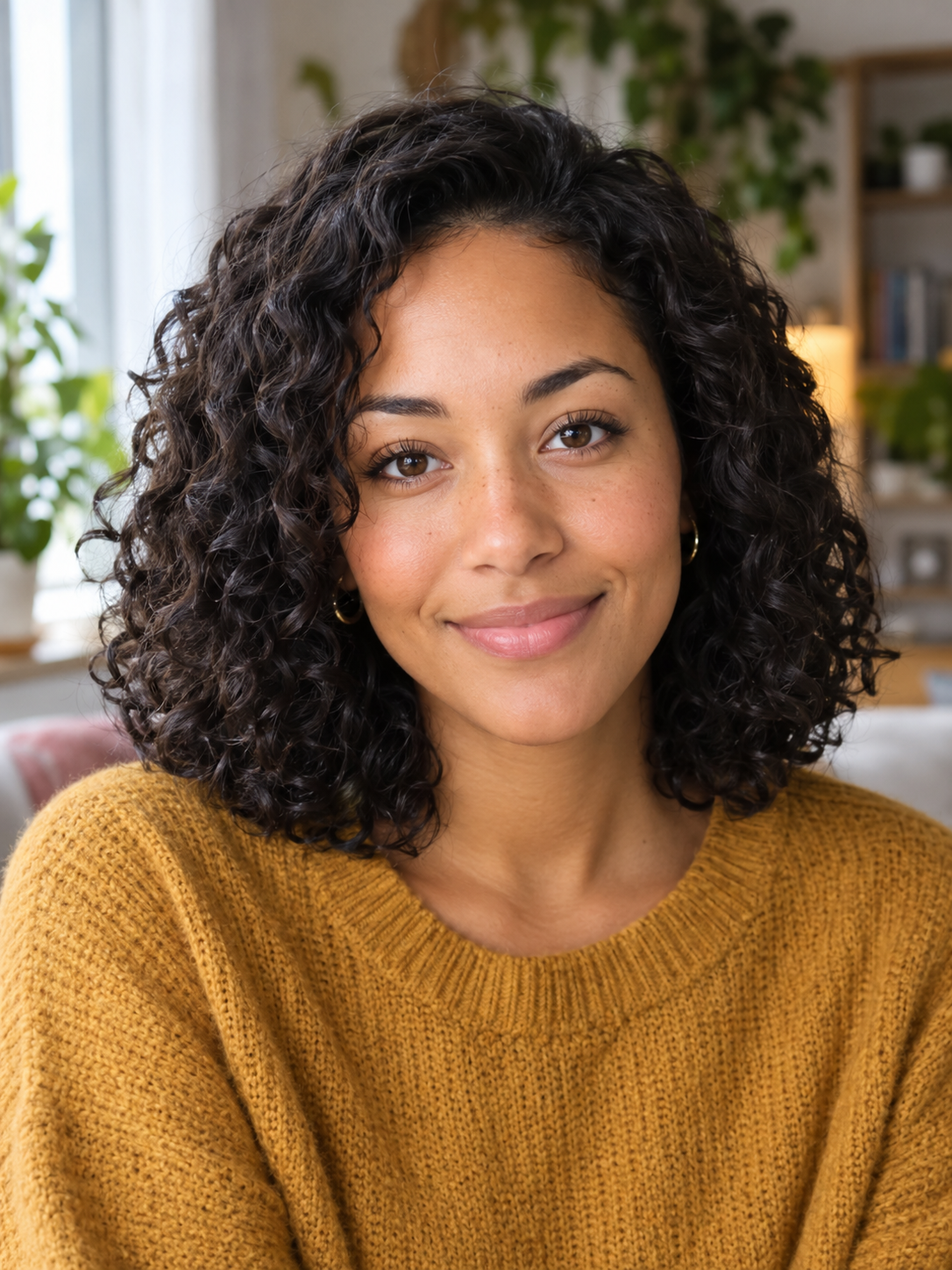
It ticks every box: front facing, soft light, closed mouth, nothing in the way. Whether you generate a person or use a real photo, use photos and voices you have the right to use.
Step 3: Open OmniHuman 2.0 in the studio
Open the Media Studio with OmniHuman 2.0 selected and attach your two files: the portrait and the audio. The model takes exactly one of each.
Before you generate, the card shows the price for your audio's length. Kubeez measures the audio itself, in whole seconds, rounded up with a small allowance. Our 11.7 second line counted as 12 seconds.
Step 4: Add a short prompt (optional)
The audio already decides the words, so the prompt is for everything else: mood, small movements, the camera. Keep it under 300 characters. Ours:
She talks warmly to the camera like on a video call, small natural head nods and a light laugh at the end, gentle hand gesture, steady framing.
Name the mood (warm, serious, excited), a small movement (nods, a smile, a laugh on the last line) and the camera (steady framing, a slow push in). Do not paste the script into the prompt. The model hears it already.
Step 5: Generate and check the result
Here is what OmniHuman 2.0 made from our portrait and voice line:
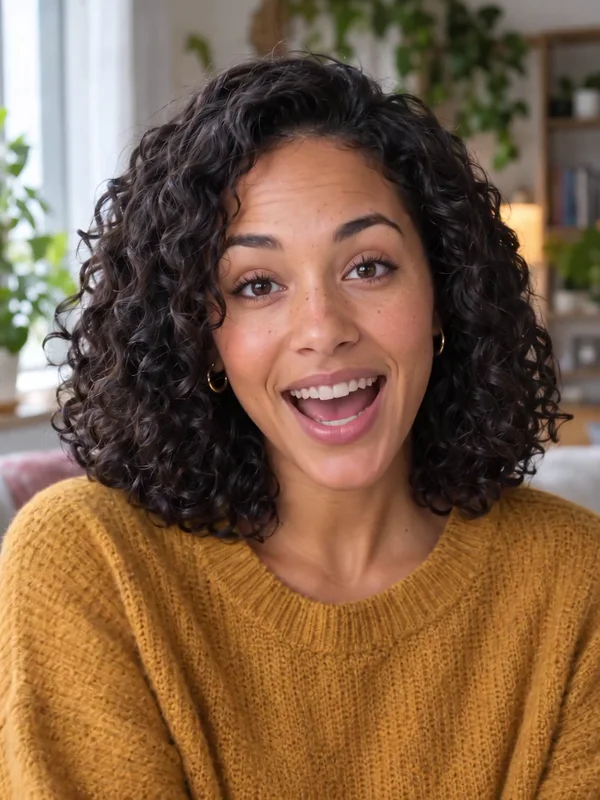
Watch the 12 second video (720p, 834 x 1112)
Her lips follow the speech closely, and the head movement and expressions read as natural, with the friendly tone of the voice showing in her face. The 3:4 photo gave a 3:4 video at 834 x 1112.
One thing did not happen: the hand gesture. The photo is head and shoulders, so the hands never entered the frame. That is the framing rule from Step 2 in action. When you want gestures, start from a photo that already shows the hands.
If the framing of your own take is off, fix the photo, not the prompt.
How to make a picture sing
Singing works the same way. Swap the voice line for a song:
- Pick the part of the track you want, between 4 seconds and 5 minutes.
- Trim it so the video starts where the singing starts.
- Export it as MP3 or WAV under 15 MB.
- Attach it with your portrait, and use the prompt for the performance: "sways gently, eyes closed on the long notes, soft stage light".
Start with a section where the vocal is easy to hear, so the lips have something clear to follow.
Doing it from code
The same job runs over MCP and the REST API with the model id omnihuman-2-0. Upload the audio to Kubeez first (get_upload_url on MCP, POST /v1/upload/media on REST) so its length can be measured, then send the portrait and the audio together in source_media_urls. The media tools docs for OmniHuman 2.0 list every limit, and the OmniHuman 2.0 launch post shows a full request.
When to use something else
OmniHuman 2.0 is for one specific face delivering one specific audio track. If you would rather animate a character or a scene from a prompt, without a particular portrait to lip sync, try P-Video.
Also new on Kubeez this week: Kling 4.0, for video built from text, reference images and clips. And if you want more control over the voice itself, the Gemini 3.8 Flash TTS launch post covers delivery styles and inline tags.
Frequently asked questions
How do I make a photo talk with AI?
Write a line, voice it with text to speech or record it, then give the audio and one portrait to OmniHuman 2.0 in the Kubeez studio. You get a lip-synced 720p video as long as the audio.
Can I make a picture sing?
Yes. Use a song as the audio file, MP3 or WAV, 4 to 300 seconds and under 15 MB. Songs drive the lips the same way speech does.
What kind of photo works best?
A sharp, realistic, front-facing photo of a person with the mouth visible and nothing covering the face. The model is built for a person's face.
How much does a talking photo cost?
You pay per second of your audio, measured by Kubeez. The live price is on the model card in the studio and on the OmniHuman 2.0 section of the hub.
Dex writes the Kubeez guides and makes every example with the same tools you use.