Technology
OmniHuman 2.0 on Kubeez: Make a Photo Talk or Sing
OmniHuman 2.0 is live on Kubeez: one portrait and one audio file become a lip-synced 720p video of that person talking or singing, as long as the audio.
· Dex
OmniHuman 2.0 is now live on Kubeez. Give it one photo of a person and one audio file, and it returns a lip-synced video of that person talking or singing, for as long as your audio runs. No camera, no studio and no editing.
This post covers what OmniHuman 2.0 does, what you need to feed it, what we got from a real test, and how to run it in the Kubeez studio, over the REST API or through MCP.
OmniHuman 2.0 at a glance
| OmniHuman 2.0 | |
|---|---|
| What it does | Turns a portrait and an audio file into a lip-synced talking or singing video |
| Portrait | Exactly 1 image: JPEG, PNG, WebP, BMP, TIFF, GIF, HEIC or HEIF, under 30 MB, 300 to 6000 px per side, aspect ratio 0.4 to 2.5 |
| Audio | Exactly 1 file: MP3 or WAV, under 15 MB, 4 to 300 seconds |
| Prompt | Optional, up to 300 characters, steers the scene, the motion and the camera |
| Output | 720p, as long as the audio, shaped like your portrait |
| Billing | Per second of audio, measured by Kubeez |
| Model id for API and MCP | omnihuman-2-0 |
You can see the model card, specs and tips on the OmniHuman hub page.
What OmniHuman 2.0 is for
OmniHuman is a talking portrait model. You bring a face and a voice. It brings the performance: the lips follow the words, and the face and head move with the sound the way a person does when they speak or sing.
That makes it useful anywhere a voice needs a face:
- Presenter and explainer clips from a single headshot, for product updates, course lessons or onboarding.
- Voiceovers with someone on screen, so a narrated post does not have to be a slideshow.
- Singing portraits for music promos and social posts. Songs drive the lips the same way speech does.
There is nothing to configure. The video is 720p, exactly as long as your audio, and shaped like your photo. A vertical portrait gives a vertical video, so crop the photo the way you want the video framed.
A real test: one portrait, one voice line
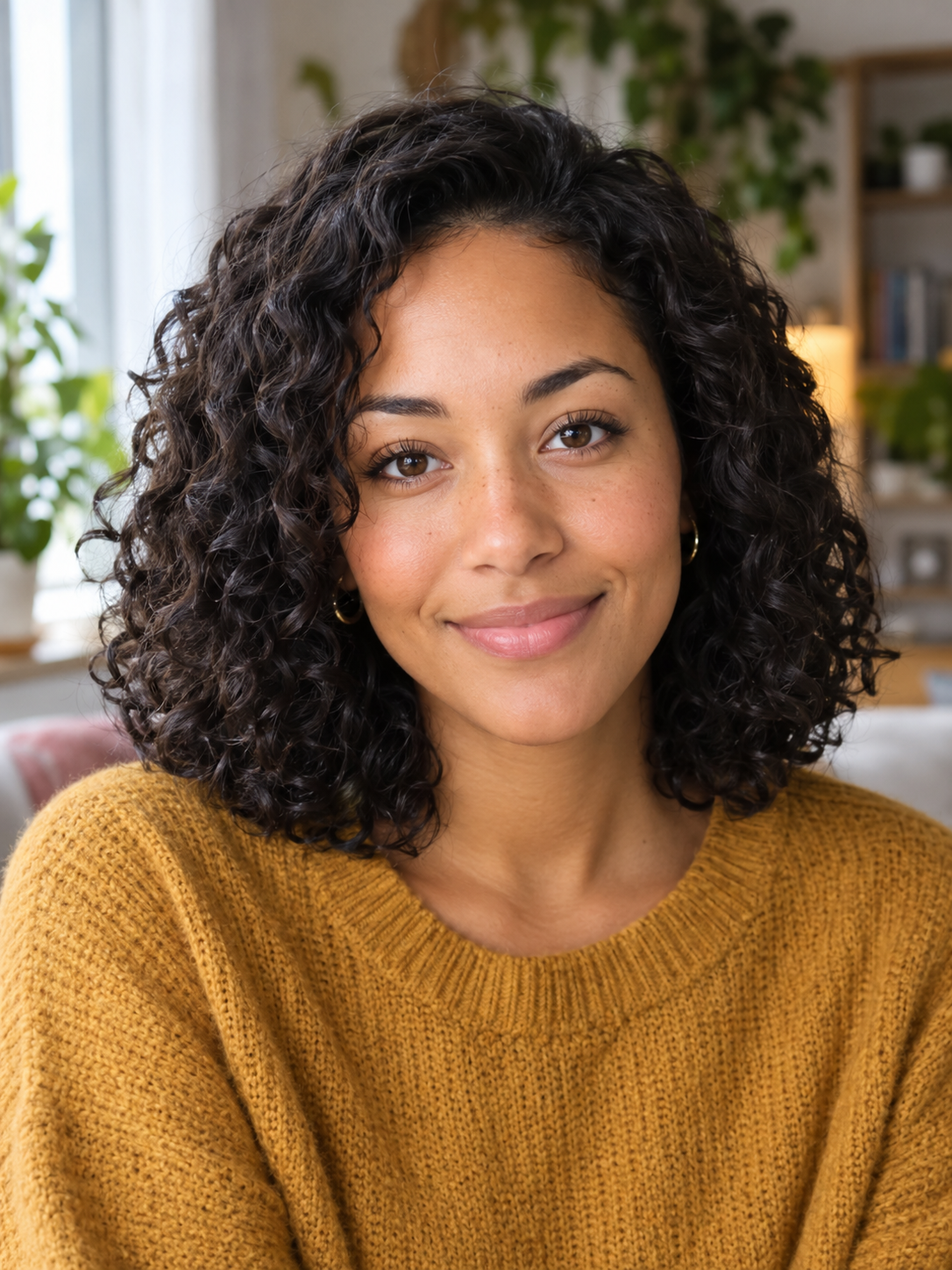
We ran OmniHuman 2.0 on a single example to see what it does in practice. The portrait is an original person we generated with GPT Image 2 in a 3:4 frame: head and shoulders, soft window light, mouth closed, looking straight at the camera.
The voice is an 11.7 second line made on Kubeez with Gemini 3.8 Flash TTS. You can listen to the input audio here. For the scene we wrote a short prompt:
She talks warmly to the camera like on a video call, small natural head nods and a light laugh at the end, gentle hand gesture, steady framing.
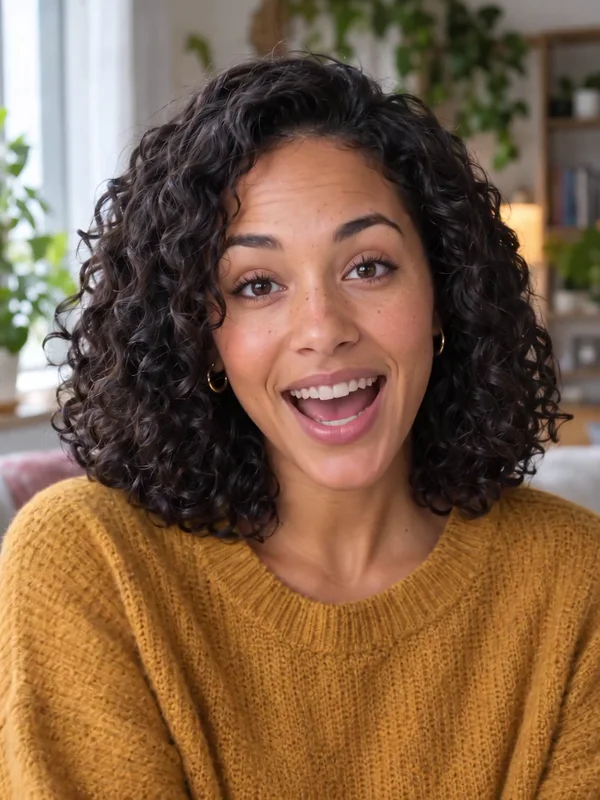
Watch the 12 second result (720p, 834 x 1112)
What we saw:
- The lips follow the speech closely, including the quick phrases near the end.
- Head movement and expressions look natural and suit the warm delivery.
- The framing stayed head and shoulders. The prompt asked for a gentle hand gesture, but the hands are not in the photo, so they never came into frame. The portrait sets what can move. If you want hands in the shot, start from a photo that shows them.
The 3:4 portrait gave a 3:4 video, 834 x 1112 pixels, and the 11.7 second audio gave a 12 second clip.
What you need before you start
A portrait. One clear photo of a person, face visible, mouth not covered. OmniHuman 2.0 is built for a person's face, so a sharp, realistic, front-facing photo gives the most reliable lip sync. Do not count on it for drawings, cartoons or animals.
An audio file. A recorded voice, a voiceover or a song, as MP3 or WAV between 4 and 300 seconds. If you do not have a recording, write the line and voice it with a text to speech model in Kubeez dialogue and text to speech. The audio models page shows the voice models you can pick from.
An optional prompt. Up to 300 characters about mood, movement and camera. The audio already decides the words, so the prompt does not need to repeat them.
Use photos and voices you have the right to use.
Pricing: you pay for the seconds of your audio
OmniHuman 2.0 is billed per second, and the seconds come from your audio, because the video is exactly that long. Kubeez measures the file itself, in whole seconds, rounded up with a small allowance. If the audio cannot be measured at that moment, the request is refused before anything is charged.
That makes one habit worth having: trim silence from the start and end of your audio. Every second of it is a second of video. The live price per second is on the model card in the studio and on the OmniHuman 2.0 section of the hub.
How to use OmniHuman 2.0 on Kubeez
In the studio
- Open the Media Studio with OmniHuman 2.0 selected.
- Attach your portrait and your audio file.
- Add a short prompt if you want to steer the scene, then generate.
For a full walkthrough, including how to write the voice line and choose a photo that syncs well, read our guide on how to make a photo talk or sing.
Through MCP
Upload the audio to Kubeez first with get_upload_url, so its length can be measured. Then call generate_media with the model omnihuman-2-0 and pass the portrait and the audio together in source_media_urls. There is no duration, resolution or aspect ratio to pass.
Through the REST API
The flow is the same. Upload the audio with POST /v1/upload/media, then send the job to POST /v1/generate/media:
{
  "model": "omnihuman-2-0",
  "prompt": "She talks warmly to the camera like on a video call, small natural head nods",
  "source_media_urls": [
    "https://media.kubeez.com/.../portrait.png",
    "https://media.kubeez.com/.../voice.wav"
  ]
}
The full parameter reference, file limits and live pricing table are in the media tools docs for OmniHuman 2.0.
OmniHuman 2.0 or another video model?
OmniHuman 2.0 is the pick when you already have a specific face and a specific audio track, and you want that person to deliver it. If you would rather animate a character or a scene from a prompt, with no particular portrait to lip sync, look at P-Video instead.
Also new this week: Kling 4.0 is on Kubeez, for video built from text, reference images and clips.
If you are still choosing a voice for your clips, our side by side of two leading text to speech voices and the launch post for Gemini 3.8 Flash TTS are good places to start.
Frequently asked questions
What is OmniHuman 2.0?
A talking portrait model. You give it one photo of a person and one audio file, and it makes a lip-synced 720p video of that person talking or singing, as long as the audio.
How long can an OmniHuman 2.0 video be?
From 4 seconds to 5 minutes, because the video always matches the length of your audio.
Can I set the resolution or aspect ratio?
No. The output is 720p and follows the shape of your portrait. Crop the photo the way you want the video framed.
How much does OmniHuman 2.0 cost?
It is billed per second of your audio, measured by Kubeez. The live price is on the model card in the studio and on the OmniHuman hub page.
Dex writes the Kubeez guides and makes every example with the same tools you use.