Technology
FLUX 3 Klein on Kubeez: Fast Image Generation and Editing
FLUX 3 Klein is live on Kubeez: a fast image generator and editor with 1K to 4K output, nine aspect ratios and up to 10 input images per edit.
· Dex
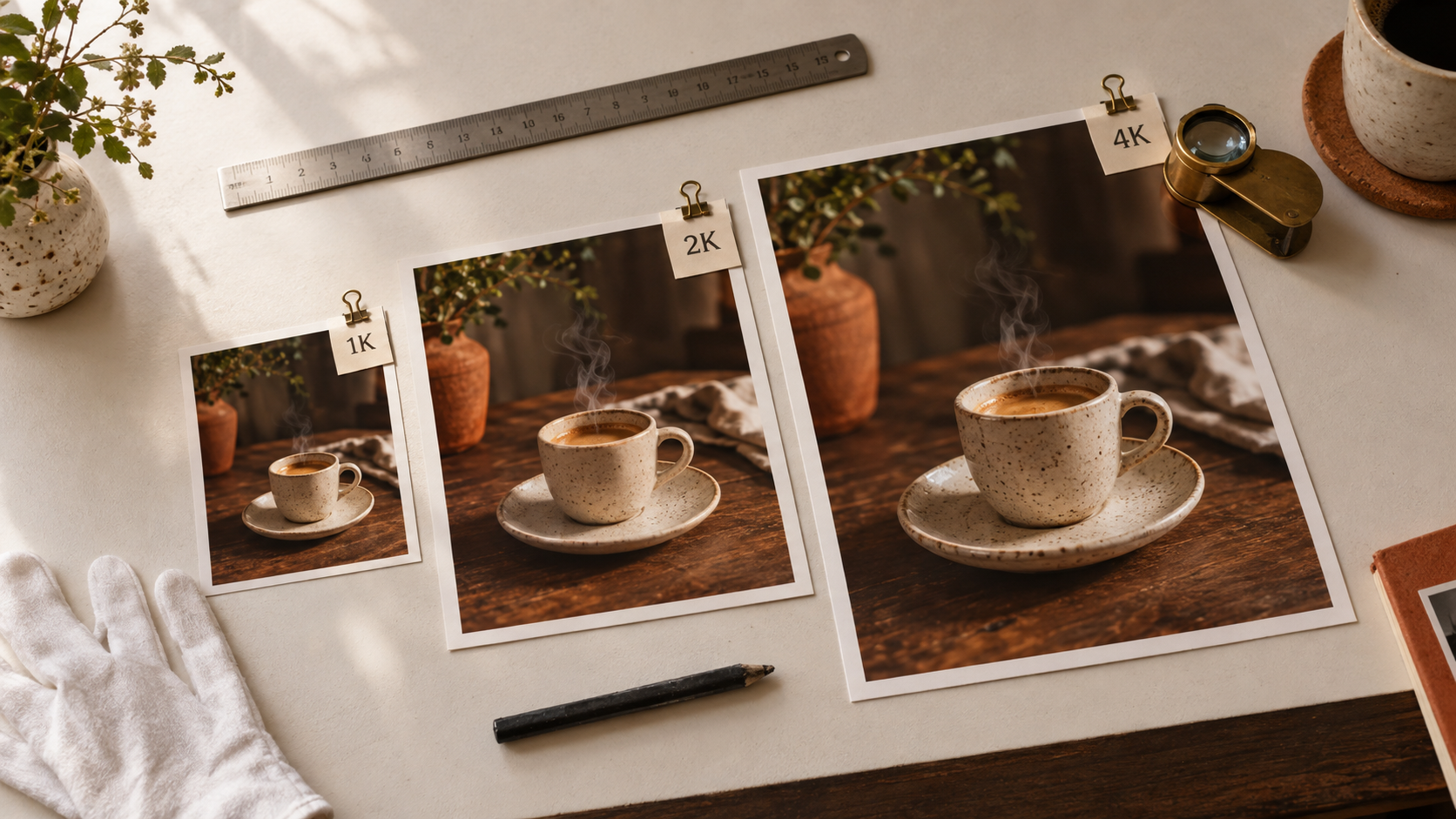
FLUX 3 Klein is now on Kubeez. It is the fast image model of the FLUX 3 generation, and it does two jobs in one model card: it turns a text prompt into an image, and it edits the images you give it. If you were searching for a FLUX Klein image generator you can use today, this is where to start.
This post covers what FLUX 3 Klein does, the limits worth knowing before you generate, and how to run it in the Kubeez studio, over the REST API or through MCP.
FLUX 3 Klein at a glance
| FLUX 3 Klein | |
|---|---|
| Modes | Text to image and image editing |
| Input images (editing) | 1 to 10, JPEG, PNG or WebP, up to 30 MB each |
| Resolutions | 1K, 2K and 4K |
| Aspect ratios | 1:1, 4:3, 3:4, 3:2, 2:3, 16:9, 9:16, 21:9, 9:21, plus auto in editing |
| Prompt length | Up to 5000 characters |
| Model id for API and MCP | flux-3-klein |
| Where | Kubeez studio, REST API, MCP server |
Text to image with FLUX 3 Klein
Klein is built for speed, which makes it a good model for the first draft of an idea, for batches, and for anything where you want to see five directions before choosing one.
Two details help in practice:
- Long prompts are fine. The limit is 5000 characters, so you can describe subject, lens, light and mood in full sentences instead of a keyword list.
- Your prompt gets expanded. By default the model rewrites your prompt into a fuller description before it generates. A short brief like "a ceramic espresso cup on a walnut desk, morning light" turns into a richer scene description behind the scenes, which is why short prompts still come back well composed.

FLUX 3 Klein edit: change an image with a sentence
The same model card also edits. Upload an image, describe the change, and Klein returns a new version. When you edit, the prompt rewrite keeps the intent of your original instruction, so "put it on a sunny kitchen counter" stays that instruction rather than drifting into a new scene.
Editing takes 1 to 10 input images, each a JPEG, PNG or WebP of up to 30 MB. You can use an image as the thing to transform, or as a reference for style, product or character. Extra reference images cost nothing extra, so adding a second angle or a style frame does not change the bill. Editing also adds an auto aspect ratio, which matches the output to your first input image.

Good first edits to try:
- Restyle a product shot: keep the object, change the surface, the light or the season.
- Fix a background: swap a cluttered room for a clean one without reshooting.
- Match a look: pass a reference image and ask for the same mood on a new subject.
If you want to go deep on combining many references in one edit, that is a topic of its own, and we cover it in a separate guide. Here it is enough to know the slots are there.
Resolutions and aspect ratios
Klein renders at 1K, 2K and 4K. Price is charged per output image and rises with resolution, so a good habit is to explore at 1K and render the winner at 2K or 4K. For the exact figure, check the live price in the studio or the pricing page rather than relying on a number in a blog post.
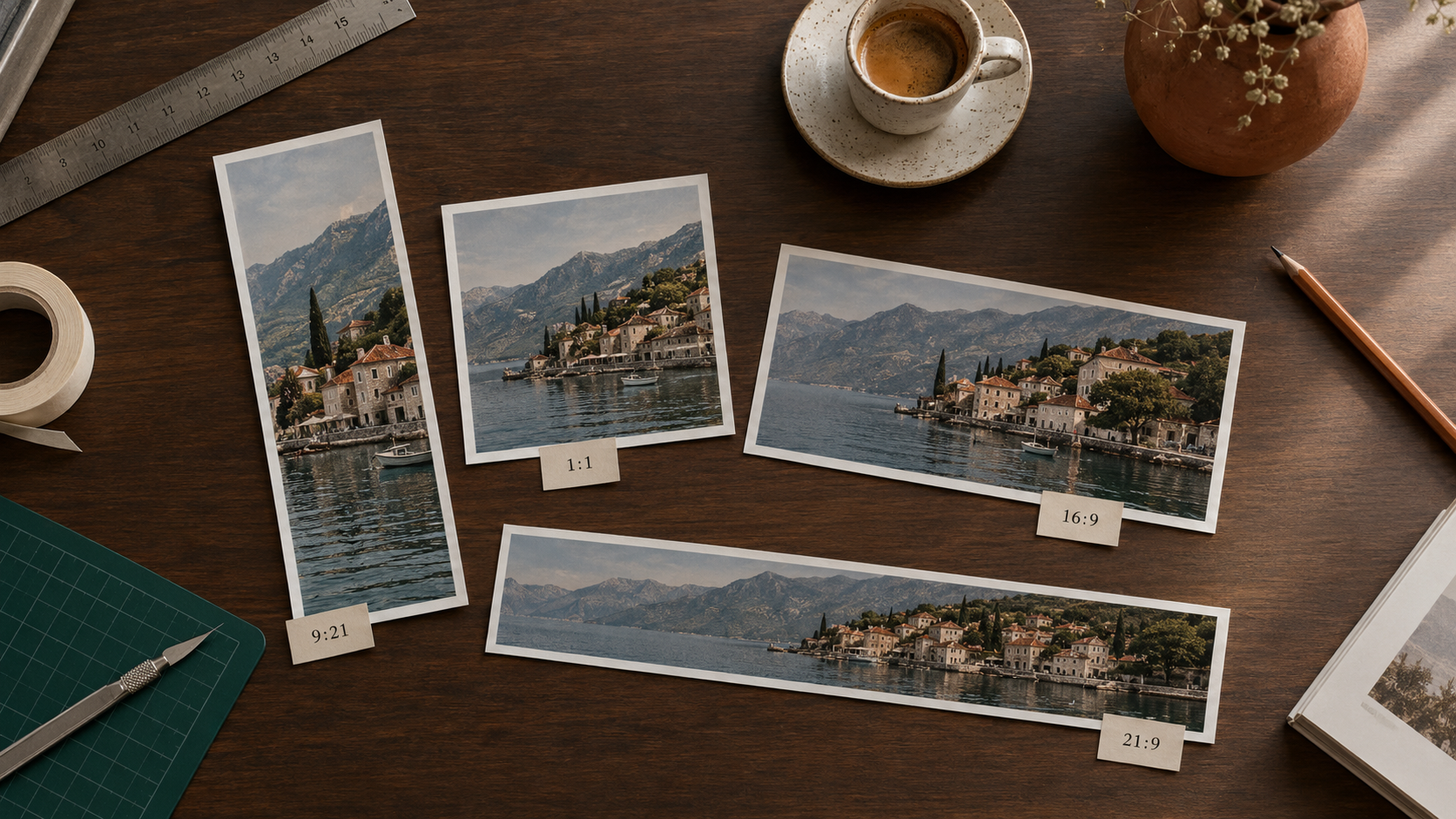
The nine aspect ratios cover vertical stories, square feeds, standard landscape and cinematic ultra-wide.
The nine ratios are 1:1, 4:3, 3:4, 3:2, 2:3, 16:9, 9:16, 21:9 and 9:21. A quick guide:
- 9:16 and 9:21 for stories, reels covers and phone wallpapers.
- 1:1, 4:3 and 3:4 for feed posts and product listings.
- 3:2 and 2:3 for photographic prints and editorial layouts.
- 16:9 and 21:9 for blog headers, video thumbnails and cinematic banners.
Where FLUX 3 Klein fits in the FLUX family on Kubeez
Klein is one of three FLUX options on Kubeez, and they do different things:
- FLUX 3 Klein for still images and edits, fast.
- FLUX 2 for still images.
- FLUX 3 for video with sound.
You can see all three, with samples, on the FLUX family page. For a wider look at how image models compare, see GPT Image 2.5 vs Nano Banana 2 and Nano Banana 2 vs Pro vs Lite.
How to use FLUX 3 Klein on Kubeez
In the studio. Open the Media Studio with FLUX 3 Klein selected, choose text to image or add input images to edit, set a resolution and an aspect ratio, and generate.
Through the REST API or MCP. Call the model by its id, flux-3-klein, the same way you call any other Kubeez image model:
{
  "model": "flux-3-klein",
  "prompt": "A hand-thrown ceramic espresso cup on a dark walnut desk, soft morning window light",
  "aspect_ratio": "3:2",
  "resolution": "2K"
}
Set up the MCP connection from your MCP settings, and see the full parameter list on the available models page. If you build on Kubeez from code, the developers and API page is the place to begin.
Frequently asked questions
What is FLUX 3 Klein?
FLUX 3 Klein is a fast image model from the FLUX 3 generation. On Kubeez one model card covers both text to image and image editing, at 1K, 2K and 4K.
How many images can I give FLUX 3 Klein when editing?
From 1 to 10 input images per edit, as JPEG, PNG or WebP files of up to 30 MB each. Extra reference images do not add to the price.
Does FLUX 3 Klein change my prompt?
By default it rewrites your prompt into a fuller description before generating. In editing, that rewrite keeps the intent of your original instruction.
How much does FLUX 3 Klein cost on Kubeez?
Price is per output image and goes up with resolution, from 1K to 4K. The live price is shown in the studio and on the pricing page.
Dex writes the Kubeez guides and makes every example with the same tools you use.