Tutorials
How to Edit an Image With Multiple Reference Images
Edit an image with multiple reference images: combine a person, a product and a setting in one prompt. A step-by-step tutorial with FLUX 3 Klein on Kubeez.
· Dex
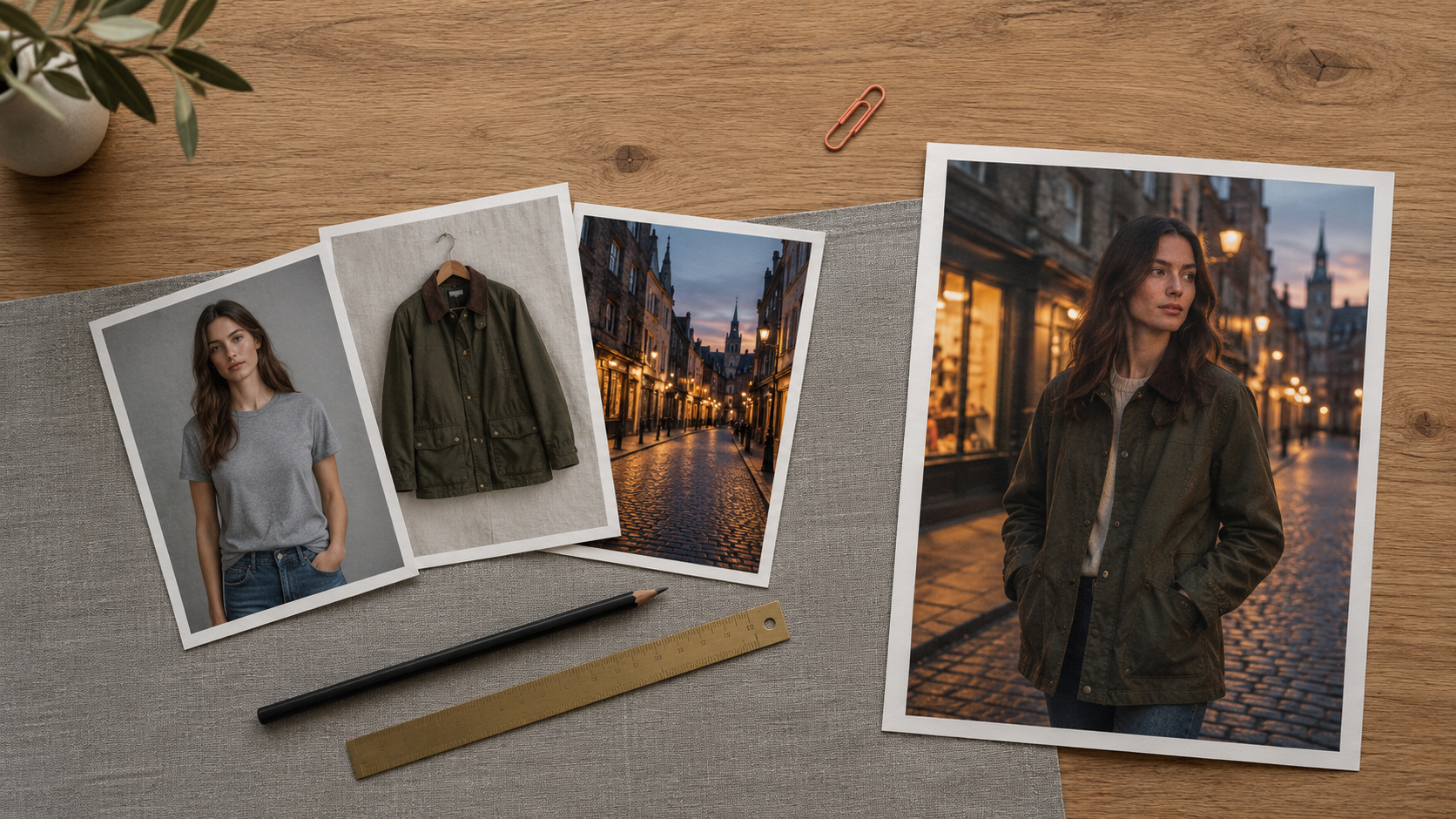
If you want to edit an image with multiple reference images, the trick is to stop describing everything in words and start showing it. Upload the person, the product and the setting as separate photos, then tell the model how to combine them. This tutorial walks through the whole workflow on Kubeez, step by step, using FLUX 3 Klein in editing mode as the worked example.
You will learn how to choose and order your reference images, how to write an instruction that refers to them clearly, which settings matter, and how to iterate without losing what already works.
Why reference images beat a longer prompt
A text prompt is a lossy way to describe a face, a fabric or a street. Two sentences about "an olive waxed jacket" can mean a thousand different jackets. A photo of the actual jacket leaves nothing to guess.
That is the idea behind AI image editing with references. Instead of generating from scratch, you give the model real visual material and ask it to merge photos with an AI prompt: keep this person, use that garment, place everything in that setting. It is the fastest route to consistent results for product mockups, lookbooks, thumbnails and campaign variants.
What you need before you start
For this example we use three source photos. Each one carries exactly one job.
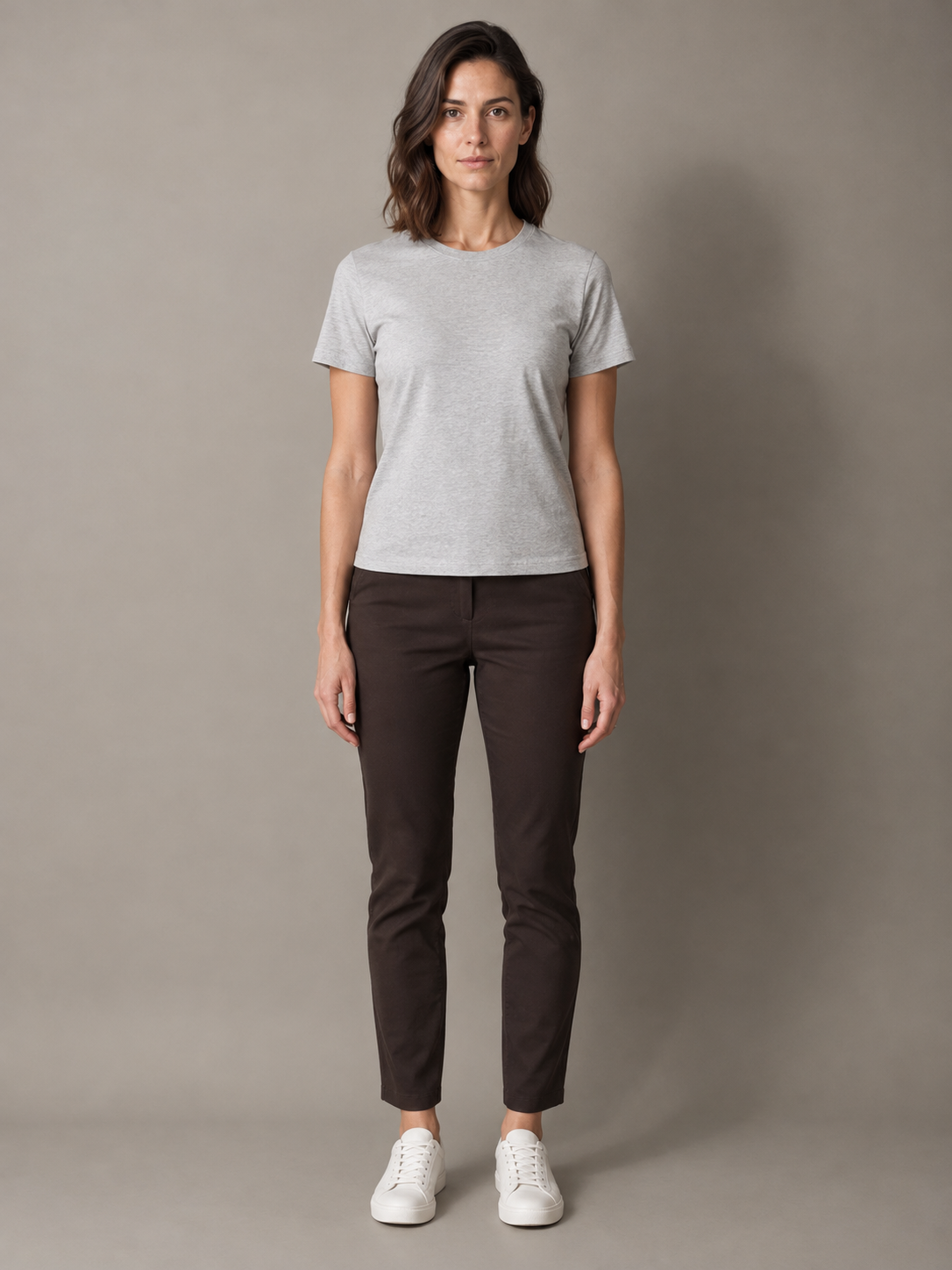
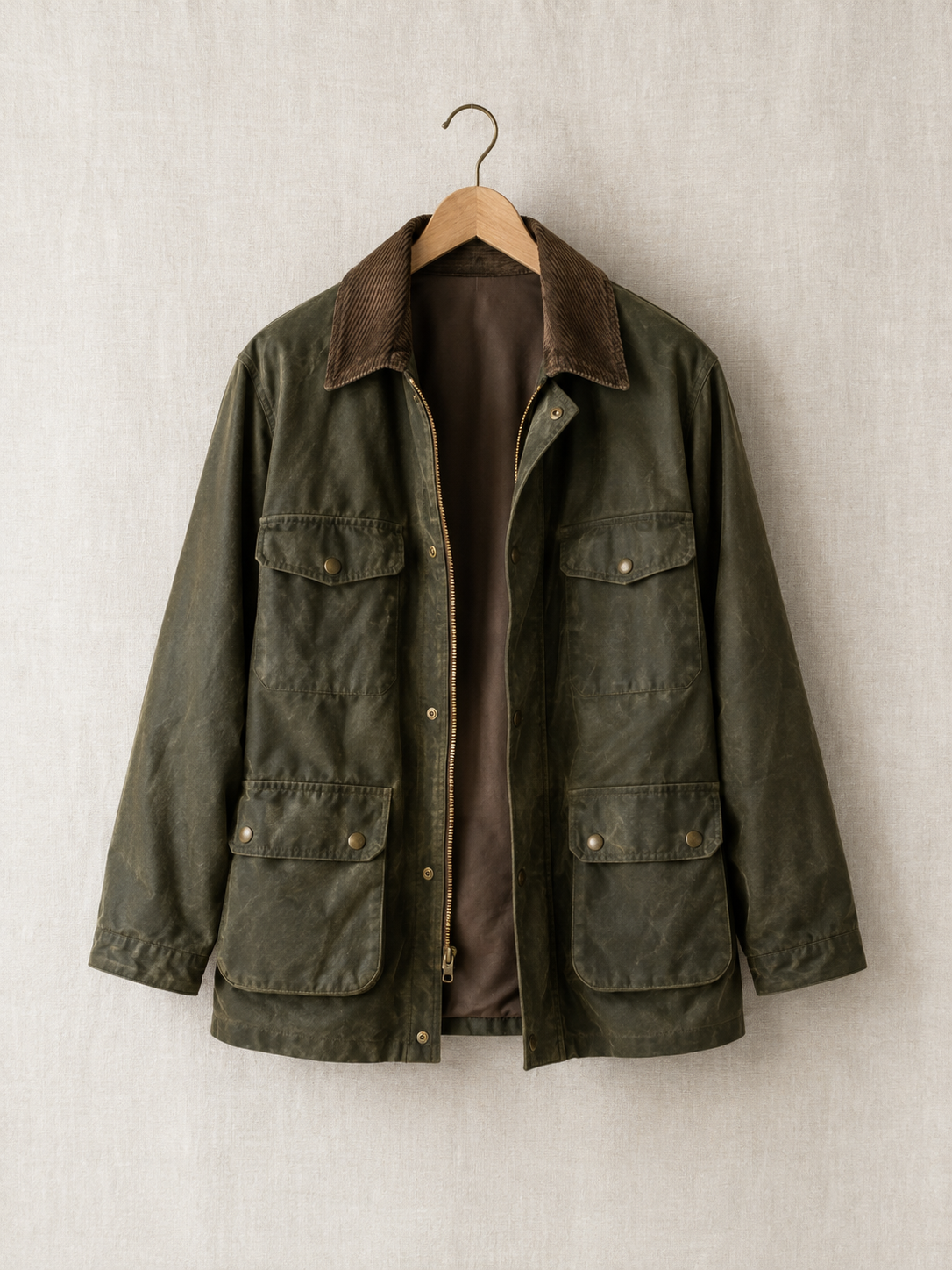
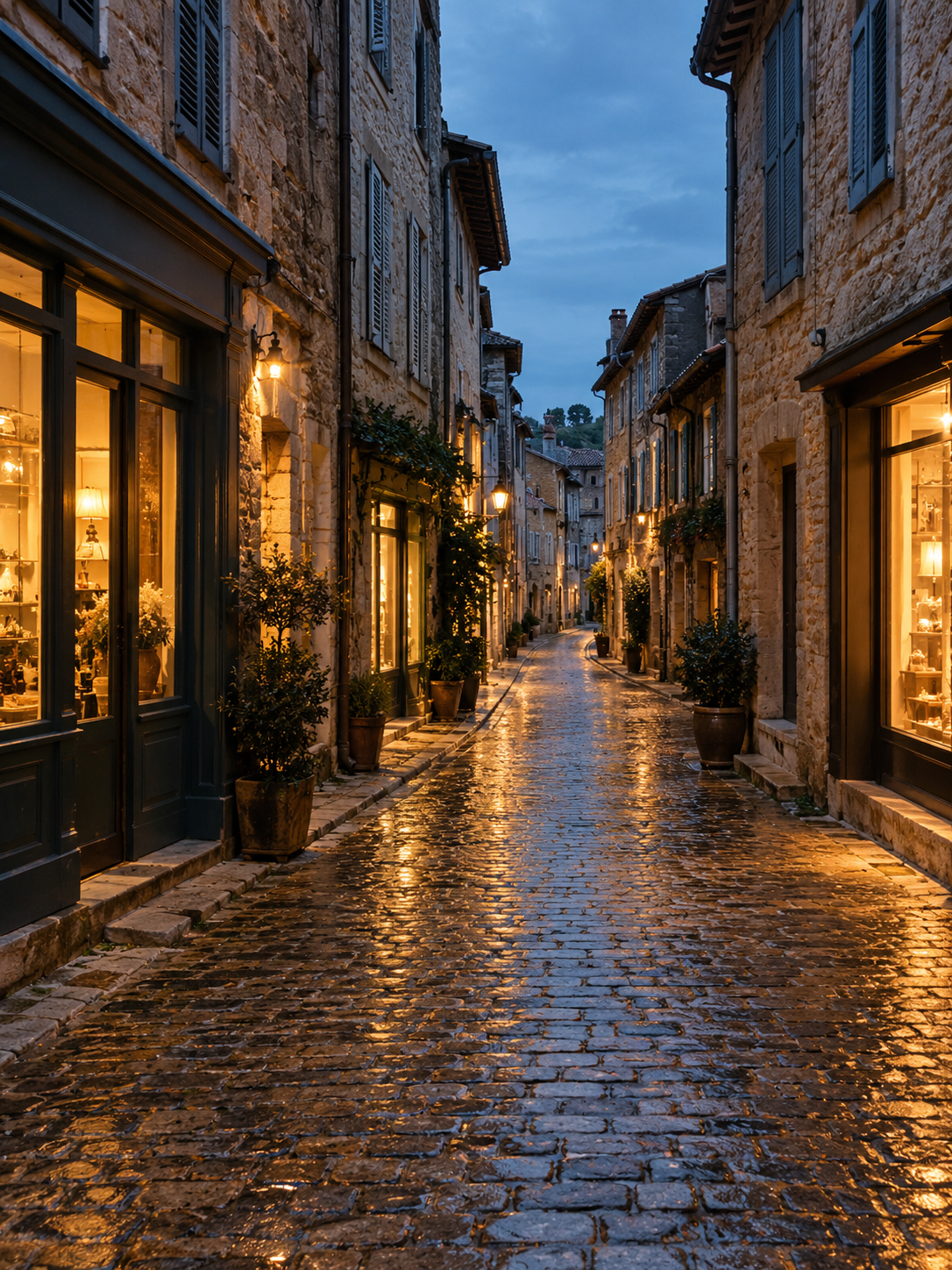
- Image 1 is the person, standing straight on in neutral clothes.
- Image 2 is the product, a jacket on a plain background.
- Image 3 is the setting, a cobblestone street with open ground in the foreground.
FLUX 3 Klein accepts 1 to 10 input images in jpeg, png or webp, up to 30 MB each. Extra reference images cost nothing extra, so you can add more when a result needs it. It is the same material you would hand to a human retoucher.
Step 1: Choose and order your images
Pick the cleanest version of each thing you want to carry over. A sharp, evenly lit photo with one clear subject works better than a busy one.
Then think about order, because order matters twice:
- You will refer to images by position in your prompt, such as "the jacket from image 2".
- When you use the auto aspect ratio, the output matches the first image you upload.
So put the image whose framing you want to keep in first place. In our example the portrait goes first, because we want a vertical, full-length result.
Step 2: Open the studio and select the editing mode
Open the Kubeez studio with FLUX 3 Klein selected, switch to image editing and upload your photos in the order above. You can read more about the model on its family page.
The model has two modes. Text to image generates from a prompt alone. Image editing takes your uploads as the image to transform or as references, which is the mode this tutorial needs.
Step 3: Write an instruction that refers to the images
The instruction can be up to 5000 characters, but it rarely needs more than a few clear sentences. A structure that works well:
- Say what to build, using image numbers.
- Say what must stay unchanged.
- Say how the final image should feel.
Here is the prompt for our example:
Dress the woman from image 1 in the olive waxed jacket from image 2, worn open over her grey t-shirt. Place her standing in the cobblestone street from image 3, with the warm shop windows behind her. Keep her face, hair, trousers and white sneakers exactly as in image 1. Match the dusk light of image 3 on the jacket and on her. Natural photograph, no text.
A few habits make this reliable:
- Refer to inputs by order. "The jacket from image 2" is unambiguous. "The jacket" is not.
- Name what to keep. If you do not say what must stay the same, anything can change, so list those parts.
- Describe the light once. Saying which image supplies the lighting helps the pieces look like they belong together.
One detail is worth knowing. By default the model rewrites your prompt into a fuller description before generating, and in editing it keeps the intent of your original instruction. You write the short version, it fills in the detail.
Step 4: Set the aspect ratio and resolution
Choose from 1:1, 4:3, 3:4, 3:2, 2:3, 16:9, 9:16, 21:9 and 9:21, or leave it on auto so the result follows the first image. For a base photo you want to preserve, auto is the safest choice.
Resolution comes in 1K, 2K and 4K, and the price per output image rises with resolution. Work at 1K while you refine the instruction, then render the keeper at a higher setting. Check the live price in the studio or on the pricing page before you commit to a large batch.
Step 5: Generate, compare and iterate
Run the edit and compare the result with your inputs. Does the person still look like image 1? Is the jacket the one from image 2? Is the light consistent?
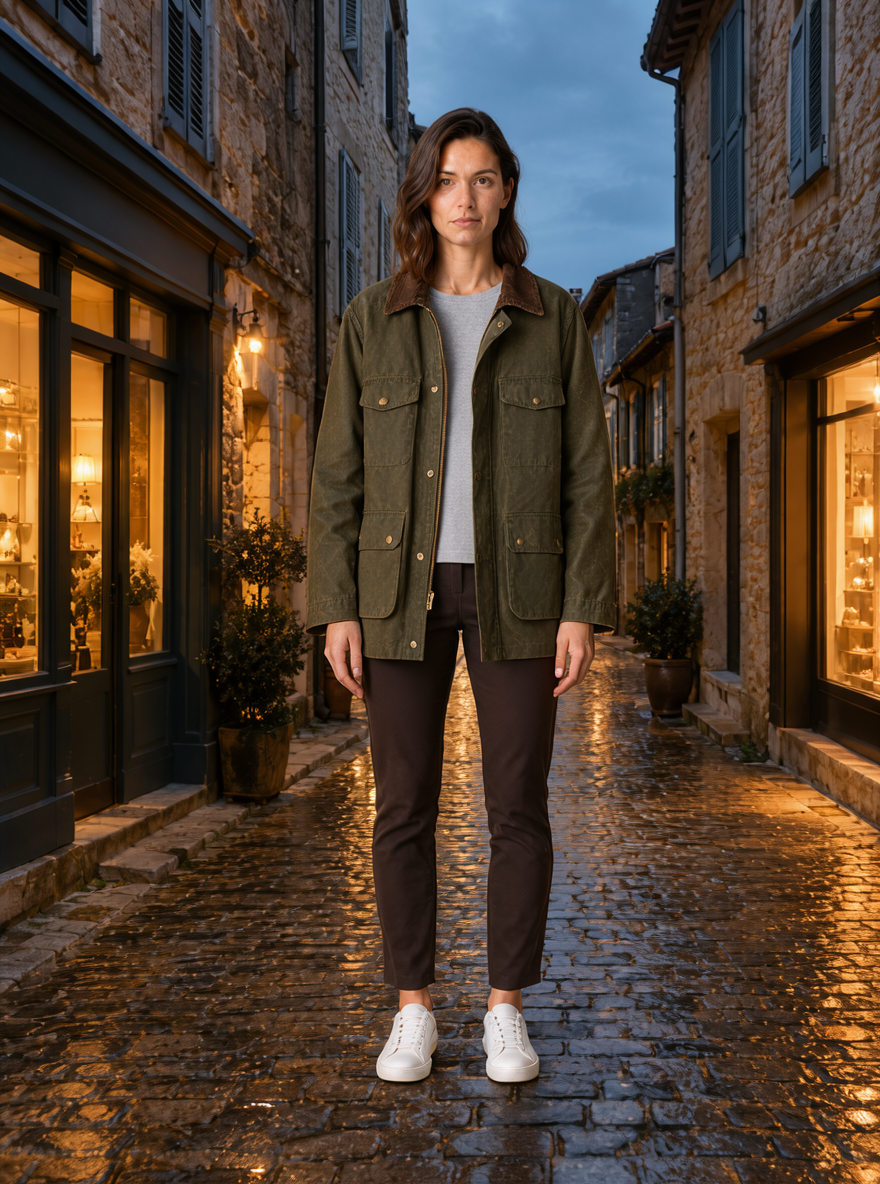
Output of the three-image prompt above: the person, the jacket and the street, combined in one run.
If one thing is off, change one thing per run. Precision drops when you rewrite the whole instruction at once. A second pass with a narrow request keeps everything that worked:
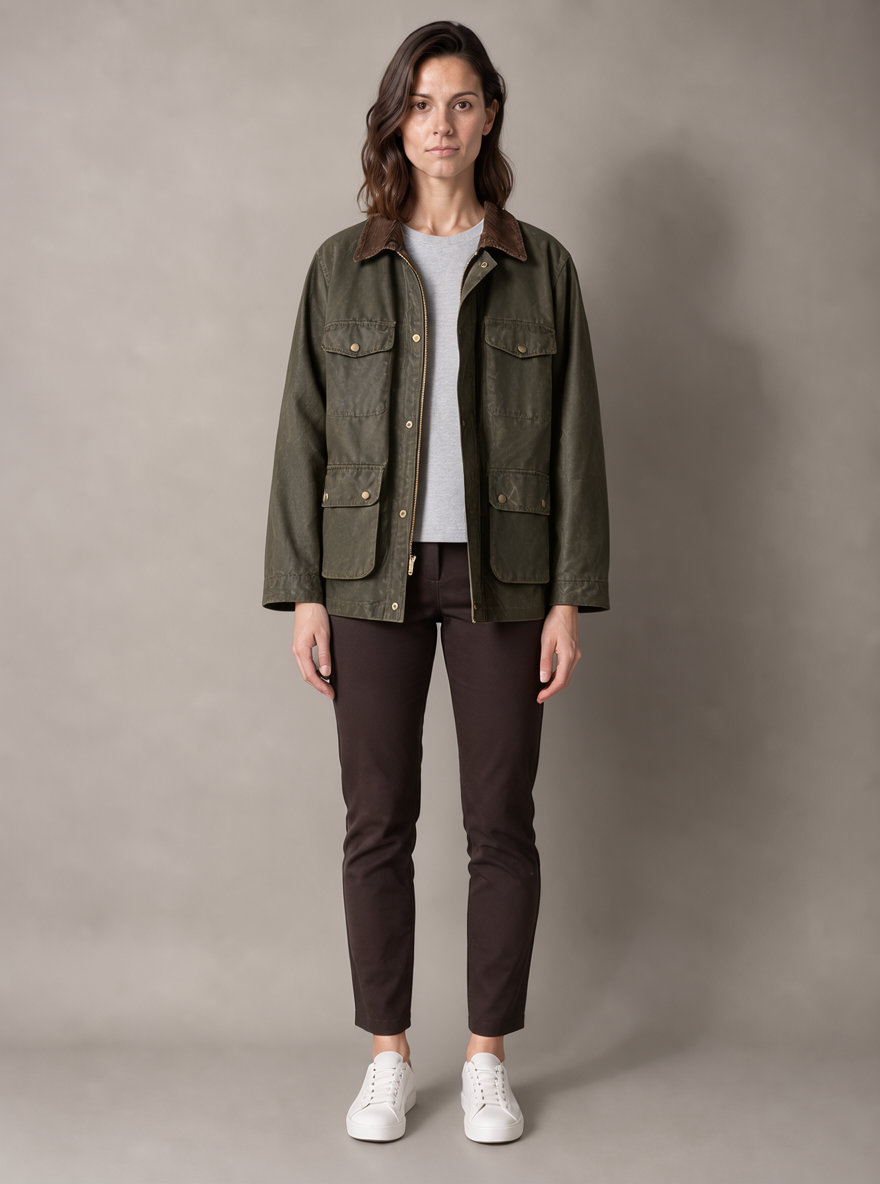
Only the portrait and the jacket this time, with a short instruction to change the garment and keep the studio background untouched.
You can also change the order and the frame. Here the street comes first and the output is set to 16:9, so the wide scene leads:
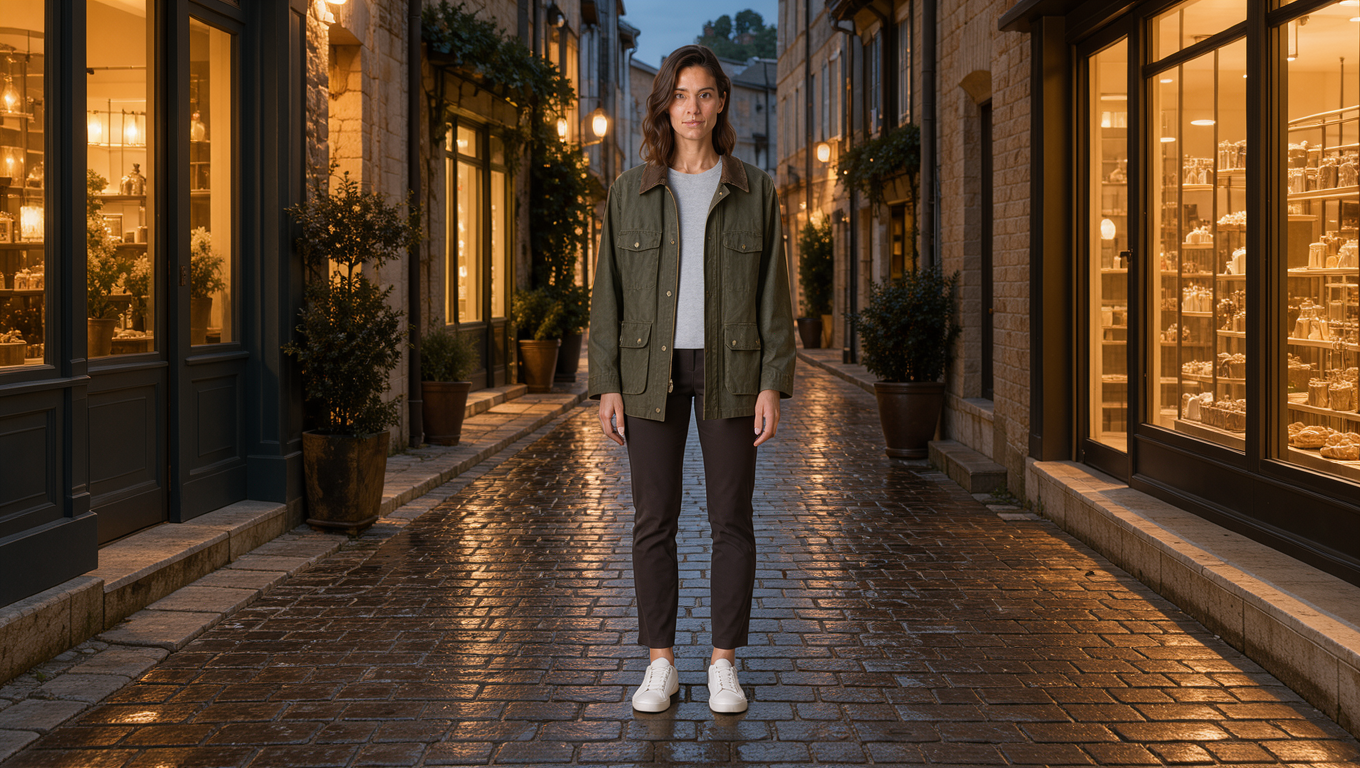
Same three photos, a different order and a wide frame, with the instruction rewritten to match the new image numbers.
Prompt tips for combining reference images
- One role per image. Person, product, setting, style. When two images do the same job, the model has to guess which one wins.
- Say what stays unchanged. Face, pose, background or framing, whichever you want locked.
- Keep instructions positive and concrete. "Worn open over a grey t-shirt" beats "make it look good".
- Use auto aspect to keep the base framing. It follows the first image, which saves you a crop later.
- Draft at 1K, finish at 2K or 4K. Iterate cheaply, then spend on the final.
Use it from the API or MCP
The same editing workflow works outside the studio. FLUX 3 Klein is available in the Kubeez REST API and the Kubeez MCP server under the model id flux-3-klein. Pass your reference images in order and the same instruction, and automate variants for a whole catalogue. The full model list is in the API docs.
FAQ
How many reference images can I use to edit an image?
FLUX 3 Klein takes 1 to 10 input images per edit, as jpeg, png or webp up to 30 MB each. Extra reference images cost nothing extra.
Does the order of my images matter?
Yes. You refer to images by position in your instruction, and the auto aspect ratio matches the first image you upload. Put the photo whose framing you want to keep first.
Can I combine reference images without writing a long prompt?
Yes. A short instruction that says what to take from each image and what to keep unchanged is usually enough. The model expands your prompt into a fuller description, and in editing it keeps the intent of what you wrote.
What is the best way to avoid losing details between runs?
Change one thing per run, state what must stay the same, and use the auto aspect ratio so the framing of your base image is preserved. Draft at 1K, then render the final at a higher resolution.
Ready to try it on your own photos? Open the studio, upload up to ten images and see how far a few clear sentences can take you. You can also browse the full AI image tools.
Dex writes the Kubeez guides and makes every example with the same tools you use.