Tutorials
Kling 4.0 Tutorial: Video From Reference Images and Clips
Make a video from reference images and clips with Kling 4.0 on Kubeez: name files @image_1 and @video_1, write the prompt, and follow a real run step by step.
· Dex
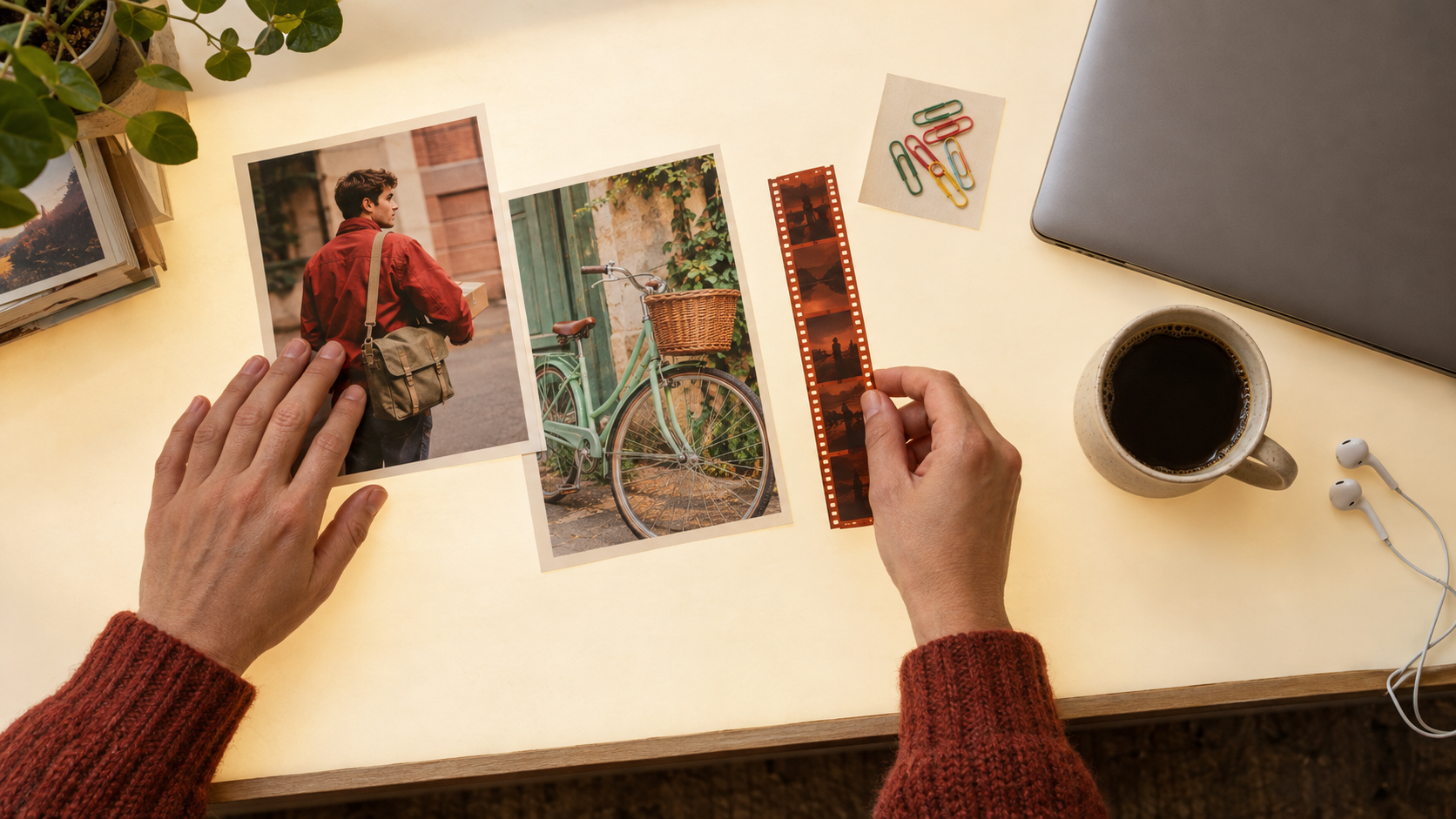
If you want to make a video from reference images, the fastest route is to stop describing your character and your props in words and show them instead. Kling 4.0 on Kubeez takes up to 10 reference images and up to 5 reference clips, lets you name each one in the prompt, and turns them into a single shot of 3 to 30 seconds with sound.
This tutorial walks through one real run from start to finish: two stills, one prompt, one 8 second clip. Then it covers what changes when you add a reference video.
What you need
- Reference images: up to 10, each at least 300 pixels per side, with an aspect ratio between 0.4 and 2.5 (so nothing more extreme than a tall phone shot or a wide banner).
- Reference videos (optional): up to 5, MP4 or MOV, each 3 to 30 seconds and 30 seconds combined.
- A prompt: up to 8,000 characters, though a few clear sentences are usually enough.
You do not need all three. A prompt alone works, images alone work, and any mix of images and clips works. The Kling 4.0 section of the Kling hub has the full spec list if you want it next to you.
Step 1: Make or pick your reference images
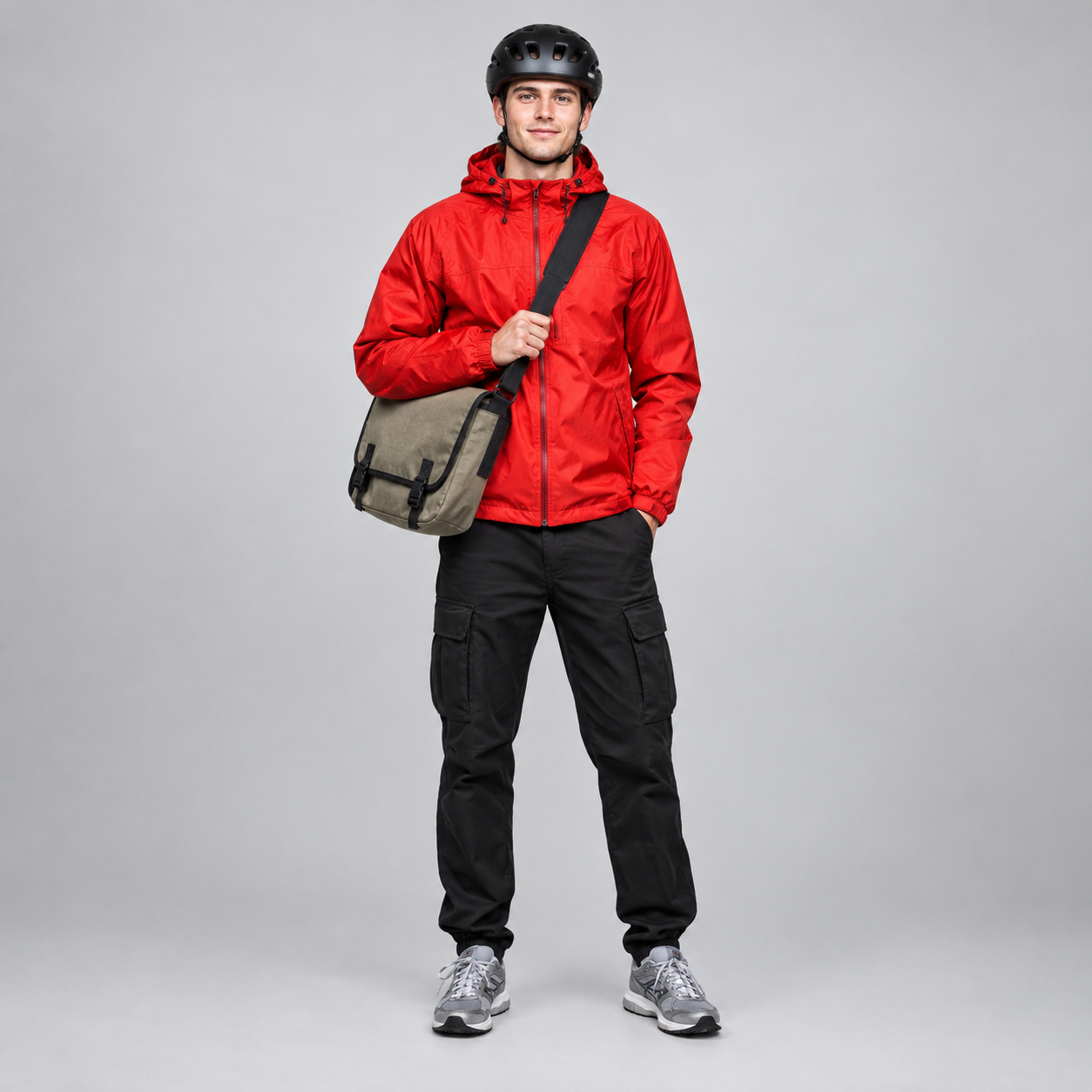
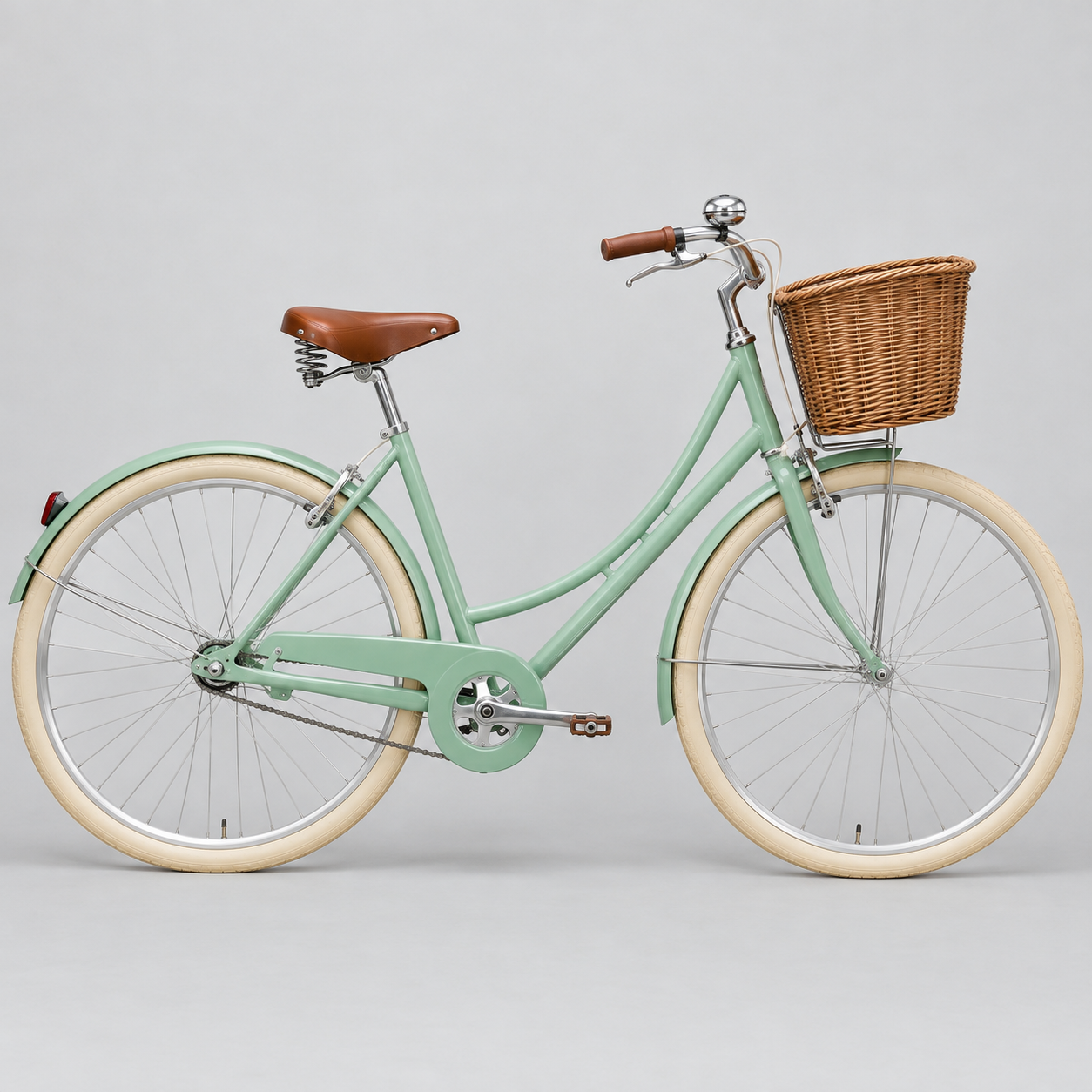
Each reference should carry one job. For this run we wanted a delivery courier riding a particular bicycle, so we made two stills with GPT Image 2: one of the courier, one of the bike.
What makes a good reference:
- One clear subject per image. A sharp, evenly lit shot of the courier on his own beats a crowded street scene with the courier somewhere in it.
- The details you want kept are visible. The red jacket, the bag, the mint frame and the front basket are all easy to read here, so the model has something concrete to hold on to.
- Sizes inside the limits. Anything under 300 pixels on a side, or a very thin strip, is refused before the run starts.
If you are building your stills from several sources first, our guide to editing an image with multiple reference images covers that part.
Step 2: Upload in the order you want to name them
Open the Kubeez studio with Kling 4.0 selected and attach your files. Kling 4.0 names them in upload order:
- The first image is
@image_1, here the courier. - The second image is
@image_2, here the bicycle. - Videos are counted separately: the first clip is
@video_1, the second@video_2.
Order matters because the prompt refers to files by those names. If you upload the bike first, the bike becomes @image_1.
Step 3: Write the prompt with @ mentions
This is the exact prompt we ran:
The courier from @image_1 rides the bicycle from @image_2 down a cobbled old-town street in late afternoon sun. Tracking shot from the side, then the camera swings in front as he rings the bell, grins and waves at a cafe table. Warm light, passing shop windows, natural motion blur. Sound of tyres on cobbles, a bright bell ring, distant city chatter.
It follows a simple order that works well with references:
- Who and what, by name. "The courier from @image_1 rides the bicycle from @image_2" tells the model exactly which file plays which part.
- Where and when. A cobbled old-town street in late afternoon sun.
- The camera and the action. A side tracking shot, then the camera swings in front for the bell ring, the grin and the wave.
- The look. Warm light, shop windows, natural motion blur.
- The sound. Tyres on cobbles, a bell, distant chatter. Kling 4.0 generates sound with every clip, so describe it.
Two habits keep mentions reliable. Use the exact @image_N name every time you refer to a file, rather than switching to "the man" halfway through. And only mention files you attached: a mention like @image_3 when there are two images is rejected before any credits are taken.
Step 4: Choose length, resolution and aspect ratio
For this run we used:
- Length: 8 seconds. Kling 4.0 accepts any whole number from 3 to 30.
- Resolution: 720p. 1080p is the other option.
- Aspect ratio: 16:9. The choices are auto, 16:9, 9:16, 1:1 and 21:9. Auto lets the model follow your references; a fixed ratio is the safer pick when you know where the clip will be posted.
A good habit is to test the idea at 720p and a short length, then render the keeper at 1080p or longer.
Step 5: Generate and check the result
Here is what came back:
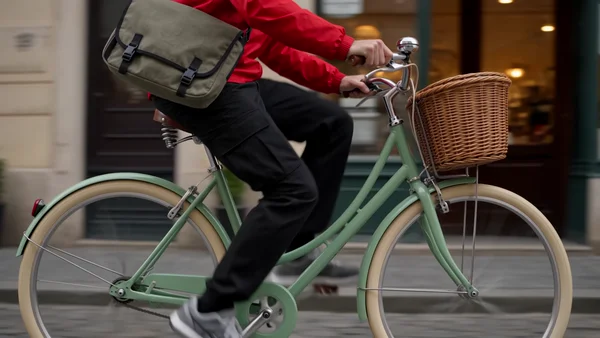
The same courier and the same bicycle from the two stills, held through the whole shot. The camera tracks from the side, then swings in front as he rings the bell and waves. Kling 4.0 kept both references faithfully, which is the point of naming them.
When you review your own result, check three things in order: did each referenced subject keep its look, did the camera do what you asked, and does the sound match the scene. If one subject drifts, make its reference cleaner or mention it again in the action line.
Adding a reference clip with @video_1
Images tell Kling 4.0 what things look like. A reference video can add movement, timing or a camera move you already have. Attach it, and it becomes @video_1; a prompt can then say what to take from it, for example "follow the camera move of @video_1".
Three things to know before you attach one:
- Clips must be MP4 or MOV, 3 to 30 seconds each, and 30 seconds in total across all clips.
- Sound is your choice. With a reference video, Kling 4.0 still generates a new soundtrack by default, or it can keep the original audio of your videos.
- The clip counts toward the bill. Without a reference video you pay per second of output. With one, you pay for the output length plus the longer of the output or the total clip length. A 10 second result with a 5 second clip bills 20 seconds; with a 15 second clip it bills 25. Our courier run had no clip, so its 8 seconds of output were 8 billable seconds.
For the current price per second, check the live price on the card in the studio or on the Kling family page.
Running the same workflow over the API or MCP
The same steps work from code. Over the REST API, send POST /v1/generate/media with kling-4-0-720p or kling-4-0-1080p when you only attach images, and the matching -video id when you attach a clip. Images go in source_media_urls (or reference_image_urls), clips in reference_video_urls, and clips must be uploaded to Kubeez first. Over MCP, generate_media takes the same model ids and fields. The Kling 4.0 section of the media tools docs lists every parameter.
Where to go next
For the full picture of the model, read the Kling 4.0 launch post. If you are still choosing a video model, Seedance 2.5 vs Seedance 2 vs Wan 3 vs Kling 3 and Kling 3.0 Turbo are good next reads.
Also new on Kubeez this week: OmniHuman 2.0, for turning one portrait and one audio file into a talking or singing video.
Frequently asked questions
Can I make a video from reference images only, without a clip?
Yes. Attach one or more images, name them in the prompt as @image_1, @image_2 and so on, and Kling 4.0 builds the clip around them. A reference video is optional.
How many reference images and clips can Kling 4.0 take?
Up to 10 images and up to 5 clips in one run, in any mix. Each clip runs 3 to 30 seconds, and all clips together can total up to 30 seconds.
How does Kling 4.0 know which image is which?
By upload order. The first image you attach is @image_1, the second @image_2, and the first clip is @video_1. Use those names in the prompt.
Does a reference clip make the video cost more?
It adds to the billed seconds. With a clip attached you pay for the output length plus the longer of the output or the total clip length. The live price per second is on the card in the studio and on the Kling family page.
Dex writes the Kubeez guides and makes every example with the same tools you use.