

What you will make
A GPT Image 2.6 image, cut-out or GIF, made on the mode, shape and size that fit the job.
You need
- 1.An idea for the image, and the exact words it should show, if any
- 2.Reference images if you are editing: a product, a place, a style
- 3.Credits for a few 1K tries and the final render
1. Open GPT Image 2.6 and pick a quality mode
GPT Image 2.6 is one card with three quality modes. They share the prompt box and the 16 reference slots, and differ in size, shapes and finish.
- 1In the Media Studio, open the Model card, Image tab, and pick GPT Image 2.6.
- 2In its settings, choose Economy, Flare or Sunburst under Quality mode.
- 3Find the idea on Economy or Flare. Render the keeper on Sunburst.
The lowest cost. 1K only, 8 shapes, PNG, plus GIF from a text prompt. For concept rounds, prompt tests and cut-outs in bulk.
Tip: The card opens on Flare. The price on the Generate button follows the mode, so check it after you switch.
2. Write the prompt, with the words in quotes
Write the prompt like a brief: subject, setting, light, then any words that must appear on the image, in quotes and spelled exactly. The figure is this prompt run once on each mode.
- 1Put every word the image should show inside quotes. A headline and one short line read best.
- 2End with what to leave out, such as no other text and no logos.
- 3Use the room you have: a prompt can run to 8,000 characters.
PromptA printed poster for a night market noodle stall. Center: a steaming bowl of hand pulled noodles in red chili broth with scallions and a soft egg, chopsticks lifting a strand, shot from slightly above on a worn wooden counter. Background: warm paper lanterns softly out of focus, deep navy night. Top of the poster, large bold condensed sans serif headline in cream: "OPEN TILL 2". Bottom, small line in cream: "Stall 14, Harbor Night Market". No other text, no logos.
Tip: Find the wording on Economy or Flare first. The same prompt carries over unchanged when you switch the mode.
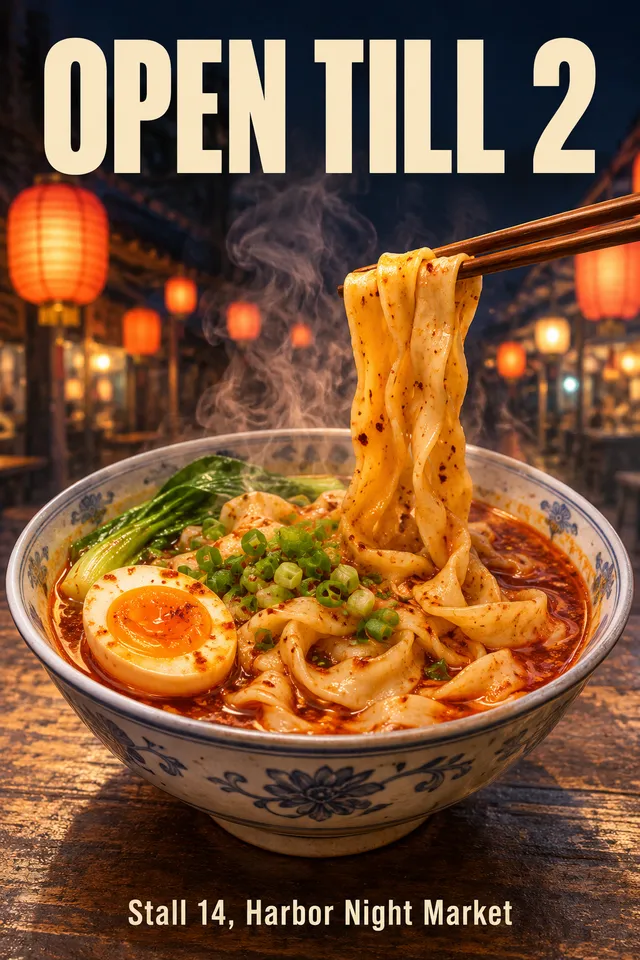 Economy
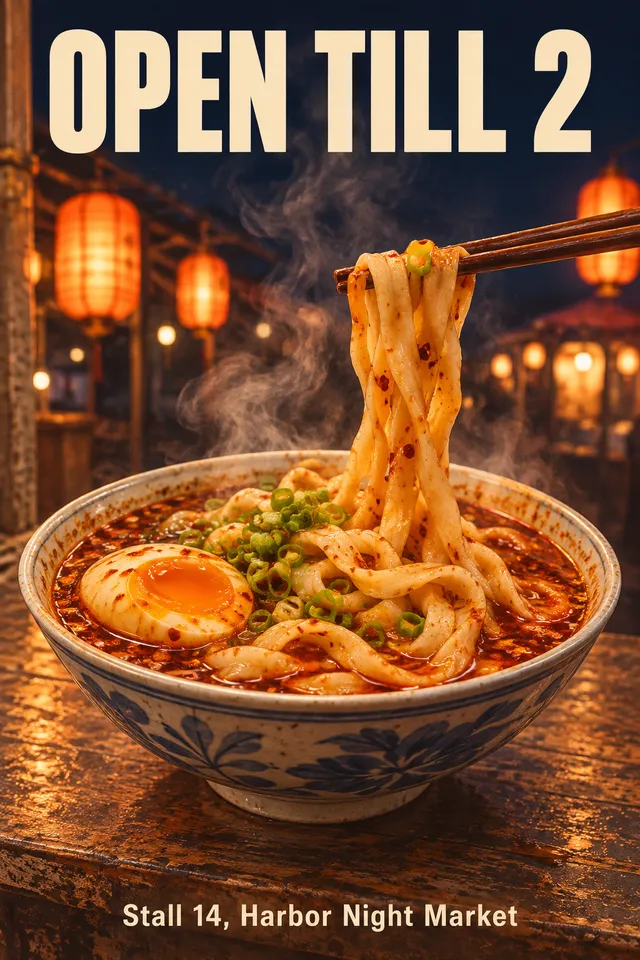 Flare
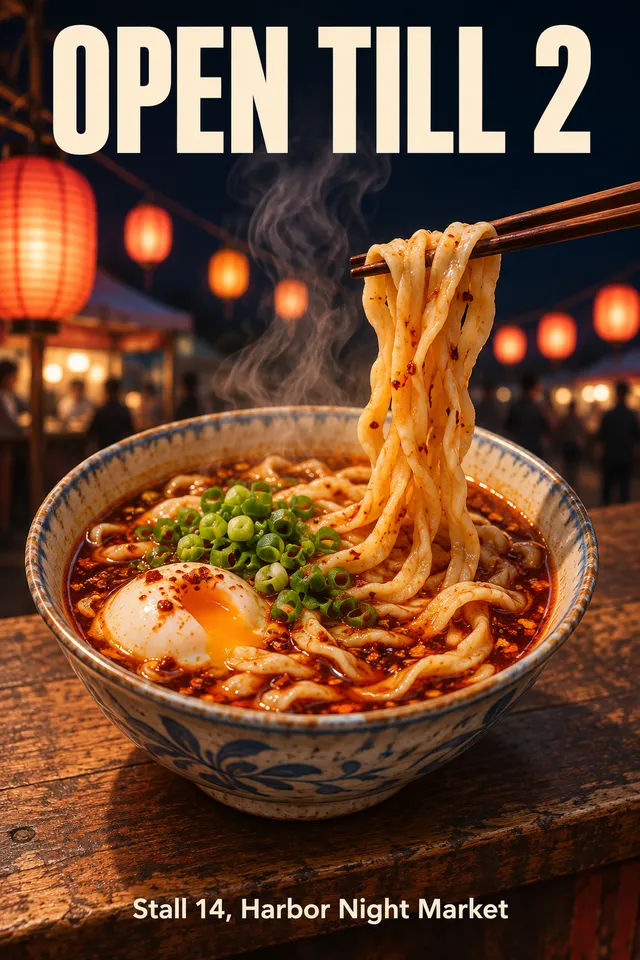 Sunburst
GPT Image 2.6same prompt, 1K, 2:3
3. Pick the shape and the size
Pick the shape for where the image will live, so nothing has to be cropped later. Flare and Sunburst take all 16 shapes at 1K, 2K or 4K. Economy takes 8 shapes at 1K.
- 1Feed post: 4:5. Story: 9:16. Site header: 3:1 or 2:1. Tall side panel: 1:3.
- 2Settle the picture at 1K, then render the one you keep at 2K or 4K.
- 33:4, 4:5, 5:4, 2:1, 1:2, 3:1, 1:3 and 9:21 are Flare and Sunburst only.
Tip: Auto leaves the shape to the model.
4. Edit with reference images
Attach images and the card switches to editing. It takes up to 16. Name them by the order you attached them and give each one a job. This prompt merged the two images in the figure.
- 1Attach the images in the order you will name them: image 1, image 2 and so on.
- 2Say what to take from each one: the product from image 1, the place from image 2.
- 3Say what must not change, such as the shape, colors and details of the product.
PromptPlace the sneaker from image 1 on the concrete ledge in image 2, standing in the empty middle of the ledge. Keep the sneaker exactly as in image 1: mustard suede, white sole, cream laces, navy side stripe. Match the low golden sun from the left and cast a long soft shadow to the right. Keep the skyline and haze of image 2. No text.
Tip: On Flare and Sunburst every reference image adds to the price, while Economy stays flat. Attach only the images the edit needs.
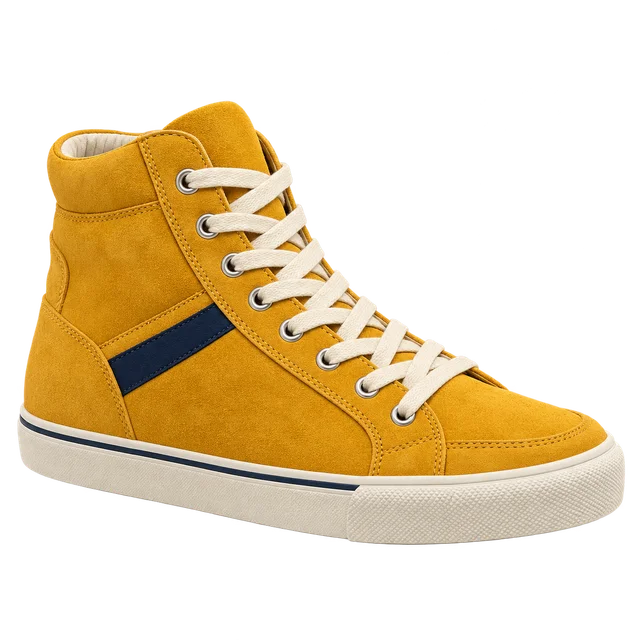 image 1 · sneaker
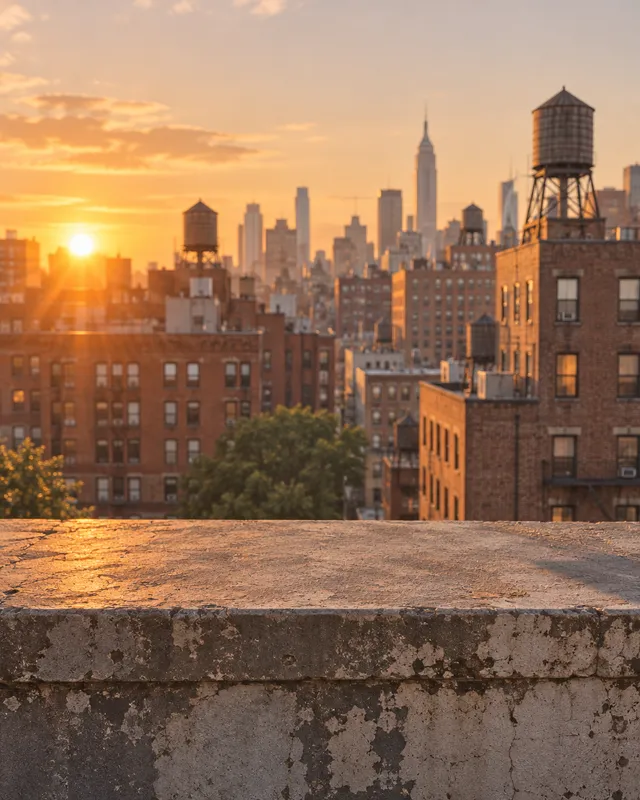 image 2 · rooftopGPT Image 2.6 Flare
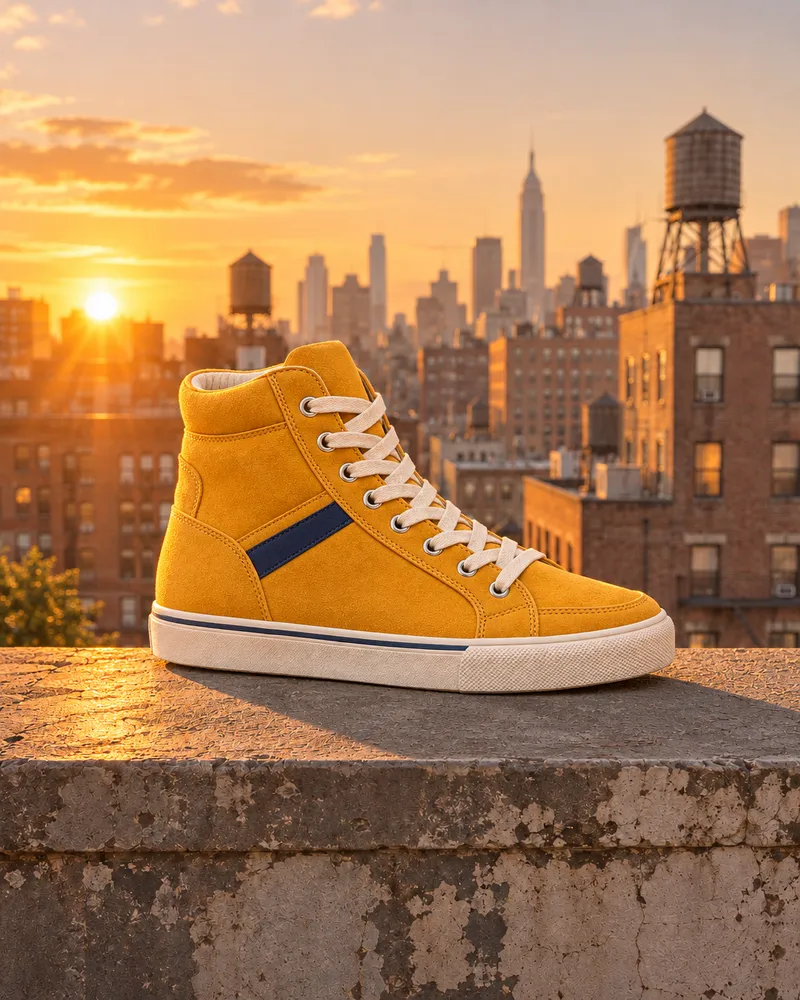 Result · 4:5
5. Make a transparent cut-out
Background has three choices: Auto, Transparent and Opaque. Transparent gives you the subject alone, ready for a page, a slide or a sticker sheet.
- 1Set Background to Transparent. It shows at 1K on every mode.
- 2Keep the format on PNG or WEBP. JPEG cannot hold transparency, so it is grayed out.
- 3Describe the subject alone: no floor, no wall, no scene.
PromptA single retro high top sneaker in mustard yellow suede with a white rubber sole, cream laces and a small navy stripe on the side, three quarter view facing right, soft studio light, crisp edges. The sneaker alone, isolated, nothing else in the frame: no floor, no shadow plate, no wall, no text.
Tip: Check the edges over a light and a dark background before you use it. A soft halo shows on one of the two.
On a light pageOn a dark pageGPT Image 2.6 EconomyBackground: Transparent, PNG
6. Turn a prompt into a looping GIF
Pick GIF under Format and GPT Image 2.6 draws a short loop. It works from a text prompt only, so remove any reference images first.
- 1Set Format to GIF and pick the frames: 2 to 16 on Flare and Sunburst; Auto, 4, 9, 16, 25, 36 or 64 on Economy.
- 2Describe one simple movement, like rising steam, a wave or a pulsing badge, and say the camera stays still.
- 3Keep the scene calm. One moving thing loops more cleanly than a busy scene.
PromptA looping animation of a steaming bowl of hand pulled noodles in red chili broth on a worn wooden counter at a night market, warm paper lanterns softly out of focus behind it. Only one thing moves: soft wisps of steam rise from the bowl and drift up, then fade. The camera stays completely still, the bowl and background do not move. No text.
Tip: On Flare and Sunburst, a GIF of up to 8 frames costs less than one of 9 to 16. Start at 8.
 GIF · 8 frames
GPT Image 2.6 Flareonly the steam moves
7. Pick the format and check the result
Flare and Sunburst save PNG, JPEG or WEBP, and Economy saves PNG. The format of a still does not change its price. Then look over the whole image before you post it.
- 1PNG for cut-outs and crisp text, JPEG for photos where file size matters, WEBP for the web.
- 2Zoom in on every word, label and logo, most of all at 4K.
- 3After an edit, check what you did not ask to change. In the edit figure above, the sneaker came back at a flatter side angle than in image 1.
Tip: For a chain of edits on one subject, use Sunburst. It keeps the subject closest to the original from one edit to the next.
Avoid these
- Leaving the words of a headline out of quotes, so they come back reworded.
- Asking Economy for 4:5, 3:4 or 2K. Those need Flare or Sunburst.
- Picking JPEG and expecting a transparent background.
- Looking for Background at 2K or 4K. It only shows at 1K.
- Attaching reference images and then looking for GIF. GIF works from a text prompt only.
- Attaching more references than the edit needs. On Flare and Sunburst each one adds to the price.
- Rendering every try at 4K instead of settling the picture at 1K first.
- Asking a GIF for several moving things and a moving camera.
GPT Image 2.6 questions
Open the Media Studio, pick GPT Image 2.6 on the Image tab, choose Economy, Flare or Sunburst under Quality mode, set the shape and size, write the prompt and press Generate. Attach images to edit them.
Economy is the lowest cost, 1K only with 8 shapes. Flare is fast, with 1K, 2K or 4K and all 16 shapes. Sunburst has the same sizes and shapes as Flare, with the most detail and steadier edits.
Yes, at 1K. Set Background to Transparent and keep the format on PNG or WEBP. JPEG cannot hold transparency.
Yes, from a text prompt. Set Format to GIF and pick the frames: 2 to 16 on Flare and Sunburst, or Auto, 4, 9, 16, 25, 36 or 64 on Economy. GIF does not work with reference images.
Yes, on Flare and Sunburst, along with 5:4, 2:1, 1:2, 3:1, 1:3 and 9:21. Economy has 8 shapes and no 4:5.
Up to 16, on every mode. Name them in the prompt by the order you attached them: image 1, image 2 and so on.
Yes, on Flare and Sunburst, which render at 1K, 2K or 4K. Economy renders at 1K.
Up to 8,000 characters, on every mode.
On Flare and Sunburst, yes: each reference image adds to the price. Economy stays flat. The Generate button shows the full price before you run it.
It adds the Economy mode, 4:5 and very wide and tall shapes, transparent backgrounds and GIFs. GPT Image 2.5 still has 27:16, 16:27, 9:8 and 8:9, and it stays on Kubeez.
Your turn
Everything in this lesson is one click away. Open the tool and make your first version now.