Tutorials
Getting Started with Kubeez: Your First AI Generation
Beginner tutorial covering the credit system, model selection, and your first AI generation on Kubeez.
March 13, 20263 min readBy Kubeez
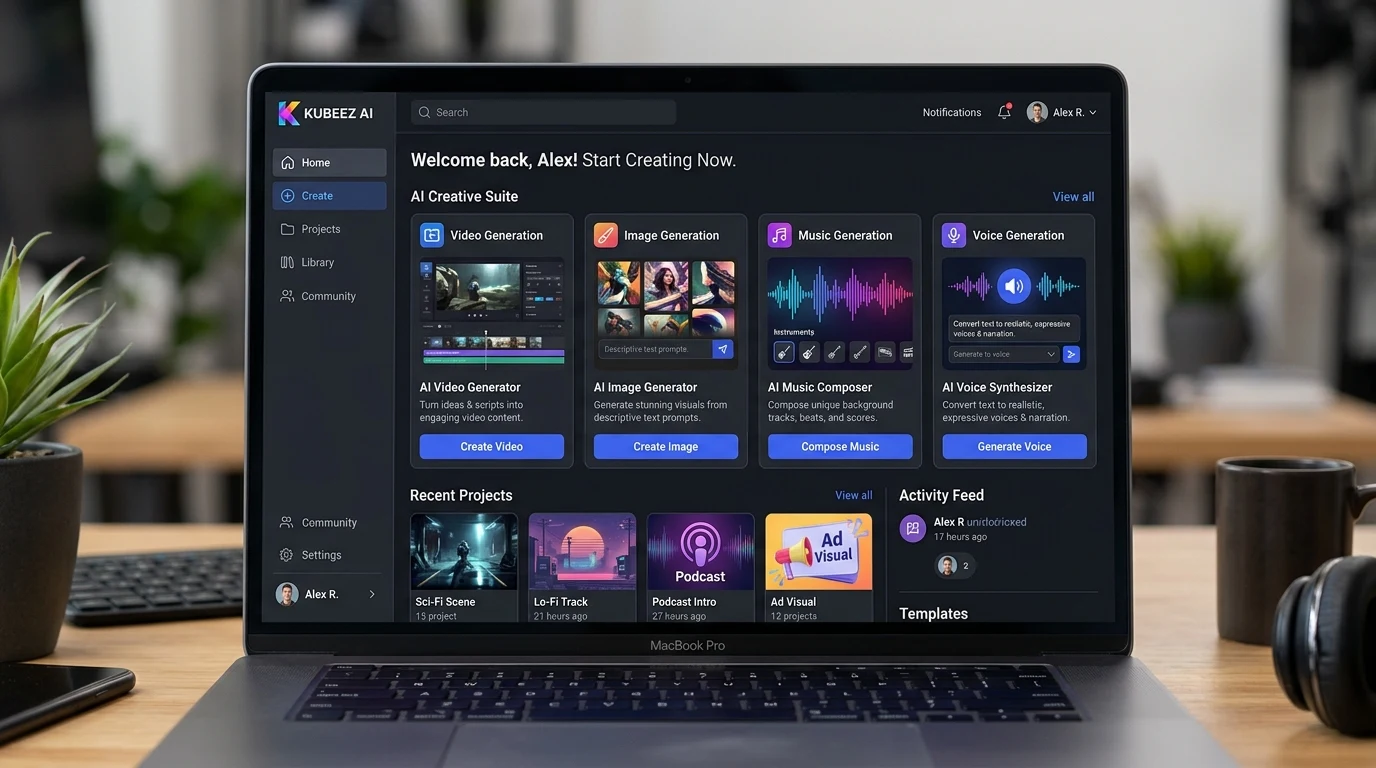
Kubeez brings together the best AI models for video, images, music, and voice—all in one platform. No watermarks, full commercial rights, and a single credit system. This guide walks you through your first generation, from sign-up to download.
#Create an Account
- Go to kubeez.com
- Sign up with email or Google
- Verify your account
- You're in. The dashboard shows your credit balance and quick access to each tool.
#Understanding Credits
Kubeez uses a credit system. Each generation costs credits based on the model and output:
- Images: 3–41 credits depending on model (Z-Image ~3, Nano Banana 2 ~14, Pro 4K ~41)
- Video: Per second (e.g., Kling 2.6 ~9–12/sec, Kling 3.0 ~21–34/sec)
- Music: Varies by duration and model
- Voice: Per character or per generation
Purchase credits or subscribe to a plan. No long-term contracts—pay for what you use.
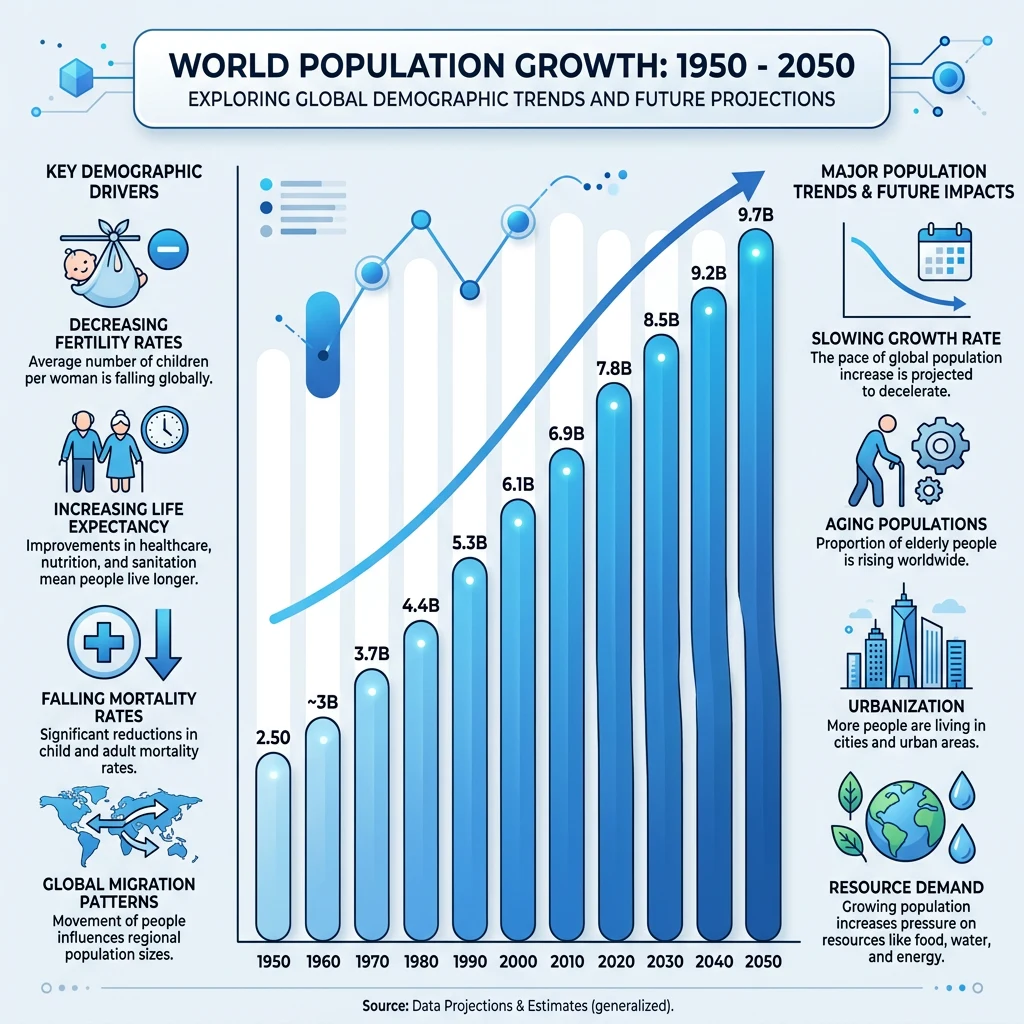
#Your First Image
- Go to Images (or kubeez.com/images)
- Choose a model. Nano Banana 2 is the default—best value for most use cases
- Enter a prompt: "A ceramic vase on white marble, soft studio lighting, professional product photography"
- Select aspect ratio: 1:1, 16:9, or 9:16
- Click Generate
- Wait ~30–60 seconds. Your image appears. Download or use as reference for more generations.
#Your First Video
- Go to Video (or kubeez.com/video-generation)
- Choose a model. Kling 2.6 is great for social content; Veo 3.1 for cinematic
- Enter a prompt: "Close-up of coffee cup on wooden table, steam rising, morning sunlight, 5 seconds"
- Select aspect ratio: 16:9 or 9:16
- Click Generate
- Wait a few minutes. Video generates with optional audio (on Kling 2.6). Download when ready.
#Model Selection Quick Guide
Images:
- Default: Nano Banana 2
- Fast/cheap: Z-Image
- Text in image: GPT-1.5-image-high
- Best quality: Nano Banana Pro 4K
Video:
- Social/ads: Kling 2.6
- Cinematic: Veo 3.1
- 4K/long: Kling 3.0

#Next Steps
- Explore tools: Ads, Audio, Auto Captions. Each has its own workflow.
- Try the API: Developers can use the MCP or REST API for programmatic access.
- Join the community: Get tips, share work, and stay updated on new models.
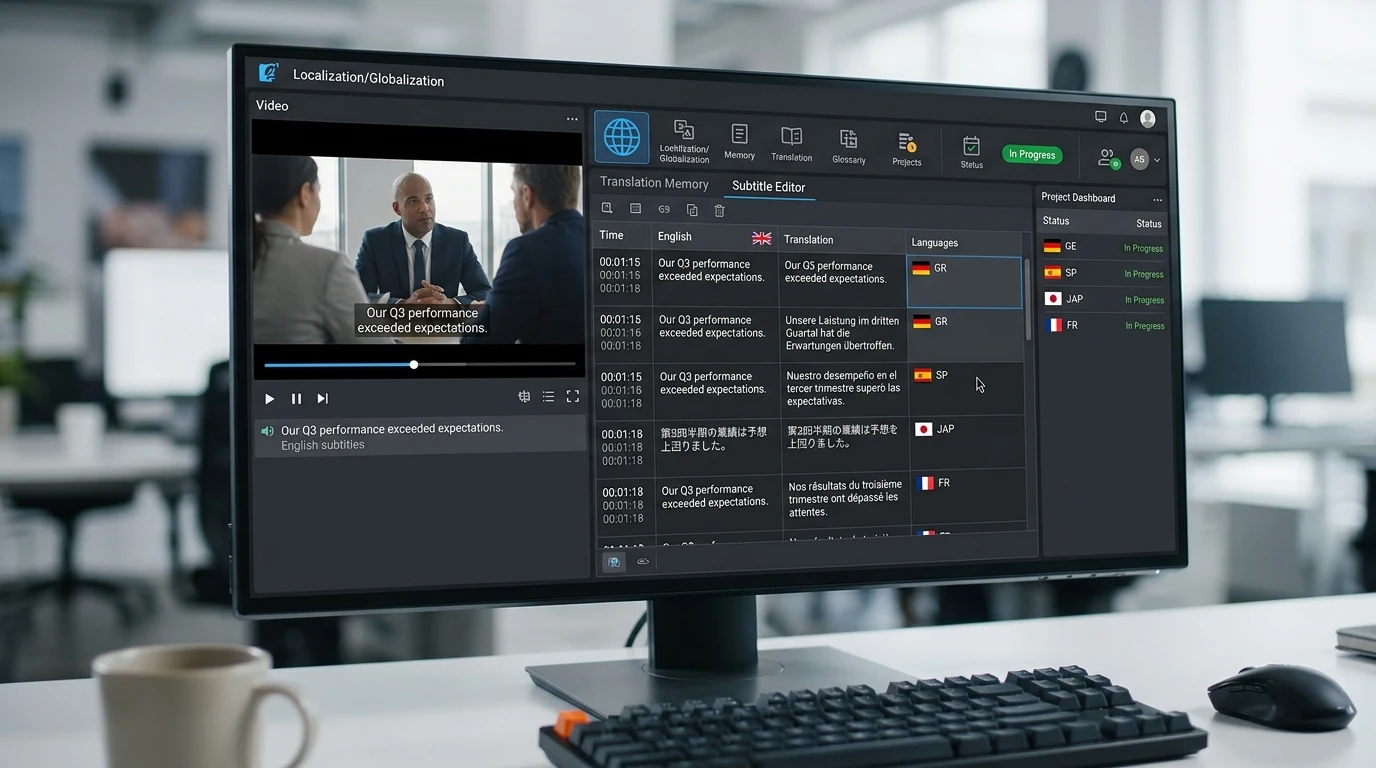
Get started with Kubeez and create your first AI generation today.