

 Seedance 2.5
What you will make
A clip of up to 30 seconds where a performer you designed sings your song in time, with your original recording as the sound.
You need
- 1.Your song as an MP3 or WAV
- 2.The lyrics of the part you are making
- 3.An idea for the performer and the place
1. Plan the parts
Each clip is one generation. Seedance 2.5 makes up to 30 seconds, Seedance 2 up to 15 seconds.
- 1Use Seedance 2.5 for music videos.
- 2Split a longer song into 30 second parts.
- 3Start with the chorus.
Tip: Get one part right before you make the rest.
Your song · 2:00
Seedance 2.5, 30 s per part
Part 1
Part 2
Part 3
Part 4
Seedance 2, 15 s per part
1
2
3
4
5
6
7
8
2. Use the black video trick
Attached as an audio file, your song gets remade and comes back scrambled. Put inside a black video, it only guides the timing and the mouth.
- 1Never attach the song as audio.
- 2Wrap it in a black video instead.
Song attached as audio
song.mp3 Remade and scrambledSong inside a black video
part-1.mp4 Your exact trackReal clips. Play both with the sound on.
3. Make the black video
A plain black picture with your song as the sound. One file per part.
- 1Open editor.kubeez.com, the free open source Kubeez editor.
- 2Put your song on the timeline and add a black clip of the same length.
- 3Export as MP4.
Tip: 30 seconds or less per file for Seedance 2.5, and 15 seconds or less for Seedance 2.
0:000:100:200:30Video
Plain black
Audio
Your song
Same lengthExport MP44. Create the performer
One clear picture. Its look carries into the video.
- 1In the Media Studio, open the Model card, Image tab, and pick a Seedream 5 model like Seedream 5.0 Pro.
- 2Show the face, the outfit and the place.
- 3Open the result and press Use Image.
PromptA casual snapshot taken on an older smartphone at night, amateur quality, not a professional photograph. A man in his late twenties sits on the edge of an unmade bed in a small bedroom, leaning slightly forward toward the phone. Athletic build, warm brown skin, short twisted hair pulled back, thin moustache and a trimmed beard, a small scar on the bridge of his nose, relaxed confident eyes looking straight into the lens. He wears a plain black hoodie with the hood down over a white tee, grey sweatpants, a thin silver chain, fine tattoos across the backs of both hands. The room is small and lived in: a plain off-white wall with a scuff mark and a nail hole, a closed venetian blind, a crumpled duvet, a black hoodie thrown over the back of a desk chair, a charging cable trailing across the carpet, an empty drinks can on the windowsill. Lit only by the phone's harsh on-camera LED flash straight from the front, plus a weak yellow ceiling bulb. Flat frontal light, blown out highlights on his forehead and cheekbones, hard black shadow thrown onto the wall behind him, dull greenish cast in the corners of the room. Image quality is deliberately poor: heavy digital noise in the shadows, visible JPEG compression blocking, low dynamic range with crushed shadows and clipped highlights, everything in focus with no background blur at all, mild wide angle distortion from a small phone lens, slightly crooked handheld framing with the subject a little off centre. No text, no logos, no lettering, no captions, no watermarks anywhere in the frame.
Tip: Seedream and Seedance come from the same model family, so Seedance accepts a realistic person made in Seedream. GPT Image 2.5 works for the picture too, but Seedance can block a realistic person made with other models as a possible real person.
Describe what to create
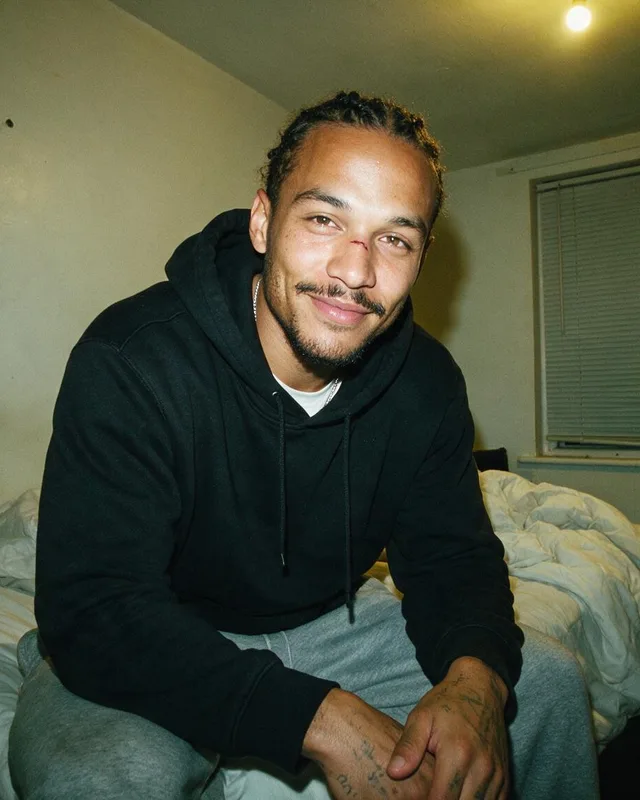
- Face visible
- Exact outfit
- The place
- The look you want
5. Set up Seedance 2.5
The picture and the black video go in together as references.
- 1Model card, Video tab, Seedance 2.5, References tab.
- 2Add the black video on the Upload media card.
- 3Turn Include Audio off. Set Duration to the black video's length.
Tip: With Include Audio on, the model sings over your song.
Upload media1/301/100/10Image1Video1
6. Write the prompt
@image1 is your performer, @video1 is the black video. Paste the lyrics, or the mouth mumbles.
Prompt@image1 is the performer. Keep his exact face, hair and outfit in every shot. @video1 is a black screen that carries only an audio track. Use its audio to drive the timing, the rhythm, the cut points and the performer's mouth movement. Do not use its black frames as visual content. @video1 contributes audio only. He sings straight to camera from the edge of the bed in his small bedroom, lit by the phone flash. Medium shot with a slow push in, then a hard cut to a close up for the chorus. Handheld, realistic. Lip-sync strictly: "paste the lyrics of this part here". No silent stretches while the vocal is running. No subtitles, no text, no watermark.
Describe what to create
- @image1Who sings
- @video1Sound only
- Lip-sync strictly:Words to mouth
7. Put your song back on
The clip comes back silent. That is expected: your song was the guide, not the sound.
- 1Open editor.kubeez.com.
- 2Clip on the timeline, your song under it, both at the start.
- 3Export. For a full song, line the parts up in order.
Tip: Generate shows the cost before you press it. The reference video counts toward it.
0:000:100:200:30Your clip
Silent
Your song
Both start at 0:00Export
Avoid these
- Attaching the song as audio. It comes back scrambled.
- Leaving Include Audio on.
- No lyrics in the prompt, so the mouth mumbles.
- A black video over 30 seconds on Seedance 2.5, or over 15 seconds on Seedance 2.
- Posting the clip without putting the song back.
Consistent audio in AI music videos
Never let the video model make the sound. Put your song inside a black video, use it as the reference video in Seedance 2.5 with Include Audio off, then lay your original recording back under the clip in the editor. The final audio is your exact track, not a remake.
You attached it as an audio file. Seedance 2.5 remakes a song attached as audio, so it comes back scrambled. Put inside a black video instead, the song only guides the timing and the mouth.
Play one original recording under every clip, start to finish. Cut the song into parts of 30 seconds or less for Seedance 2.5, or 15 seconds or less for Seedance 2, in order, with no gap and no overlap. Make one black video and one clip per part, then line the clips up in order in the editor with the full song under them from 0:00.
The black video drives the timing and the mouth, so set Duration to its length and paste the lyrics of that part into the prompt. Without the lyrics, the mouth mumbles. When you put the song back, line each clip up with the start of its part.
Use the same performer picture as @image1 in every part, and keep the line that tells Seedance 2.5 to keep the exact face, hair and outfit in every shot.
That is expected. Include Audio is off, so the clip comes back without sound: your song was the guide, not the sound. Put your original recording back on in the editor. With Include Audio on, the model sings over your song.
One generation makes up to 30 seconds on Seedance 2.5 and up to 15 seconds on Seedance 2. For a longer video, make the song in parts and join them in the editor.
Models used
Open a guide to see what each model is best at.
Your turn
Everything in this lesson is one click away. Open the tool and make your first version now.