Stem Separation and Vocal Isolation on Kubeez: When to Use It
Split a mixed track into stems, isolate vocals, and prep dialogue beds—then route results into music, ads, or dubbing workflows without leaving the platform.

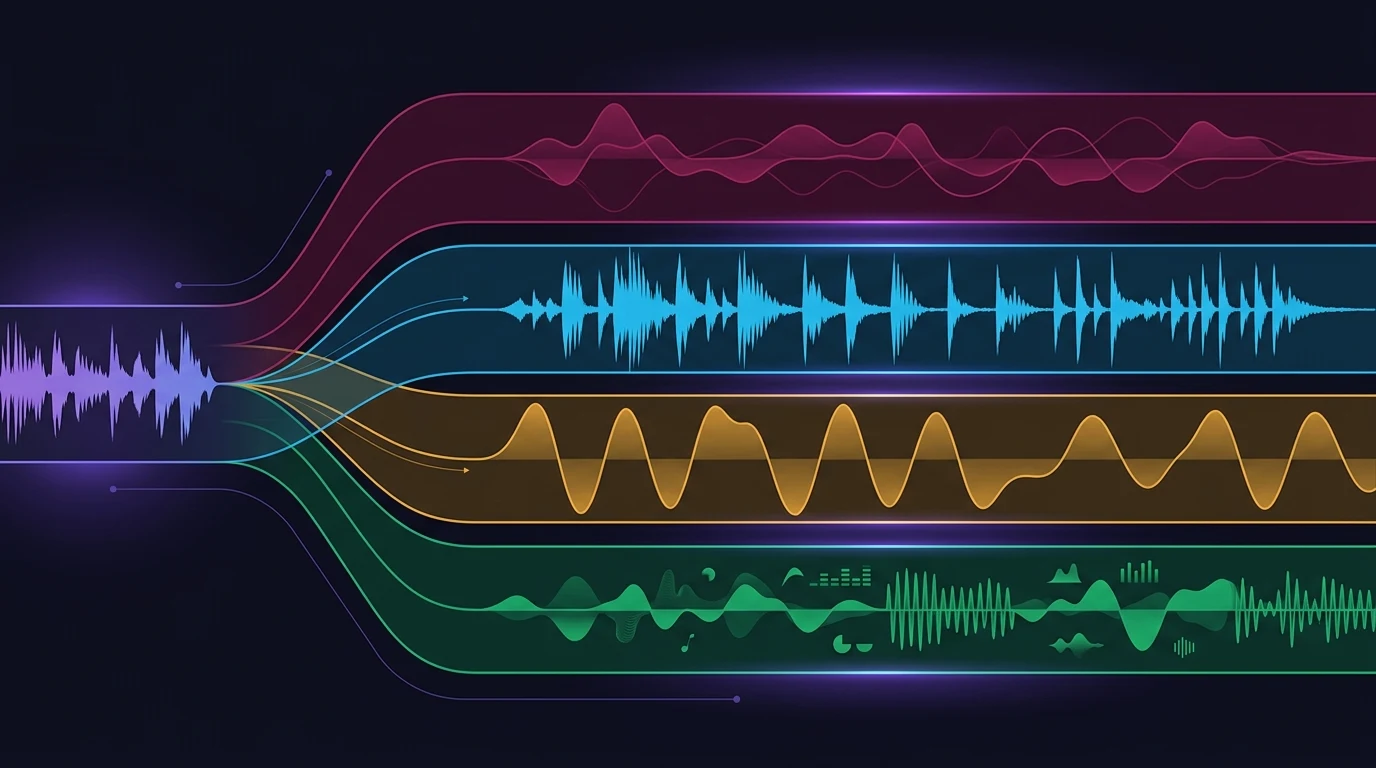
Most creators do not receive a multitrack Pro Tools session with every asset. You get a single stereo bounce: a podcast bed, a licensed instrumental, a rip from an old session, or a client “final mix.” Stem separation and vocal isolation use machine learning to unmix that stereo file into editable layers—vocals, drums, bass, and “everything else”—so you can rebalance, replace, or prep dialogue without re-recording the band.
Modern separation is good enough for social edits, dubs, and caption prep, but it is not a substitute for true stems when mastering for release. This guide explains what you get on Kubeez, when separation wins, where artifacts show up, and how to chain stems into Auto Captions and video.
#What “stems” means here
In a DAW, stems are submixes exported from a project (e.g. “vocals,” “drums”). Source separation models approximate those stems from a mixed file. Typical outputs are:
- Vocals — speech or sung lead, often the lane you need for subtitles or dubbing.
- Drums — kick, snare, hats as one bed (not individual mics).
- Bass — low-frequency harmonic content lumped together.
- Other — residual instruments, pads, guitars, FX—useful for remix balance, not surgical mastering.
Quality tracks dry dialogue and sparse mixes best; dense metal, crowd noise, or heavily processed EDM can produce bleed, phasey drums, or watery pads. Always listen after split—if a stem sounds wrong, treat separation as a starting point, not truth.
#When separation beats re-recording
- You only have the stereo file and need the voice cleaner for Auto Captions or dubbing.
- Remix / cover — mute the original vocal stem, keep groove and harmony for a new take.
- Adapting licensed beds — pull drums back, lift vocals for a VO duck, or carve space for SFX (with license and legal review).
When you do have multitracks, use them. Separation is for archive rescue, speed, and good-enough social delivery.
#Artifacts to expect (and how to work around them)
| Issue | What it sounds like | Mitigation |
|---|---|---|
| Bleed | Hi-hats in the vocal stem | EQ gently; or use the vocal stem only for caption timing, not broadcast mix |
| Phasey drums | Thin, swirly kit | Avoid heavy stereo widening on the separated drum stem |
| Smeared consonants | Mushy dialogue | Try a shorter clip; very noisy sources may never clean fully |
Separation models infer structure; they do not recover microphones that were never in the file.
#Workflow on Kubeez: Audio → stems → captions
- Open the Audio hub and choose stem separation (vocal / instrument split as offered in the product).
- Upload your mixed clip. Download or route stems into your DAW, video timeline, or next Kubeez step.
- For global or burned-in subtitles, run the vocal (or full mix) through Auto Captions—cleaner voice lanes often yield better word timing for caption blocks.
- For video, re-lay stems under your edit in Media or your NLE; keep levels conservative until you confirm no clipping after sum.

#Related reading and tools
- AI music generation — when you need new beds instead of unmixing old ones.
- Multilingual auto captions — after you have dialogue isolated or timed.
- Stem separation route:
/audio/separation(if exposed as a dedicated path in your locale; otherwise start from/audio).
Summary: Stem separation turns a single stereo file into approximate multitrack layers for editing, remix, and caption workflows. Expect imperfect but useful results—validate by ear, then chain into Auto Captions or video when the voice lane matters.
Next steps
- Open the Audio hub and run your next mixed clip through separation.
- Follow with Auto Captions if you are shipping subtitled Shorts or long-form.
- Browse the AI models guide when you need a different model for music or dialogue generation.
See also