Turn One Long Video into Shorts with Auto Captions
Repurpose webinars and interviews for Reels, Shorts, and TikTok: clip vertically, burn in subtitles, and translate hooks for global feeds.

Webinars, interviews, and hour-long talking-head recordings are libraries of clips hiding inside one file. Short-form feeds (Reels, Shorts, TikTok) reward tight hooks, 9:16 framing, and legible captions—because many viewers watch muted first. This guide covers how to find moments, reframe vertically, style subtitles, and reuse long assets without rebuilding everything from scratch.
Industry guides consistently emphasize safe zones on 1080×1920 canvases: keep faces, logos, and key text away from edges where platform UI (likes, captions, profile) sits—often a center-weighted region, with extra bottom margin when multi-line captions appear. Treat numbers as rules of thumb; always preview on a phone before publishing.
#1. Find hooks before you cut
Skim for pattern interrupts: a bold claim, a stat, a joke, or a direct question. Mark timestamps and aim for 20–45 seconds per clip unless the platform skews ultra-short.
- Cold open — first 2 seconds must answer “why watch?”
- One idea per clip — do not reuse the long video’s full agenda in one Short.
- Series naming — consistent filename prefixes help schedulers and analytics (
brand-topic-01-en).
#2. Reframe for 9:16
- Center the subject — face and eyes in the middle third horizontally; avoid edge cropping after vertical crop.
- Leave headroom — platform chrome and caption bars consume bottom (and sometimes side) space; do not put critical text flush to the bottom edge.
- Export baseline — 1080×1920 is the common denominator for vertical delivery; match your pipeline to what Kubeez or your editor outputs before caption burn-in.

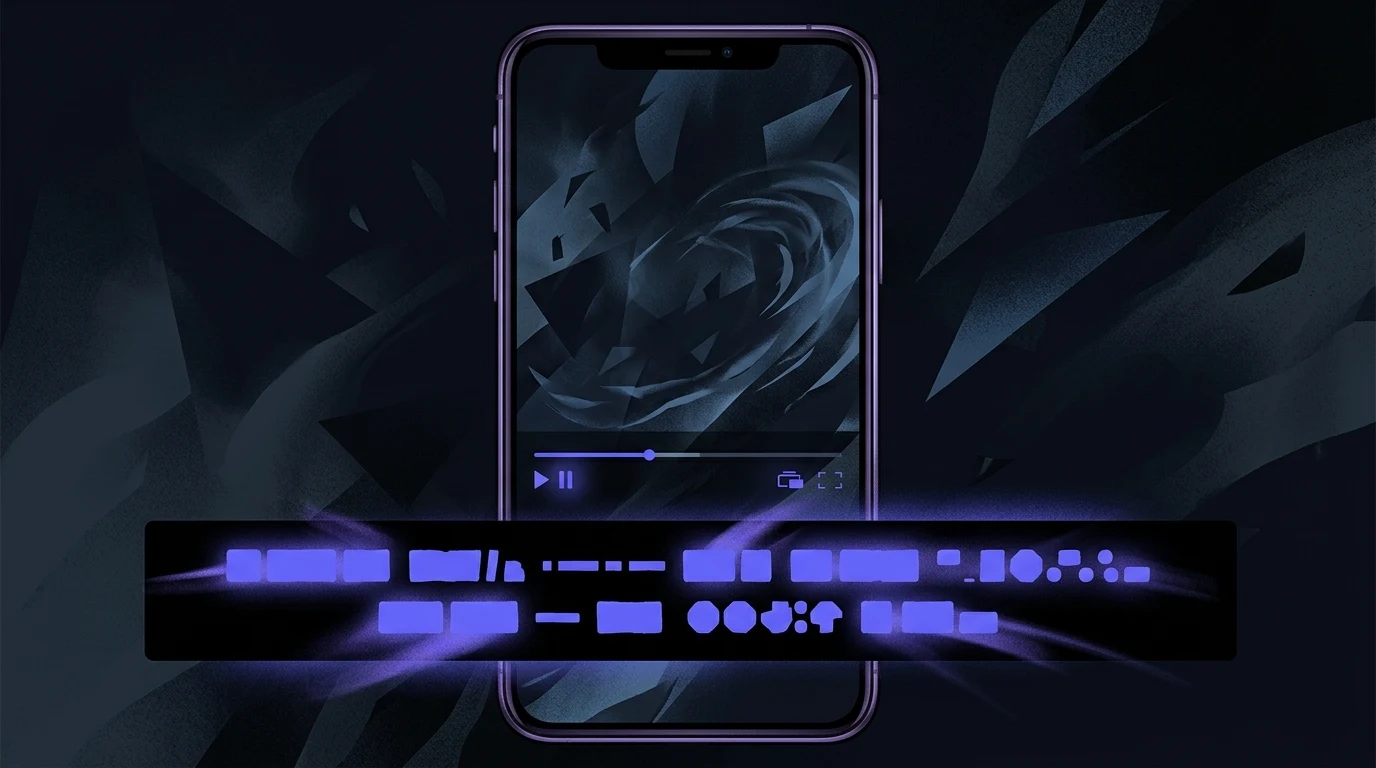
#3. Burn in captions with Auto Captions
Upload segments to Auto Captions:
- Contrast — light text on dark band, or dark text on light band; avoid thin fonts on busy backgrounds.
- Two-line max per beat where possible — faster reading on mobile.
- Multilingual — duplicate runs per target language if you publish global pages; align filenames with locale codes.
For silent scrolling, captions carry the story—match energy to the hook (punchy lines, not full transcripts).
#4. When to add new motion with AI video
If the long take is visually static, consider B-roll or image-to-video from Video generation or Media generation—then lay Auto Captions on top so audio and text still read as one piece.
#5. Batch and QA
- Spot-check each export on a real device (notch, Dynamic Island, varying caption heights).
- Normalize loudness lightly so hooks do not clip after platform transcode.
- Reuse cover frames per series for recognition in feeds.
Summary: Long-form is a source; Shorts are edited moments with 9:16 discipline and caption-first readability. Use safe-zone habits, Auto Captions for burn-in or sidecar workflows, and AI video when you need fresh motion.
Next steps
- Open Auto Captions and process your first vertical clip.
- Explore Video generation when static talking-head needs motion.
- Read Kubeez Auto Captions: automate for every channel for a fuller automation angle.
See also