Your First AI Image from Cursor: MCP on Kubeez in Minutes
Connect Kubeez as an MCP server in Cursor, authorize once, and call image tools from the chat—no copy-paste between browser and IDE.
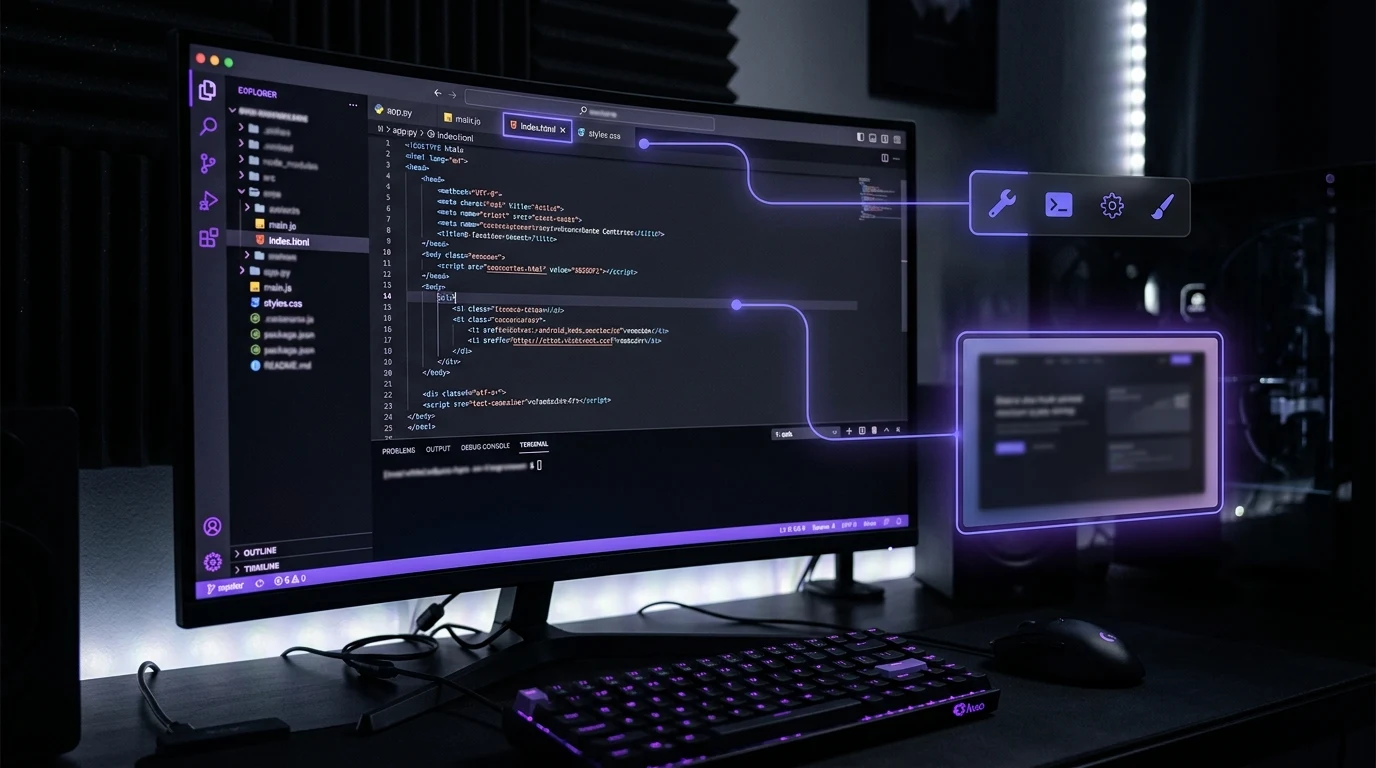
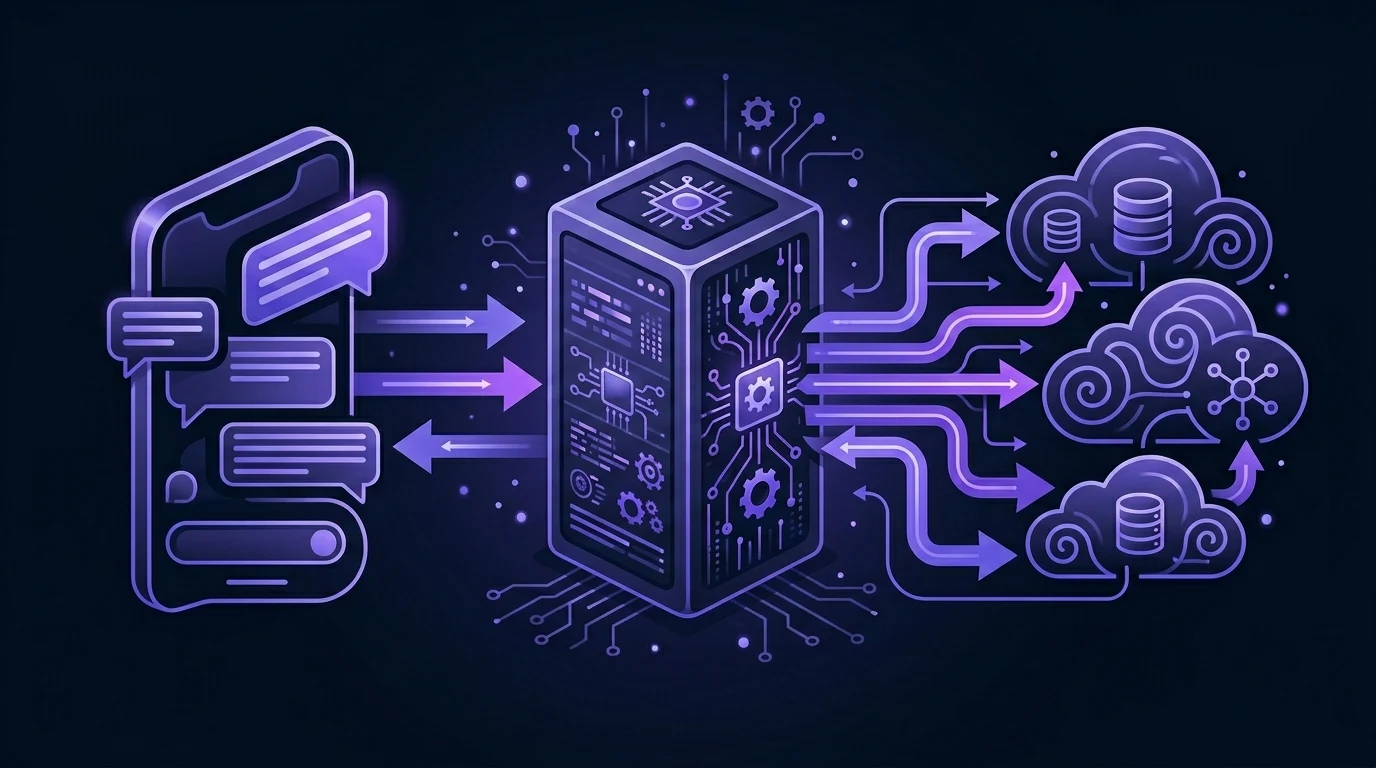
Model Context Protocol (MCP) is an open standard for connecting LLM hosts to tools, prompts, and resources. Creative teams use it so Cursor (and similar clients) can call generation APIs the same way the Kubeez dashboard does—without pasting prompts into a browser for every variant. The authoritative overview lives in the Model Context Protocol specification; Kubeez implements an MCP server that exposes media and related tools against your account.
This walkthrough assumes you want one reliable path: connect Cursor → authorize Kubeez → ask for an image with a structured brief → poll until URLs land on the CDN.
#What you need before you start
- A Kubeez account with credits for image models (Nano Banana 2 is the default “best value” image tier on the platform—see the in-app model list for current pricing).
- Cursor (or another MCP-compatible host) with MCP support enabled.
- Patience for async jobs: MCP tools start generations; you poll status until
completed, same as REST.
#How Kubeez MCP fits the stack
- Server URL:
https://mcp.kubeez.com/mcp(use the exact URL from MCP settings if the product updates it). - Auth: OAuth (browser sign-in, recommended for interactive clients) or a personal access token where the host only accepts a static secret—rotate tokens if anything leaks.
- Tools: Typical flows call
get_models→generate_media→get_statusin a loop—mirroring what our REST API does for servers, but conversational for the assistant.
Docs: MCP overview and Quick start. For REST vs MCP tradeoffs, see Automate AI media: REST API vs MCP.
#Step-by-step in Cursor
- Add Kubeez as an MCP server using the connection details from MCP settings.
- Reload the MCP connection until tools list (e.g.
get_models,generate_media,get_status). - In chat, give a structured brief—not just “a nice image”:
Model: image model id from get_models (e.g. nano-banana-2).
Prompt: product hero, soft daylight, minimal desk, single object center frame, no readable text.
Aspect ratio: use the tool’s aspect_ratio parameter (e.g. 16:9 for landscape hero).
- Let the assistant start
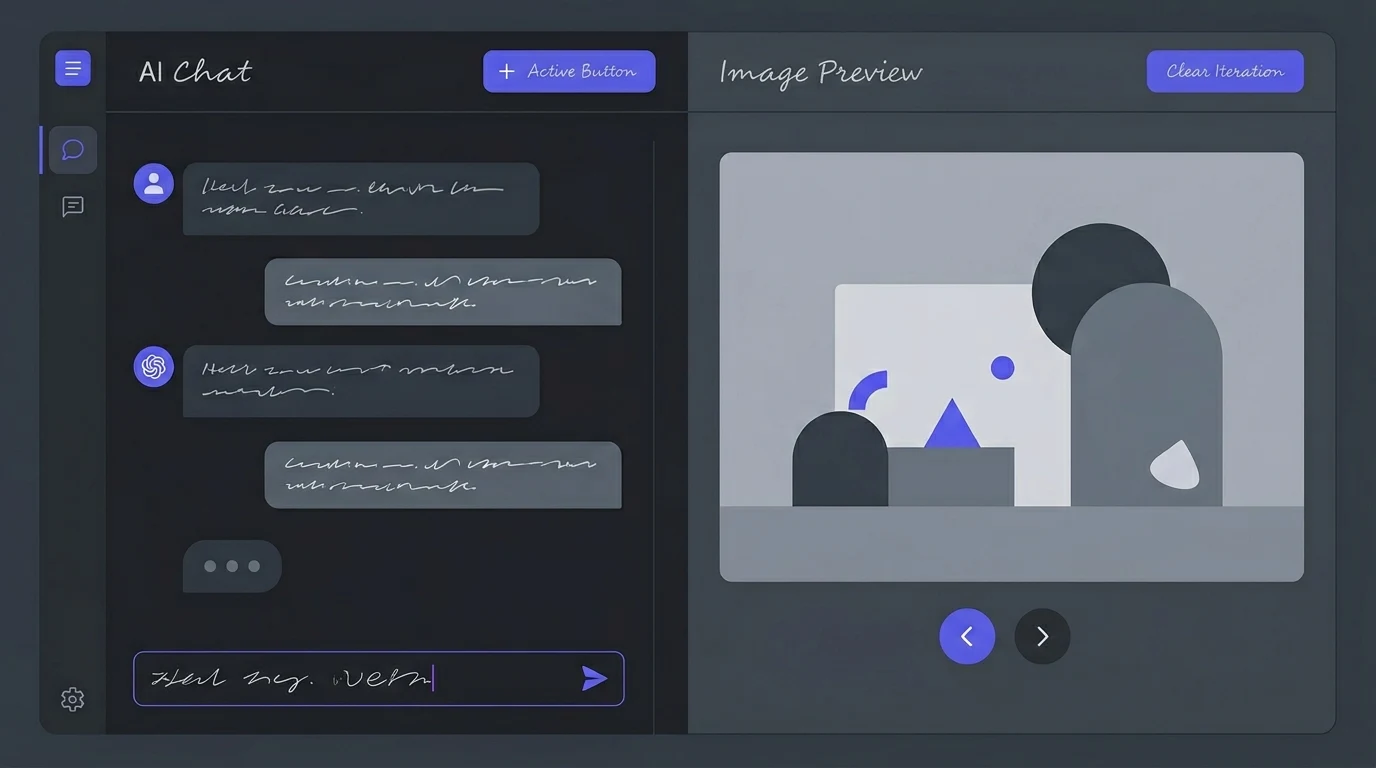
generate_media, then pollget_statusuntil outputs include HTTPS URLs on Kubeez CDN. - Download or paste URLs into your design system; do not commit API tokens to git.
#Security and hygiene
- Treat OAuth and PATs like production secrets—revoke from MCP settings if exposed.
- Truncate prompts to each model’s max chars (
get_modelsreturns limits). - Prefer Nano Banana 2 for general images; reserve Pro 4K tiers for print-critical or typography-heavy work—see Nano Banana 2 vs Pro 4K.
#Where to go next
- Images in the app: Media generation and Images hub.
- Video after stills: Video generation when the campaign needs motion.
- Full model map: AI models guide.
Summary: MCP lets Cursor orchestrate Kubeez generations with tool calls instead of manual clicks. Connect via https://mcp.kubeez.com/mcp, authenticate with OAuth or a PAT, then run generate_media + get_status until CDN URLs are ready.
Next steps
- Open MCP settings and complete OAuth or create a PAT.
- Read MCP overview for capability lists and limits.
- Generate your first still in Media generation if you want to compare UI vs MCP side by side.
See also