Image-to-Video: Bring Still Photos to Life with AI Animation
Transform static images into dynamic videos with camera movements, motion control, and start/end frame techniques.
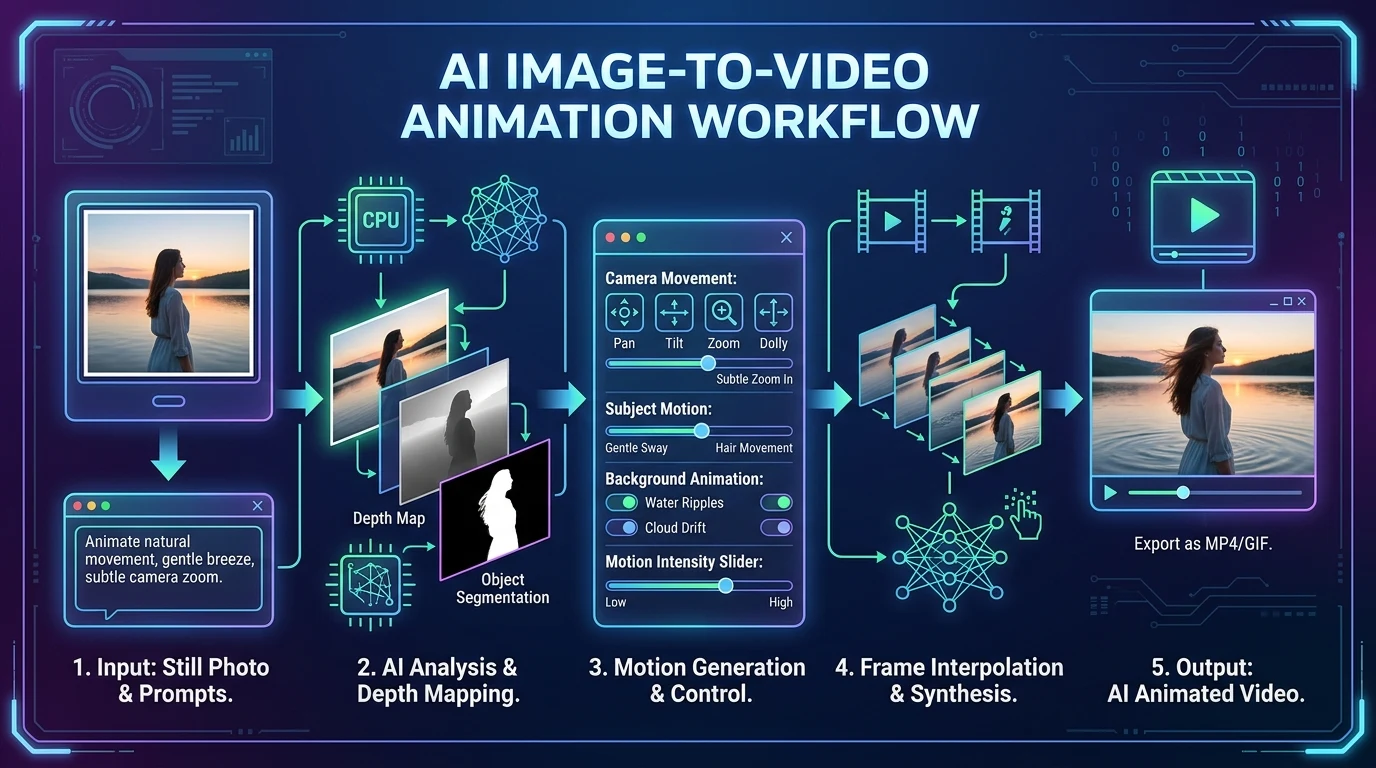
You have a great image—a product shot, a portrait, a landscape. Image-to-video AI animates it. Add camera movement, subtle motion, or full scene animation. The result: a dynamic video from a single still.
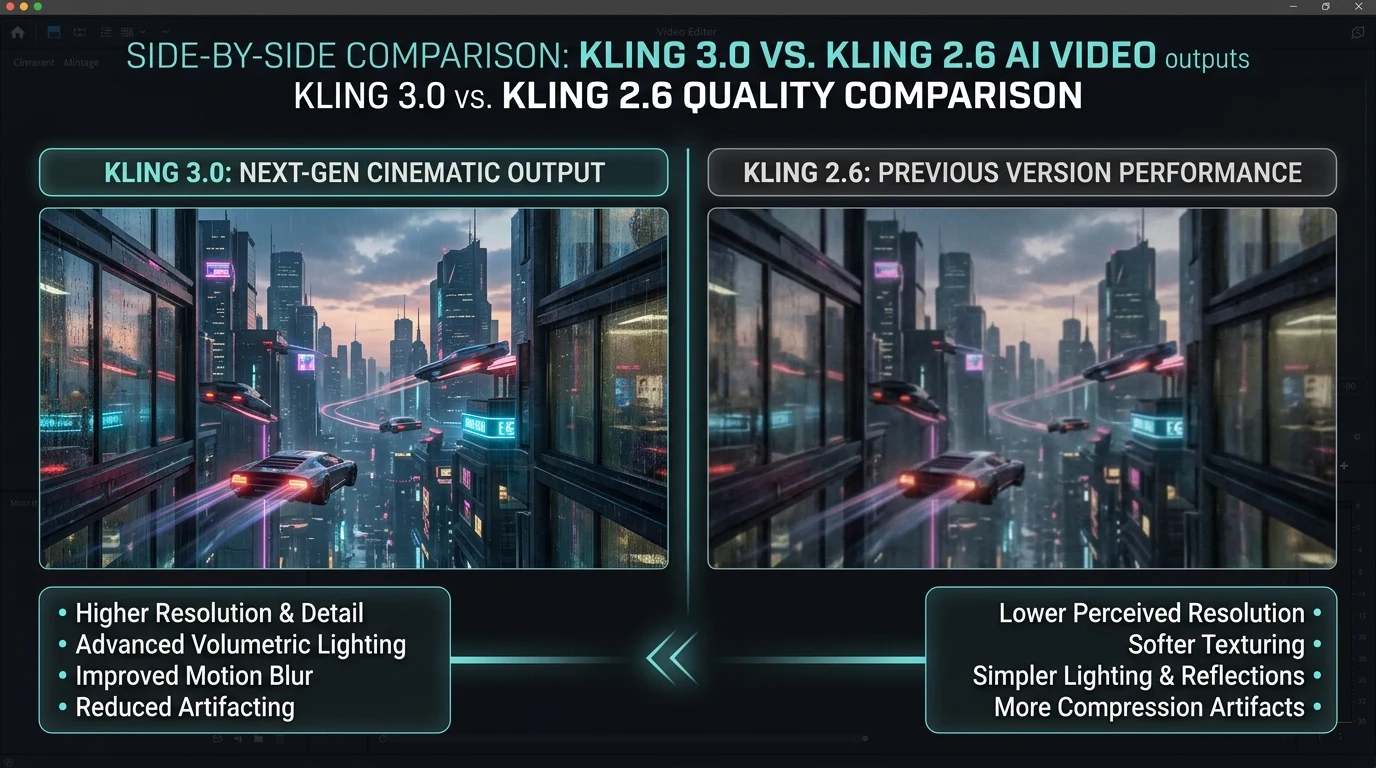
Kubeez supports image-to-video across Veo 3.1, Kling 2.6, Kling 2.5, Wan 2.5, Seedance, and more. Upload a reference image, write a prompt describing the motion, and generate.
#How Image-to-Video Works
You provide:
- Source image — The still to animate
- Motion prompt — What should move, how the camera moves, mood
The model generates a video that starts from your image and adds motion. Duration is typically 5–10 seconds depending on the model.
#Use Cases
Product videos: Animate product photography for ads and e-commerce. Rotate, zoom, or add subtle movement.
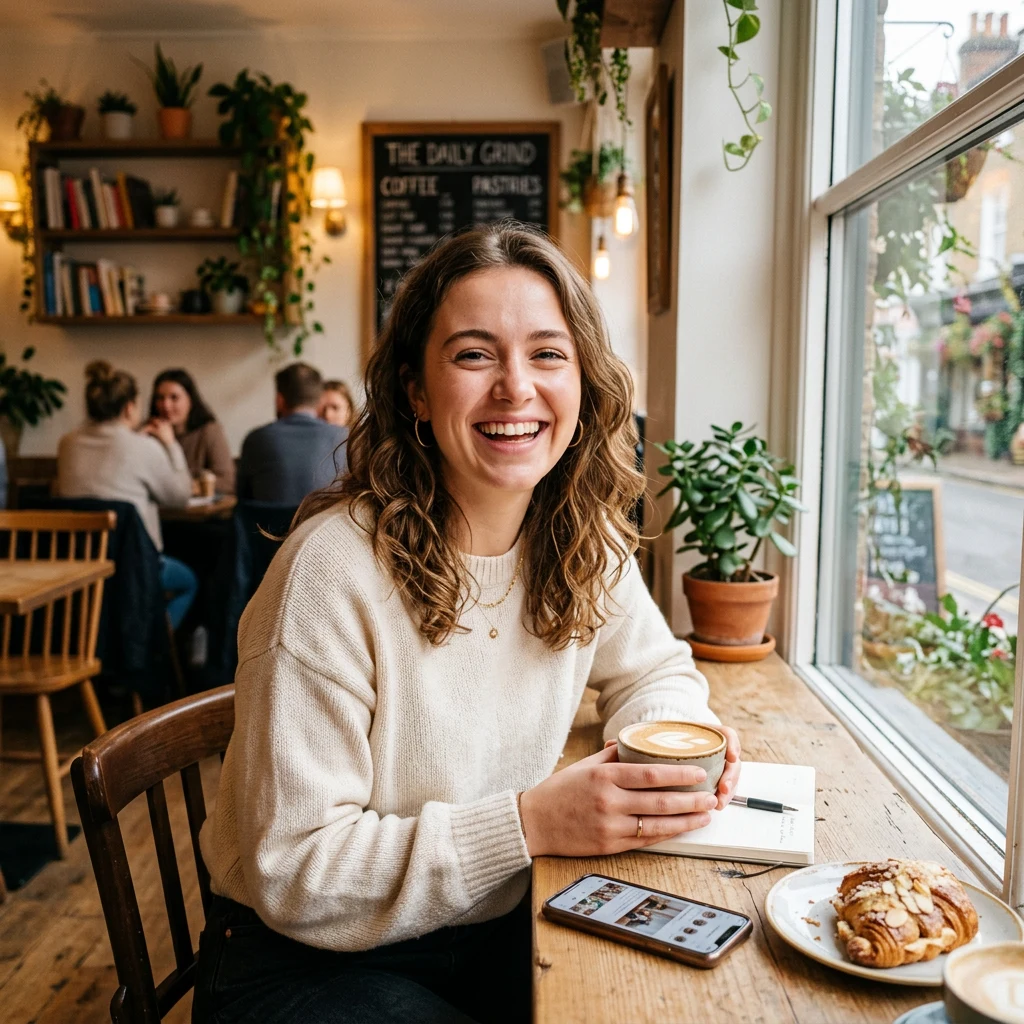
Portraits: Bring headshots to life—slight turn, blink, smile. Useful for intros and social content.
Landscapes: Add clouds moving, water flowing, leaves rustling. Cinematic B-roll from stills.
Art and illustrations: Animate digital art for music videos, social posts, or presentations.
Reference ads: Match the style of an existing ad and animate your product in the same aesthetic.
#Camera Movements
Static: Minimal motion; subtle changes in lighting or expression.
Push in / Pull out: Camera moves toward or away from the subject.
Pan / Tilt: Camera sweeps horizontally or vertically.
Orbit: Camera rotates around the subject (product shots).
Handheld: Slight shake for documentary or casual feel.
Aerial: Drone-style movement over a scene.
#Start and End Frames
Some models (e.g., Kling 2.5 Image-to-Video Pro) let you specify both start and end frames. You provide two images, and the model generates the transition. Useful for:
- Morphing between product angles
- Scene transitions
- Before/after reveals
#Prompting for Image-to-Video
Describe the motion: "Camera slowly pushes in" or "subject turns to face camera."
Match the image: Don't contradict the source. If it's a portrait, don't ask for a full-body shot.
Add audio when supported: Kling 2.6 can generate dialogue or music with the video.
#Best Practices
- High-quality source: Garbage in, garbage out. Use sharp, well-lit images.
- Consistent style: If animating a series, keep source images stylistically consistent.
- Simple motion first: Start with basic camera moves; add complexity as needed.
See also