Caption Timeline Editor: Professional Subtitle Timing & Styling
Master the caption timeline editor for precise subtitle timing, multi-style captions, and professional subtitle workflows.
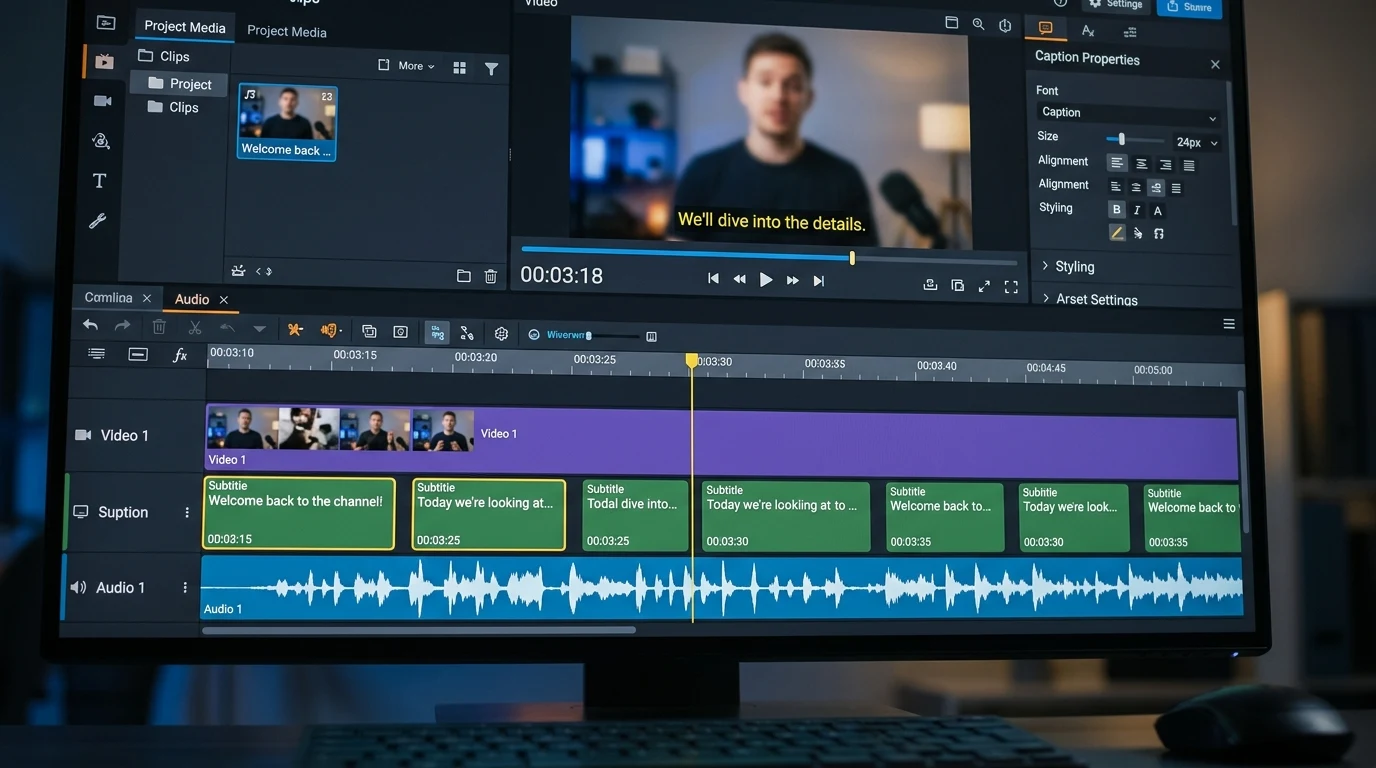
Once you have a transcript, the real work begins: syncing captions to the video, splitting long lines, and styling them for your audience. A caption timeline editor gives you precise control over every subtitle block, so your captions look professional and stay in sync.
Kubeez's caption timeline editor lets you drag, resize, and fine-tune subtitle blocks against a waveform. You can adjust timing to the millisecond, apply consistent styles, and export in multiple formats—all without leaving the platform.
#Why a Timeline Editor Matters
Auto-generated captions are rarely perfect. Words can be misaligned, lines can be too long or too short, and timing might feel off. A timeline editor lets you:
- Fix timing — Nudge blocks to match speech exactly
- Split and merge — Break long sentences or combine short fragments
- Improve readability — Control line length and reading speed
- Match style — Apply fonts, colors, and positioning consistently
Without a timeline, you're stuck with whatever the auto-caption algorithm produced. With one, you have full creative control.
#Key Features of a Professional Timeline
Waveform display: See the audio waveform so you can align captions to peaks and pauses. This makes it easy to spot where captions should start and end.
Block-based editing: Each subtitle is a block on the timeline. Drag edges to change duration, drag the block to shift timing, or double-click to edit text.
Zoom and scroll: Zoom in for frame-accurate editing or zoom out to see the full video. Scrub through the timeline to preview.
Style presets: Save and apply caption styles—font, size, color, position—so all your videos look consistent.

#Timing Best Practices
Reading speed: Aim for 15–25 characters per second. Too fast and viewers can't read; too slow and captions feel laggy.
Line length: Keep lines to 32–42 characters for TV; 35–50 for web. Break at natural phrase boundaries.
Gap between captions: Leave a small gap (0.2–0.5 seconds) between blocks so they don't run together.
Sync to speech: Captions should appear just before or as the word is spoken. Avoid leading or lagging by more than a few frames.
#Styling for Different Platforms
YouTube: Supports custom fonts and positioning. Avoid placing captions in the lower 20% where the progress bar appears.
Instagram Reels / TikTok: Often use burned-in captions with bold, large text. Consider word-by-word animation for engagement.
Professional / corporate: Subtle, consistent styling. White or yellow text with a dark outline for readability.
Accessibility: High contrast, readable fonts (e.g., Arial, Helvetica), and avoid decorative fonts.
#Export Formats
- SRT — Plain text with timestamps; widely supported
- VTT — Web standard; supports styling
- ASS/SSA — Advanced styling for desktop players
- Burned-in — Rendered into the video; no separate file needed
Choose based on your platform. Most web and social platforms accept SRT or VTT. Burned-in captions are useful when the platform doesn't support external caption files.
#Kubeez Caption Timeline Editor
Kubeez combines auto captions with a full-featured timeline editor. Generate captions from your video, then refine timing and style in one place. Export in the format you need, or keep captions in sync with your AI-generated videos for a complete workflow.
Explore the caption timeline editor on Kubeez and create professional subtitles for every video.
See also