Tutorials
AI Music Video Generator: How to Make One for Your Song
Use an AI music video generator to turn your finished song into a video: plan sections, keep one look, add lip sync and lyrics, export for YouTube and TikTok.
· Dex
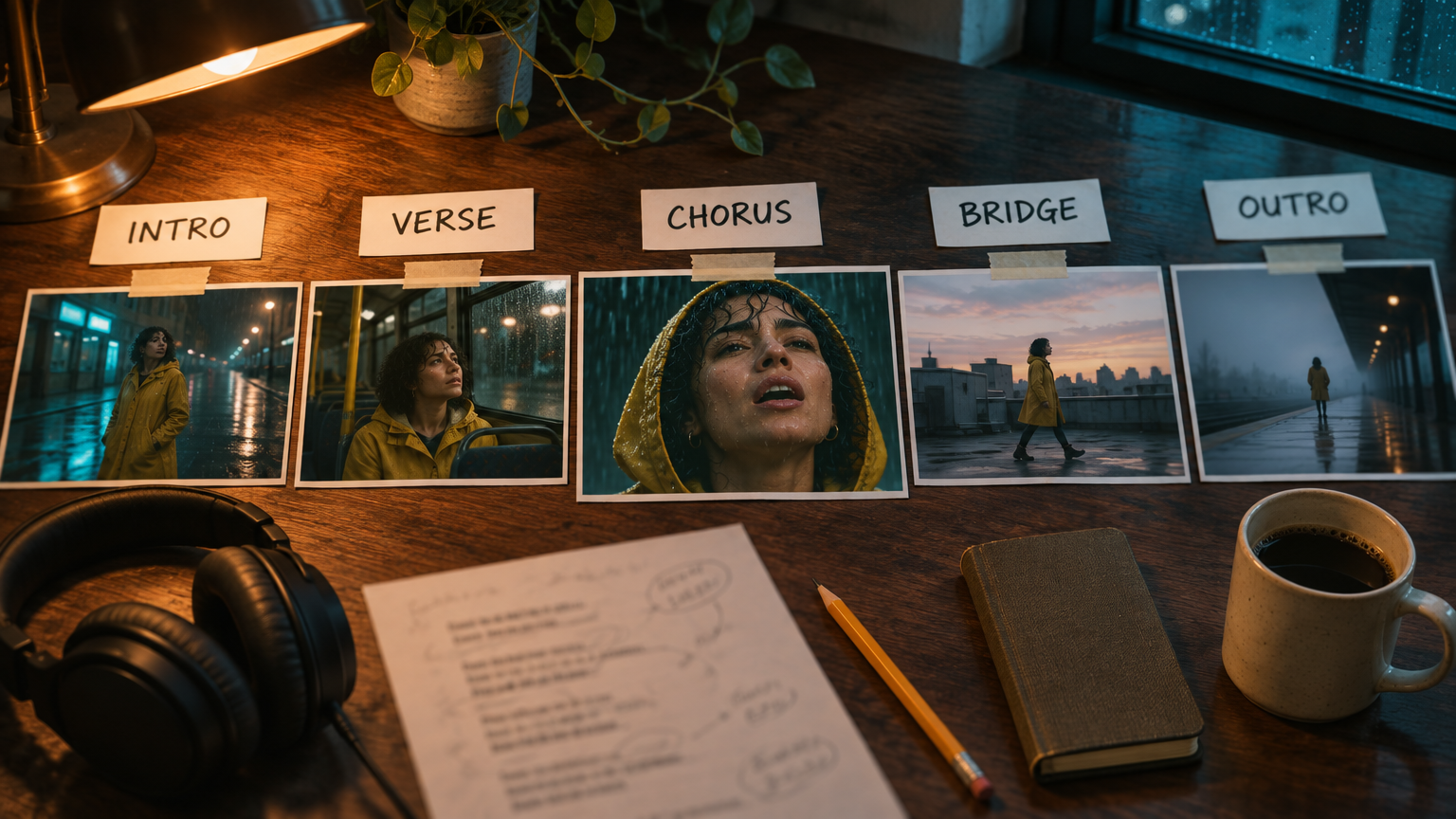
An AI music video generator can turn your finished song into a real music video, but not in one click and not in one clip. The workflow that works looks like this: pick one visual idea, split the song into sections, lock a character or look with reference images, generate a short clip for each section, lip sync only the lines that need a face, cut everything to your master track, add lyric captions, then export a wide version for YouTube and a vertical one for TikTok, Reels and Shorts. This guide walks through each step on Kubeez and is honest about where today's models still fall short.
What an AI music video maker can and cannot do today
Know the limits before you plan anything, because they shape the whole workflow.
- No model renders a full song in one clip. On Kubeez the longest single generated take is 30 seconds: Seedance 2.5 renders 4 to 30 seconds, Wan 3.0 renders 2 to 30 and Kling 4.0 renders 3 to 30. A three minute song is a series of clips you edit together.
- Your song does not direct the camera. Scene models build the picture from your prompt and your reference images. They do not listen to your track and cut on the beat. You do the cutting, in an editor, against your master.
- Lip sync from your own audio exists, with limits. OmniHuman 2.0 makes one portrait sing to one audio file of 4 seconds to 5 minutes, at 720p. P-Video can drive a clip of up to 20 seconds from an audio file.
- Real faces have limits too. Seedance refuses reference photos of real people. If you want to appear in your own video, OmniHuman is the lane for your sung shots, and the scene models carry an invented character, silhouettes, hands, places and objects.
Step 1: Pick one visual concept
The strongest AI music videos commit to one idea. Write yours in one sentence:
- Narrative: a character, a place and a change. "A woman in a yellow raincoat walks home through a rainy city and ends the song on a rooftop at dawn."
- Performance: the artist, or a stand in character, singing to camera, cut with B-roll.
- Mood piece: no story, just textures, light and motion that match the sound.
- Lyric video: the words are the star, over simple moving backgrounds.
Pick a look as well: a time of day, a palette of two or three colors, a film reference. "Night, teal neon, mustard yellow, wet streets" is a look. "Cinematic" is not.
Step 2: Break the song into sections
Play the track with a timer and write a song map: every section, where it starts and what the viewer sees. For example:
| Section | Starts at | On screen | Lane |
|---|---|---|---|
| Intro | 0:00 | Empty wet street, slow push in | Scene clip |
| Verse 1 | 0:14 | Character on a night bus, close details | Two or three scene clips |
| Chorus | 0:42 | Character singing to camera in the rain | Lip sync |
| Verse 2 | 1:10 | Walking through a market, hands, reflections | Scene clips |
| Bridge | 2:05 | Rooftop at dawn, wide and still | One long scene clip |
| Final chorus | 2:25 | Reuse chorus shots, new grade | Lip sync plus B-roll |
- Plan shots, not sections. A 28 second verse rarely works as one take. Three or four shots of 5 to 10 seconds let you cut on the beat.
- Repeat on purpose. Choruses come back, so chorus visuals can too. Reusing your best shot with a new grade saves credits and reads as intentional.
Step 3: Lock a consistent character or look
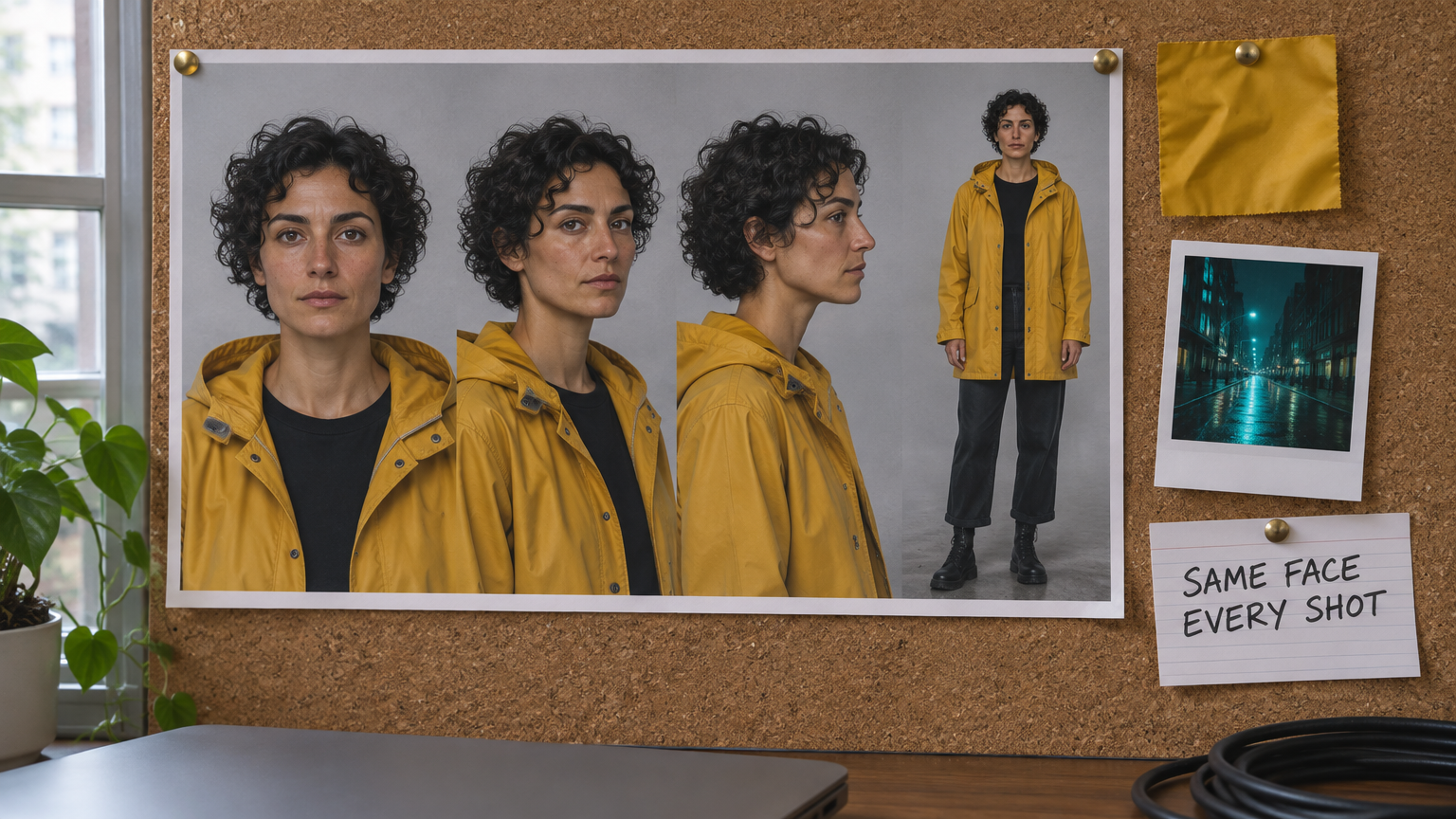
A face that changes between shots reads as a mistake, and it is the most common reason AI music videos feel cheap. Fix it before you generate video.
- Make a reference sheet. Generate your character from several angles in the same outfit: front, three quarter, profile, full body. GPT Image 2.6 takes up to 16 reference images in one edit, so you can keep feeding it the sheet to get new poses of the same person.
- Make a key frame for each shot. For every row of your song map, make a still of the opening frame: the character, in that place, in that light.
- Give the references to the video model. Seedance 2.5 takes up to 30 reference images in one generation. Kling 4.0 takes up to 10 reference images and up to 7 named elements, so your character, a prop and a location can each be saved once and called by name in the prompt.
One catch: Seedance can refuse photoreal faces in reference images, even invented ones. Stills made with Seedream 5 Pro are accepted, or you can run that shot on Kling 4.0 instead.
Step 4: Generate clips for each section
Now render, one row of the song map at a time.
- Draft first. Seedance 2.5 has a draft mode: render a 480p preview, and when the shot is right, promote that same draft to a 1080p final within 7 days. You only pay for 1080p on the shots you keep.
- Write prompts like a shot list. Subject, action, camera move, light. "Medium shot, the woman in the yellow raincoat rests her head on the bus window, city lights slide past, slow push in."
- Match clip length to the music. Use your song map. If a verse has four phrases you want to cut on, render four shots sized to those phrases, plus a second of spare footage at each end for trimming.
- Lock exact opening frames. When a shot must open on your storyboard still, use the still as the first frame. Our image to video AI page shows which models take a start frame and an end frame.
- Ignore the generated sound. Most video models add their own audio by default, such as rain, footsteps or a music bed. You will mute it in the edit and play only your master, so judge clips on picture alone.
For dance sections, Kling Motion Control takes one still and one reference clip of a dancer and moves the still to match. The AI video generator page lays out what each scene model is best at.
Step 5: Where lip sync fits, and its limits
This is the part of an AI music video made from audio: your own vocal drives the mouth. It is the most convincing shot when it works and the most obvious failure when it does not, so use it for a few key lines, usually the chorus.
OmniHuman 2.0 takes one portrait and one MP3 or WAV of 4 seconds to 5 minutes (under 15 MB), and returns a 720p video exactly as long as the audio, with the person in the photo singing your track. Pick a front facing, sharp, evenly lit portrait with the mouth visible. Our guide to making a photo talk or sing covers photo choice in detail.
P-Video takes an optional start image plus an audio file and builds a clip of up to 20 seconds, as long as the audio, at 720p or 1080p. It suits short chorus hits.
What to expect:
- Send the section, not the song. Cut the chorus out of your master and upload that. Both lanes bill per second of audio, so a 20 second chorus costs a fraction of a full track.
- Steady vocals sync best. Fast rap verses, ad libs, heavy pitch correction and doubled vocals are where the mouth drifts. Check those lines frame by frame, trim them tighter, or cover them with B-roll.
- Dense mix? Try the vocal alone. If the sync looks loose, test a take driven by the isolated vocal. Music Separation on the AI music generator page splits any song into vocals and an instrumental.
- Plan around 720p. OmniHuman shots are softer than 1080p scene clips, so keep them medium or close.
Step 6: Assemble the clips
Kubeez makes the shots. The cut happens in the editor you already use, such as CapCut, DaVinci Resolve or Premiere Pro.
- Put the master track down first and lock it.
- Add markers on downbeats and on every section change from your song map.
- Lay the clips in order and cut on the markers. Hard cuts on the beat hide small differences between generations better than dissolves.
- Mute every generated audio track. Line each lip sync shot up by matching its waveform to the master first.
- Grade everything together. One color pass across all clips makes shots from different models feel like one shoot.
- Export a clean master with your song as the only audio.
Step 7: Add lyrics or captions
Captions come last, because any change to the cut moves their timing.
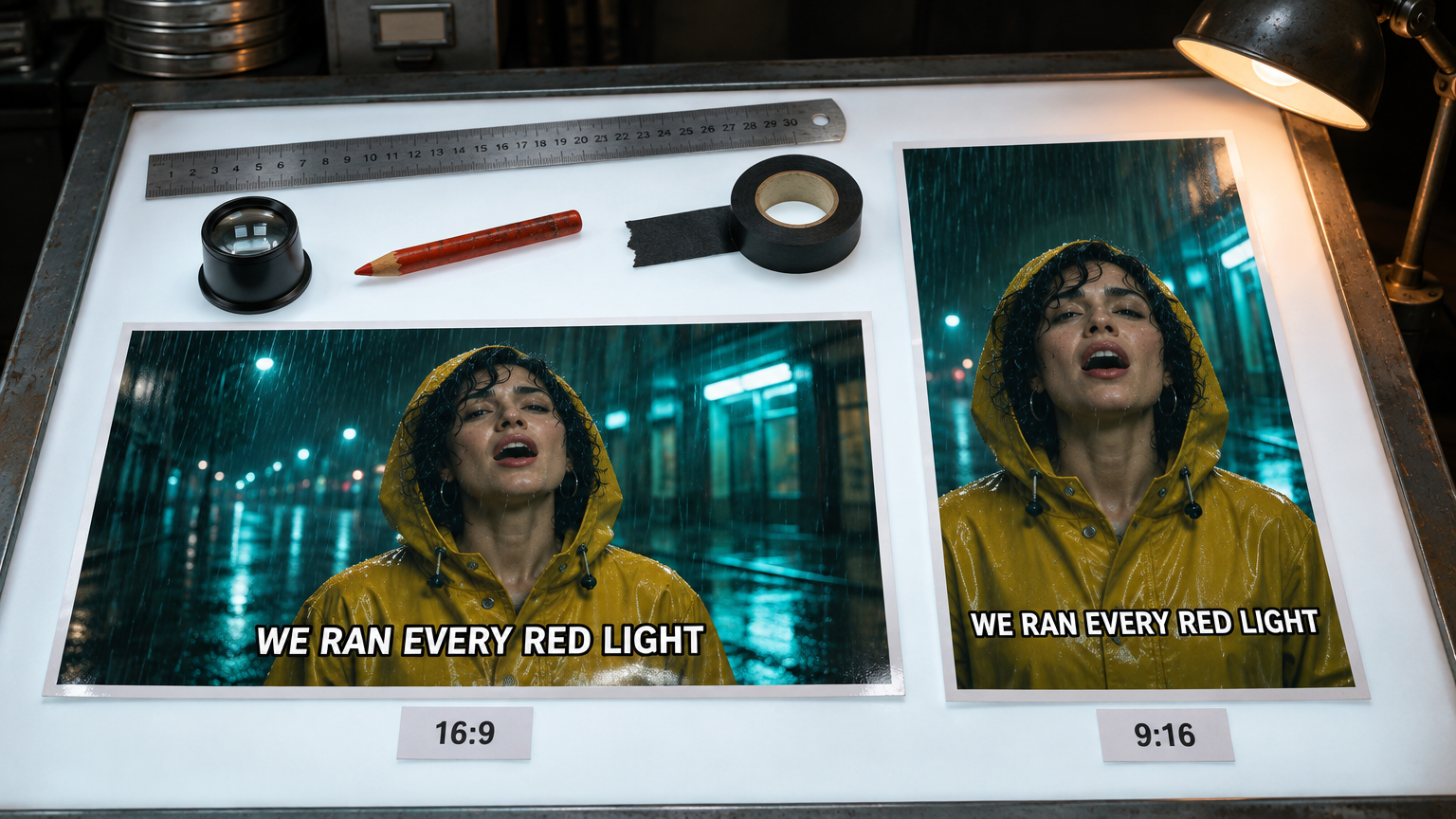
Upload the finished video to Auto Captions. It transcribes the words from the audio, lets you style the font, color, outline, position and the highlight on the word being sung, and lets you edit any line that came back wrong before you render. The captions are burned into the picture, so they look the same on every platform. It takes MP4 or MOV files up to 500 MB and 30 minutes long.
Sung words are harder to transcribe than speech, so check every line against your lyric sheet.
For a full lyric video, make short background clips and set the lyrics as large type in your editor, timed to the same markers.
Step 8: Export for YouTube and vertical platforms
Decide your formats before you generate, not after. A 16:9 shot cropped to 9:16 keeps only about a third of its width, which usually cuts your character in half. Seedance 2.5, Kling 4.0 and Wan 3.0 all render both 16:9 and 9:16, so generate your key shots twice, once per shape.
- YouTube: 16:9. YouTube's help center lists 1920x1080 for 1080p uploads.
- YouTube Shorts: square or vertical videos up to three minutes, per YouTube's help center.
- TikTok: vertical 9:16. TikTok's ad specs recommend 9:16 at 540x960 or more, and 1080x1920 is full HD at that shape. Use the same vertical cut for Reels.
A good release plan is one full 16:9 video for YouTube plus two or three vertical cuts of the chorus, 15 to 30 seconds each, as teasers.
What it costs
Most video models on Kubeez, including Seedance 2.5, Kling 4.0, Wan 3.0 and OmniHuman 2.0, bill per second of output at their own rate, so a 30 second take costs several times a 5 second one. The studio shows the price before you render, and prices can change. Drafts, short shots and reused chorus footage keep the bill down. Signing up is required, new accounts get a one time welcome credit grant, and after that you buy credits or pick a plan. There is no permanent free tier.
FAQ
Can AI make a music video from my song automatically?
Not in one step. Current models generate up to 30 seconds per take and do not cut to your beat. You plan the shots, generate them and assemble them over your track.
Can AI lip sync to my song?
Yes. OmniHuman 2.0 makes a portrait sing to an MP3 or WAV of up to 5 minutes, and P-Video syncs clips of up to 20 seconds. Fast or heavily processed vocals often drift.
Can I put myself in an AI music video?
Yes, through lip sync. OmniHuman 2.0 animates a photo of you singing your track. Seedance refuses reference photos of real people, so use it for B-roll, places and invented characters made with Seedream 5 Pro.
What size should I export a music video for YouTube and TikTok?
16:9 at 1920x1080 for YouTube. Vertical 9:16 for TikTok and Shorts, with 1080x1920 as the full HD size, and the same vertical cut for Reels. Generate your key shots in both shapes rather than cropping.
Can I add lyrics to an AI music video?
Yes. Auto Captions transcribes the words from your finished video, lets you fix and style every line, then burns the captions in.
Dex writes the Kubeez guides and makes every example with the same tools you use.