Generate AI Video and Edit It in KubeezCut: End-to-End Workflow
Learn the full pipeline: generate a product image with Nano Banana 2, animate it into a video with Seedance or Kling, add AI music, then edit everything in KubeezCut with text overlays, effects, captions, and export.
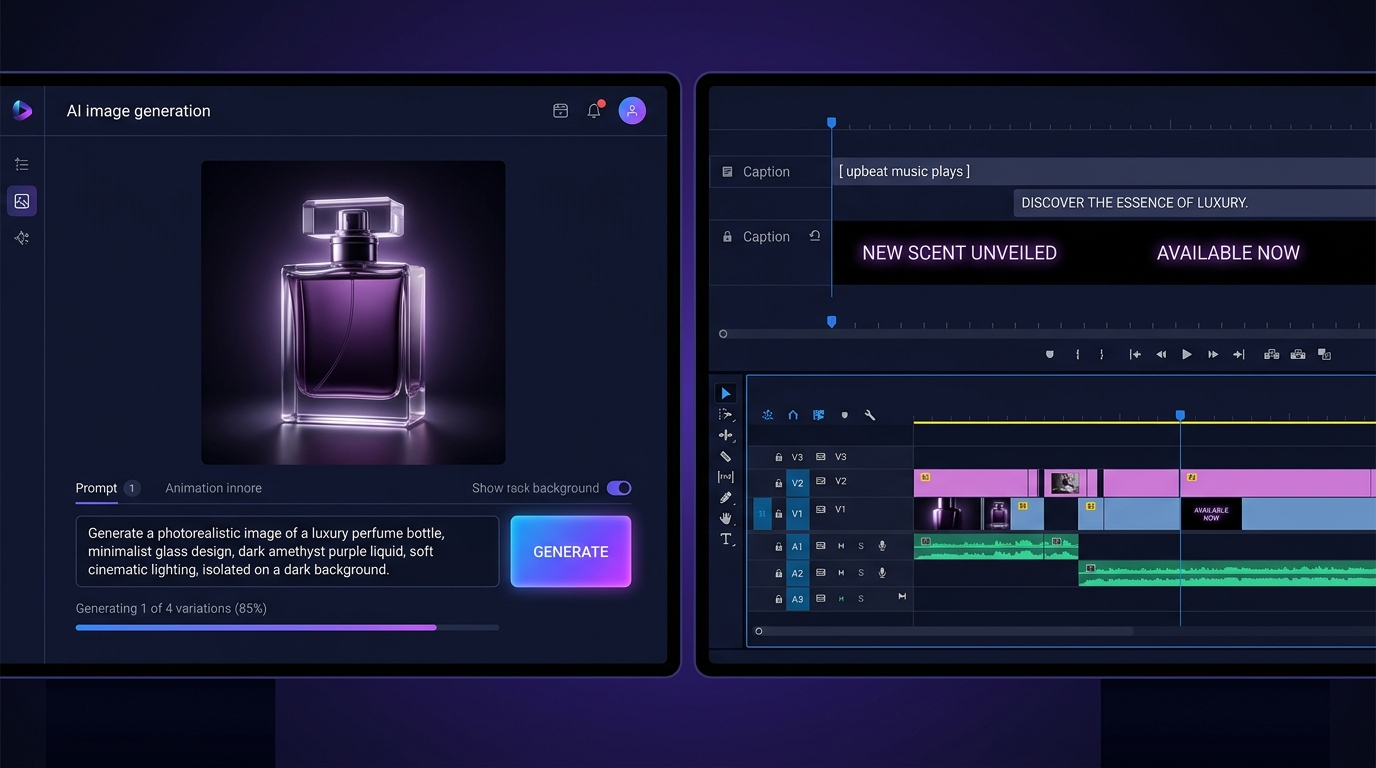
Creating professional video content used to require a design team, expensive software, and days of work. With Kubeez and KubeezCut, the full pipeline — from raw idea to finished video — runs entirely in the browser in under an hour.
This tutorial walks through every stage: generating a base image with Nano Banana 2, animating it into a video clip, adding AI music, and editing everything in KubeezCut to produce a polished, export-ready video.
#The Four-Stage Pipeline
The workflow has four stages that flow naturally into each other:
- Generate — create a high-quality product or promo image with Nano Banana 2
- Animate — turn the image into a video clip using Seedance or Kling
- Score — generate a background music track with AI
- Edit — assemble, polish, and export in KubeezCut
Each stage produces an asset that feeds into the next. Let's go through each one.
#Stage 1: Generate Your Base Image with Nano Banana 2
Go to Kubeez Images and select Nano Banana 2 as your model. This is Kubeez's default image model — best value, excellent quality, and great at producing clean, animatable visuals.
Write a detailed prompt for your subject. For a product video, include:
- The product name and category
- Setting and background ("marble surface", "minimal white studio", "outdoor golden hour")
- Lighting style ("soft diffused light", "dramatic side lighting", "backlit")
- Quality specifiers ("photorealistic", "commercial product photography", "ultra-sharp")
Example prompt: "Premium glass perfume bottle with gold cap, isolated on a white marble surface, soft diffused studio lighting, photorealistic, commercial product photography, shallow depth of field, no text, no watermarks."
Set the aspect ratio to 16:9 for video output. Generate 2–4 variations and pick the strongest one.
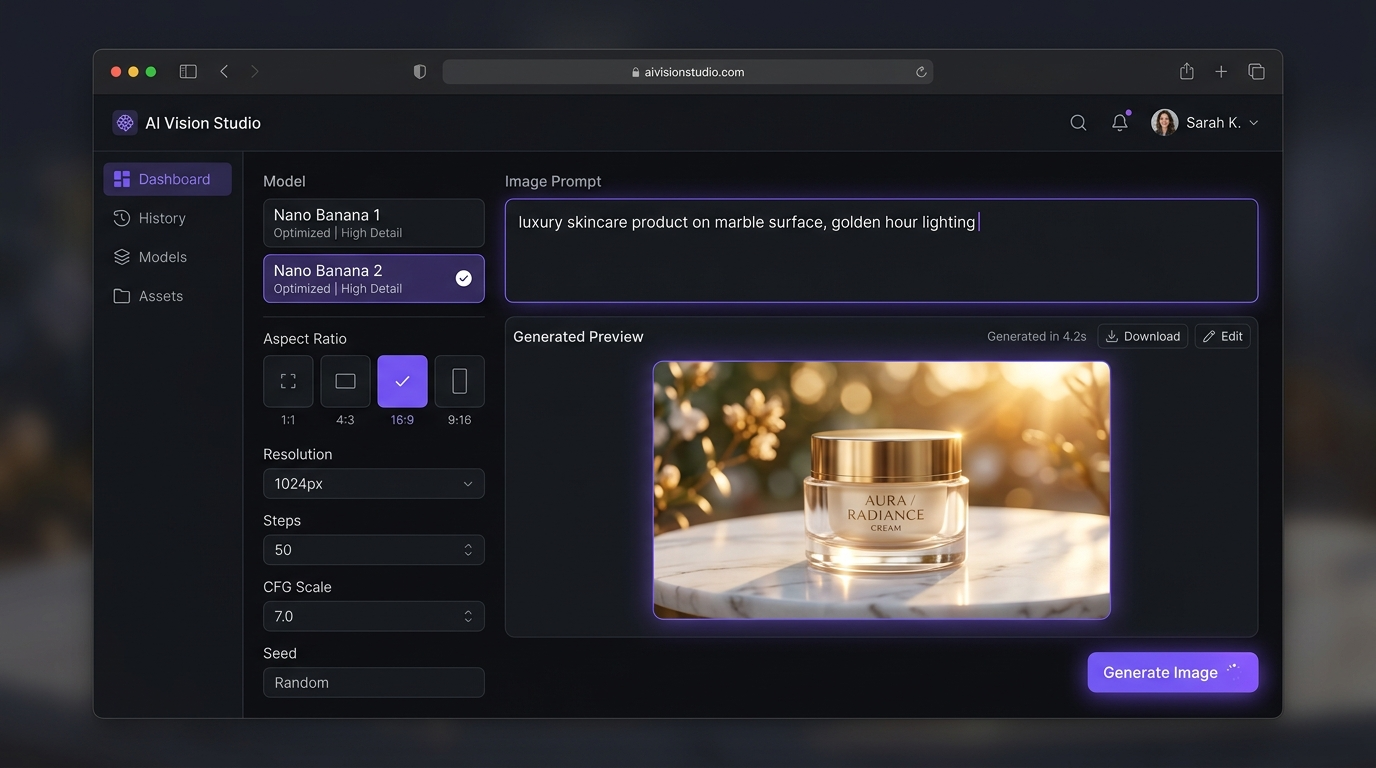
Tip: If the first result isn't quite right, use image-to-image: upload your best result and prompt Nano Banana 2 to refine it — adjust the lighting, clean up the background, or change the color.
#Stage 2: Animate the Image into a Video Clip
Go to Kubeez Video Generation. Upload your generated image and choose an animation model:
- Seedance — smooth, cinematic motion. Best for product videos and professional content.
- Kling 2.6 / 3.0 — more dynamic motion, great for lifestyle and social content.
Write a motion prompt describing what should move and how:
Example motion prompt: "Slow elegant camera push in. The perfume bottle stands still. Soft bokeh particles float gently in the background. Cinematic, luxury brand feel."
Tips for motion prompts:
- Keep motion subtle for product videos — avoid describing dramatic camera moves
- Mention camera behavior explicitly: "dolly in", "slow pan left", "static shot"
- For social content, allow more energy: "dynamic handheld movement", "product floats slowly"
Set duration to 5–10 seconds depending on your target platform. Download the generated .mp4 clip.
#Stage 3: Add AI Music
Go to Kubeez Audio and generate a background music track to match your video.
Write a prompt describing the mood and style you need:
Example music prompt: "Elegant ambient music, soft piano melody, slow tempo, luxury brand feel, 15 seconds, instrumental, no vocals."
Prompting tips:
- Match the energy to the video: if the video is calm and cinematic, the music should match
- Specify duration that slightly exceeds your video length (e.g., 20 seconds for a 15-second video)
- Include tempo guidance: "slow", "moderate", "upbeat"
Download the generated audio file.
#Stage 4: Edit in KubeezCut
Open KubeezCut at editor.kubeez.com — no install, no account needed. Everything runs in Chrome or Edge 113+.
Importing your assets:
- Click Import and add your video clip (.mp4)
- Import your music track (.mp3 or .wav)
- Both appear in the media library
Building the timeline:
- Drag the video clip onto the Video track
- Drag the music track onto the Audio track below it
- Trim the audio to match the video length — drag the right edge inward
Adding text overlays:
- Click the Text tool and add a title card (e.g., your product name or brand)
- Position it in the lower third or center
- Set the font, size, and color to match your brand
- Set in/out points so the text fades in after 0.5s and fades out before the end
Applying visual effects:
- Select your video clip on the timeline
- Open the Effects panel and apply color correction — boost contrast slightly, adjust temperature for warmth
- For luxury product content, a subtle vignette adds polish
Auto-captions (optional):
- Go to Captions and enable Auto-transcribe
- Kubeez runs local Whisper transcription — no audio is sent to a server
- Review and clean up any errors, then style the captions to match your brand
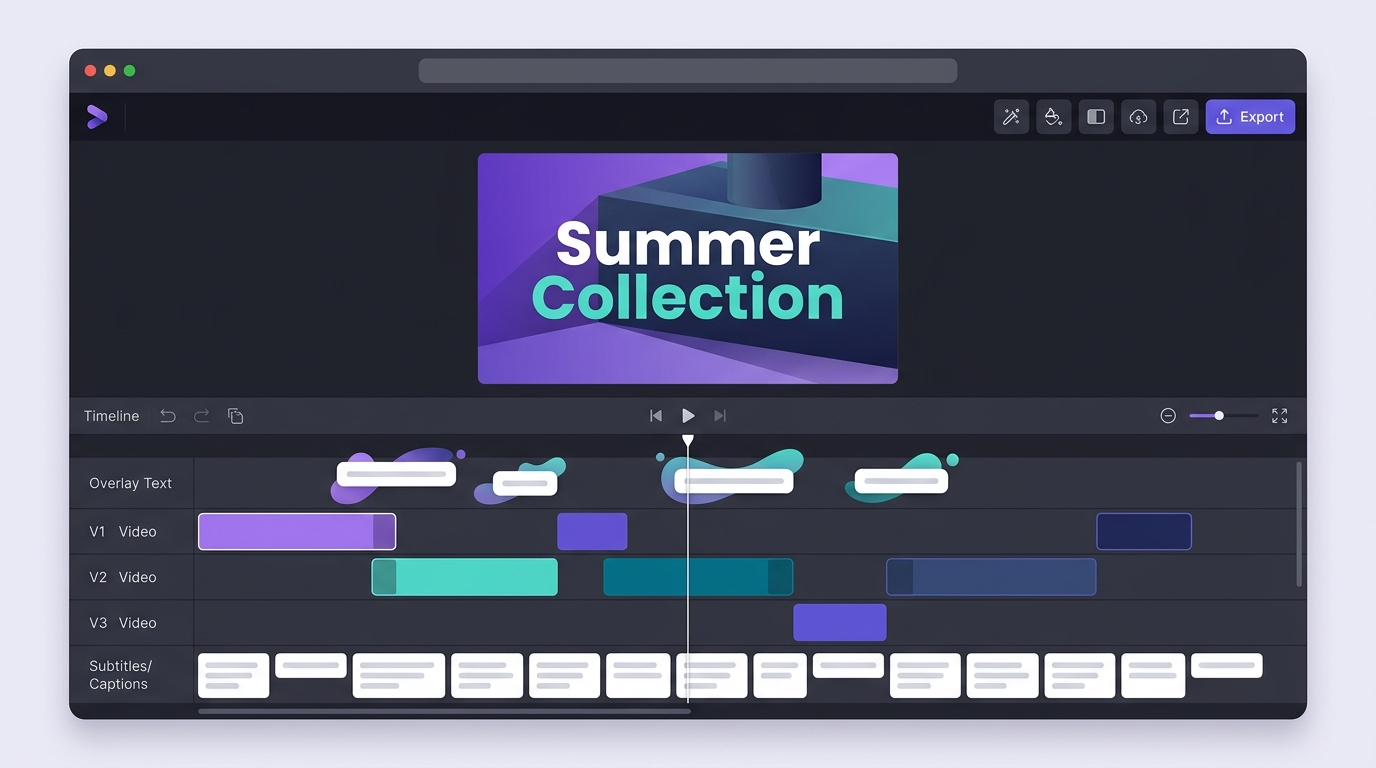
Exporting:
- Click Export
- Choose format: MP4 with H.264 for maximum compatibility
- Select resolution: 1080p for social media, 4K if your plan supports it
- Click Download — the video encodes locally and saves directly to your device
#Real Example: A 15-Second Instagram Reel
Here's how this workflow produces a finished Reel for a skincare brand:
Image prompt: "Minimalist white ceramic face cream jar with gold lid, flat lay on a beige linen surface, natural daylight, soft shadows, commercial beauty photography, no watermarks."
- Model: Nano Banana 2, aspect ratio 9:16 (for Reels), 1K
Motion prompt: "Slow gentle dolly in toward the cream jar. Soft natural light shifts subtly. Clean, minimal, beauty brand feel."
- Model: Seedance, duration 10s
Music prompt: "Calm, minimal piano loop, slow tempo, 20 seconds, luxury beauty brand, instrumental."
KubeezCut:
- Trim video to 10s
- Add brand name as lower-third text, fade in at 1s
- Add product name subtitle at 5s
- Color grade: slight warmth boost (+10 temperature), contrast +8
- Export: 1080 × 1920 (9:16), MP4, H.264
Total time: under 20 minutes.
#Best Practices
Consistent style across stages: Use the same color temperature in your image prompt, your video motion, and your KubeezCut color grade. Inconsistency across stages produces a disjointed final video.
Batch the image stage: Generate 5–6 image variations before moving to video animation. It's much faster to iterate at the image stage than to regenerate videos.
Export for platform: Different platforms have different requirements. Instagram Reels and TikTok need 9:16. YouTube needs 16:9. Generate at the correct aspect ratio from the start.
Caption everything: Even if your video has no dialogue, on-screen text and captions dramatically increase watch time on social platforms where audio is often muted.
Start the pipeline on Kubeez — generate your first image with Nano Banana 2.
See also