Tutorials
Layer Studio: Split Any Image Into Editable Layers
Split an image into layers with Kubeez Layer Studio. Move, restyle and swap every piece, turn baked-in text into editable type, then export the design.
· Kubeez
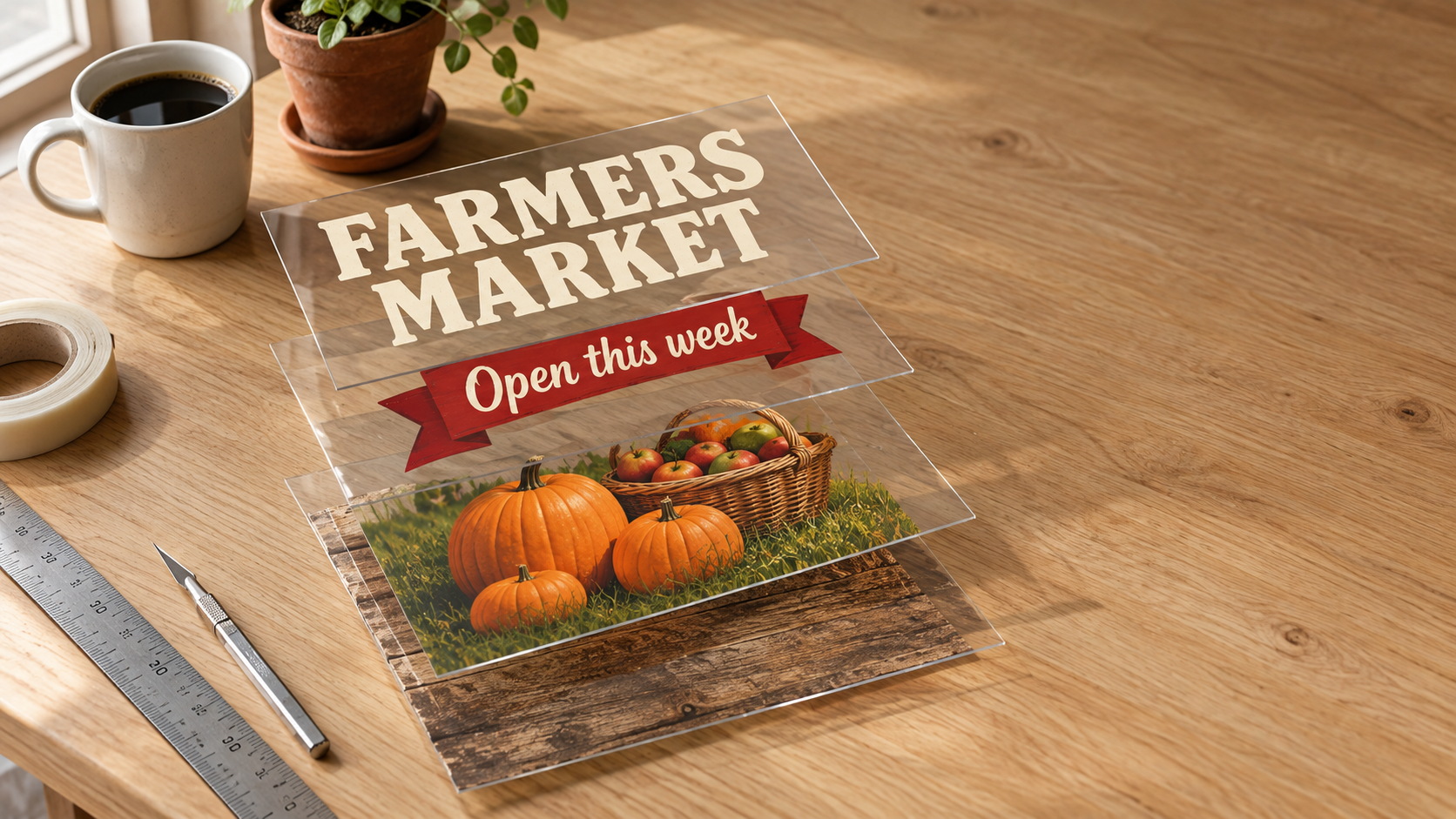
Most images arrive flat. The headline, the product, the badge and the background are all baked into one set of pixels, so changing one small thing means rebuilding the whole design. Layer Studio fixes that. It lets you split an image into layers, one layer per element, and then edit the image layer by layer: move the product, retype the headline, swap the background, restyle a single object and export the finished design. It is part of Kubeez, and you open it at /layer-studio on a desktop browser.
This guide walks through what Layer Studio does, how to separate an image into editable layers, and every tool you get once the layers are on the canvas. Prefer to learn step by step? The Layer Studio lesson in Kubeez School walks through every tool with the real editor panels.
What Layer Studio does
Layer Studio is an image editor built around one idea: every piece of a picture should be its own layer. You start in one of two ways.
- From an image. Drop in a JPG, PNG or WebP, such as a product shot, a poster or a social post. Kubeez finds the major elements and puts each one on its own transparent layer.
- From a blank canvas. Pick a canvas size and a white, black or transparent background, then build the design up from images, type and generated assets.
Either way you end up in the same editor: a canvas in the middle, a tool rail on the left, and a layers panel plus properties on the right. The bottom of the stack is a real background layer, so you can hide it, move it or paint on it with the same controls as everything else.
Layer Studio runs on desktop only for now. On a phone it shows a notice instead of the editor, so open it on a computer.
How to split an image into layers
- Open Layer Studio in a desktop browser and choose From an image.
- Choose the image to separate. JPG, PNG and WebP all work.
- Name the elements, if you want to. The optional field takes one element per line, for example "the logo", "the headline text", "the product bottle". Describe each one by what it is plus what makes it distinct. Leave it empty and the model picks the elements itself.
- Click Separate into layers. You see the credits before you run it.
- Edit. Each element lands on its own layer, cut out and ready to move.
Every separation you run is saved under Your separations, with its layer count and an "edited" mark once you have changed it, so you can come back to a project later. Edits save automatically as you work.
Want a separation of a second picture inside the same design? Separate an image on the tool rail splits another image into layers and drops them into a new folder, fitted to the canvas, with its background as the bottom layer of that folder.
Edit the image layer by layer
Once the image is split, each layer behaves like an object you can pick up.
- Move, scale and rotate with the Select tool. Snapping guides help you line things up, arrow keys nudge by 1px (10px with Shift), and you can lock a drag to one axis.
- Flip horizontally or vertically, set exact position, width, height and angle, or reset a layer to where the separation put it.
- Opacity, hide and lock from the layers panel, so you never nudge the background by accident.
- Reorder by dragging rows, or bring a layer forward, backward, to the front or to the back.
- Duplicate, delete, rename and group layers into folders, and merge several layers into one image when you are done with them.
- Download a single layer as PNG or JPG, which is handy when you only need the cut-out product.
If an element came out as one layer but you want its parts apart, Separate pieces splits the selected layer into one layer per detached object. A basket and the apples lying beside it become two layers, for example.
Turn text in an image into editable text
Text is where flat images hurt most. A headline baked into a picture cannot be retyped, translated or recoloured. In Layer Studio, a layer that looks like text is flagged as one that can be made editable, and Convert to editable text turns it into a real text layer.
The conversion reads the characters, measures the colour and size, and picks the closest matching font. It tells you how close the match is as a shape match percentage, and when the match is only approximate it says so. The original artwork is kept, hidden below the new text layer, so you can always bring it back.

From there the text is yours to set. The Text tool also places a brand new text layer anywhere you click. A type bar sits right under the text on the canvas with the controls you reach for while looking at it, and the properties panel holds the finer ones:
- Font and weight, from a curated set of display and text faces
- Size, tracking and leading
- Colour, plus part colours, so one word in a headline can be a different colour from the rest
- Outline and shadow
- Alignment, bold, italic and uppercase
That makes Layer Studio a fast way to localise a design. Split the image, convert the headline, type the new wording, export.
Restyle and swap pieces
Moving pieces is only half of it. Layer Studio can also change what a piece looks like.
- Restyle an element. Select a layer, describe the new look (for example "made of brushed copper") and Kubeez regenerates that element while keeping its cut-out shape. Every result is kept as a version, next to the original cut, so you can flip between them or delete the ones you do not want.
- Remove background. Cuts an element out of its background and adds the result as a new version.
- Complete an element. When an object was cut off at the edge of the photo, Complete rebuilds it whole, keeping its colours, angle, style and lighting. Naming the object makes it more accurate.
- Generate an asset. Name one object, such as "a red vintage camera", and it arrives as a new layer on a transparent background, trimmed and ready to place.
- Add an image. Bring in a logo, a badge or a photo as a new layer, or paste one straight onto the canvas with Ctrl+V (Cmd+V on a Mac).
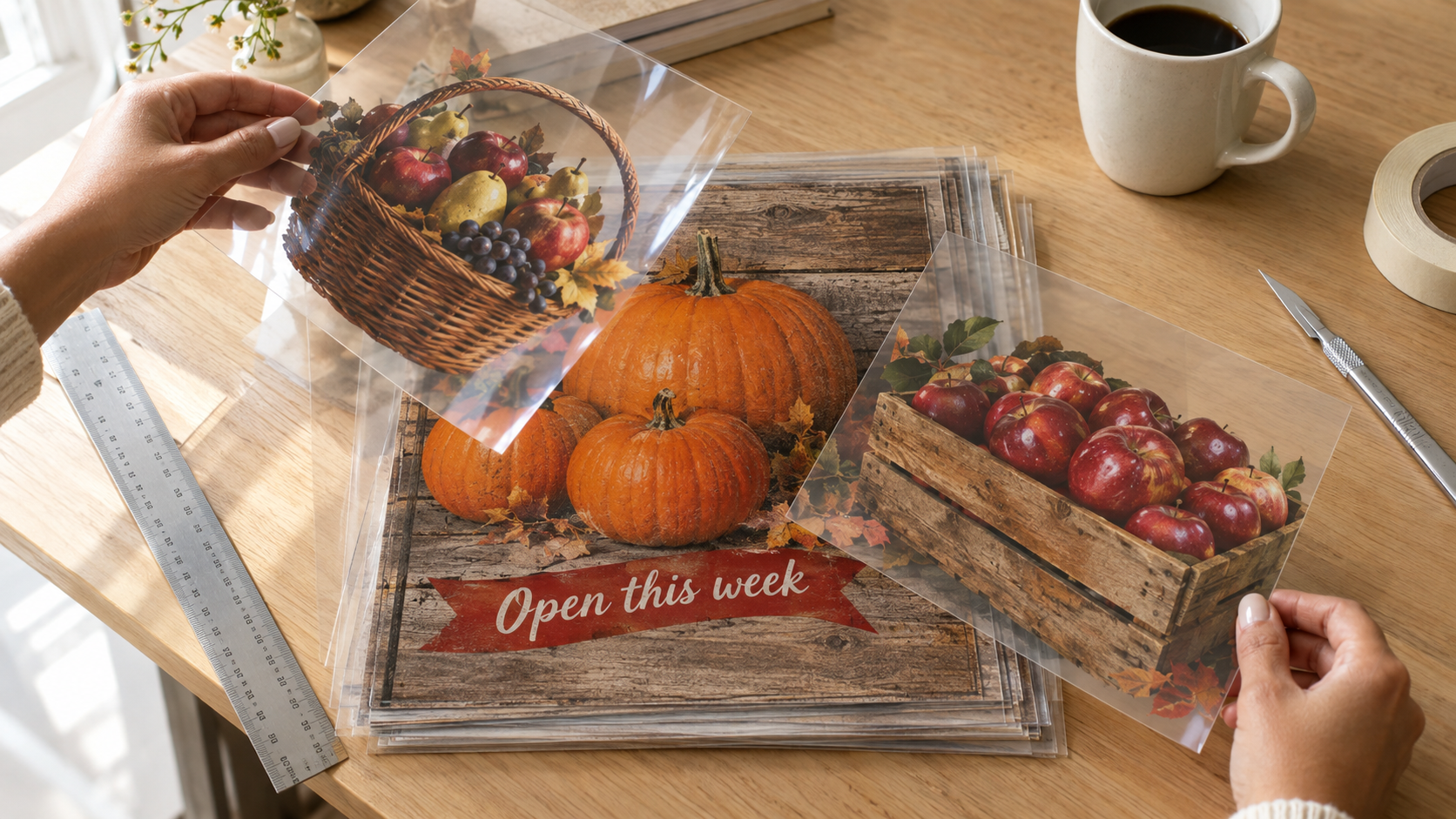
Swapping a piece is simply a combination of these: hide or delete the old layer, then generate, restyle or drop in the replacement. Nothing else on the canvas moves.
Brush, eraser and selection tools
For hands-on edits, the tool rail has the painting and selection tools you would expect from a desktop editor.
- Brush paints on the selected layer in the foreground colour, with size, hardness and a hard or feathered edge.
- Erase paints away part of a layer, and Restore paints erased pixels back.
- Magic eraser removes every pixel of the colour you click, across the whole layer.
- Heal fills in a blemish you paint over.
- Rectangular selection, ellipse selection and lasso draw an area on the canvas that stays until you clear it.
A selection opens its own toolbar. You can cut it out onto its own layer, erase the area, or describe what belongs there and generate new content into just that region. The original layer keeps every pixel when you lift a piece, and undo removes the new layer.
Gradients, blend modes and adjustments
- Gradient adds a gradient layer. Drag across the canvas to aim the ramp, switch between linear and radial, pick a one-click ramp such as black to clear, warm, cool or dusk, and add colour stops in the properties panel. With a layer selected, the ramp is clipped to that layer.
- Blend modes. Layers can use any of 16 blend modes: Normal, Darken, Multiply, Color burn, Lighten, Screen, Color dodge, Overlay, Soft light, Hard light, Difference, Exclusion, Hue, Saturation, Color and Luminosity. It is the standard set defined in the W3C Compositing and Blending specification.
- Adjustments. Brightness, contrast, saturation and hue regrade a layer, and each adjustment can be silenced for a moment or removed.
- Clipping. Clip a layer to the one below it, so a texture or colour only shows inside that shape.
Crop and export the finished design
The Crop tool works in one gesture. Drag the frame inward to trim the canvas, or outward to add empty room around the design.
When the design is done, Export gives you:
- Download PNG or Download JPG
- Save to your assets, or to your team's assets if you work in a team
Changed your mind about everything? Restore the original separation brings every layer back exactly as the separation produced it, and one undo returns your work.
From rough layout to finished poster
The Render sketch tool is for when you would rather compose than draw. Arrange rough pieces as layers, add your text, then render. Everything visible is remade as one finished image: where things sit and what the text says are kept, and rough strokes become the real thing they stand for. The render lands on top, and your sketch layers stay hidden underneath. Step 8 of the Layer Studio lesson shows the exact keys: select all, copy, merge the copies, then render.
| Rough layout, built from separate layers | Finished image from Render sketch |
|---|---|
 |
 |
Who Layer Studio is for
- Online stores that need the same product on a new background, or a cut-out product for a marketplace listing.
- Social media and marketing teams reworking one visual into several variations without going back to the designer.
- Anyone localising a design, where the only thing that changes is the headline.
- Event and small business owners fixing a poster, a menu or a flyer when all they have is the flat image.
If you still need the source image, create it first with Kubeez AI image generation, then open it in Layer Studio and take it apart.
Keyboard shortcuts
Layer Studio uses the shortcuts designers already know: undo and redo, duplicate, select all, hide and lock, bring forward and send backward, zoom to fit or to 100%, Space to pan, plus single keys for the move, text, brush, erase, gradient, crop and selection tools. The keyboard button at the bottom of the tool rail lists them all, and fullscreen mode frees up the desktop shortcuts the browser would otherwise take.
FAQ
Can I split an image into layers online without installing anything?
Yes. Layer Studio runs in the browser. Open /layer-studio on a desktop computer, choose an image and click Separate into layers.
Does Layer Studio work on mobile?
Not yet. Layer Studio is desktop only for now, and on a phone it shows a notice instead of the editor.
Which file types can I upload?
JPG, PNG and WebP, both for the image you separate and for images you add as new layers.
Can I edit the text inside an image?
Yes. Select a text layer and use Convert to editable text. It becomes a real text layer in the closest matching font, and the original artwork stays hidden underneath in case you want it back.
Will I lose my original image?
No. Lifting a piece or converting text keeps the original, restyles are stored as versions next to the original cut, and Restore the original separation puts every layer back as it was.
How do I export the result?
Use Export to download a PNG or JPG, or save it to your assets or your team's assets. You can also download any single layer on its own.
Try Layer Studio
Pick one flat image you have wanted to change for a while, a product photo, an old poster or last month's ad, and open it in Layer Studio on your desktop. Split it into layers, change the one piece that bothered you, and export the finished design.